 FAQ
FAQ
FAQ
FAQ
Étape 1. Accédez à Azure Active Directory

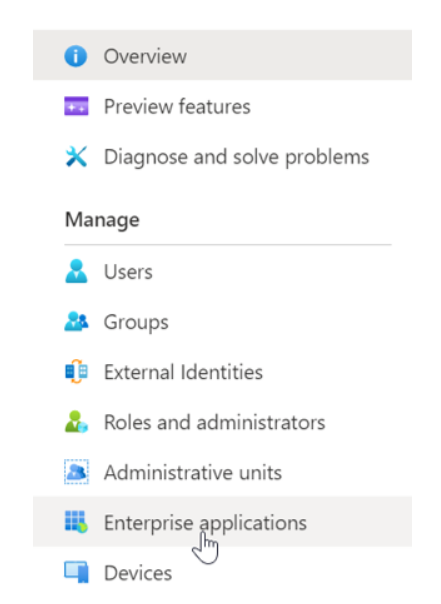
Étape 2. Sélectionnez "Applications d'entreprise"
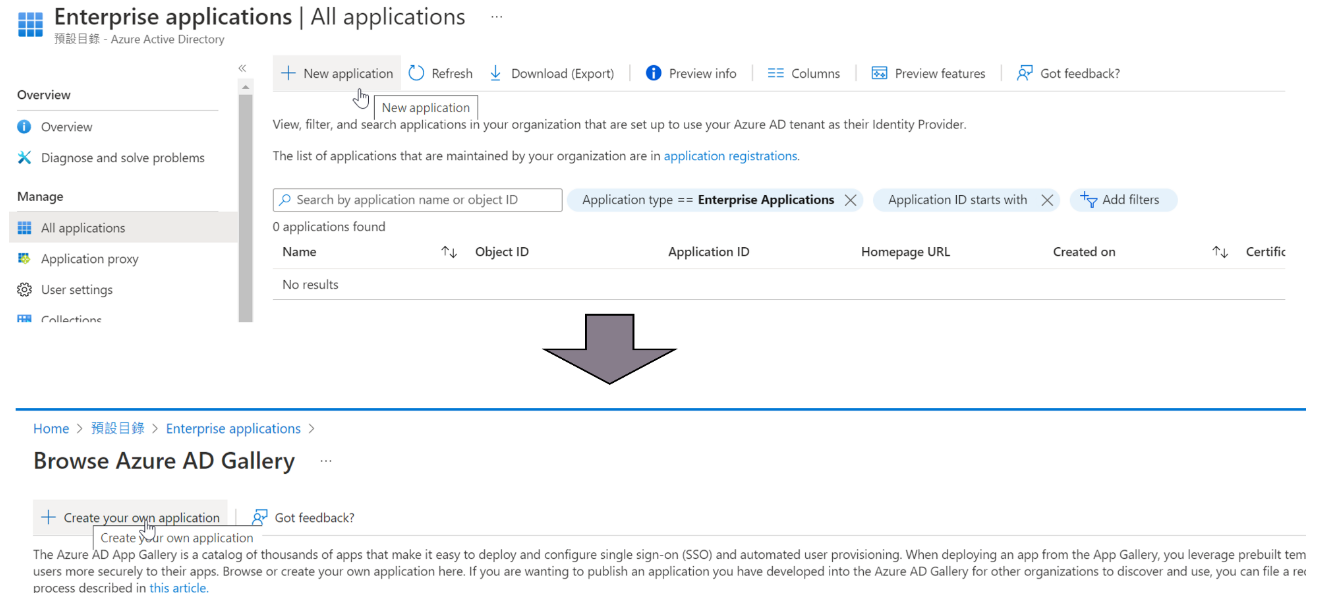
Étape 3. Créez une nouvelle application : Nouvelle application > Créer votre propre application
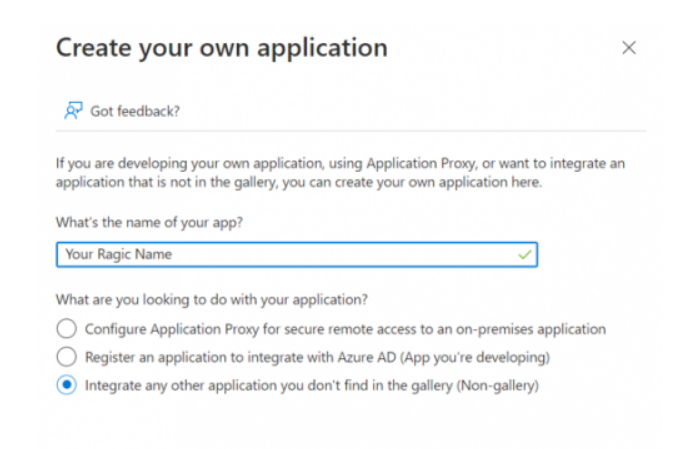
Étape 4. Configurer l'application
1. Vous pouvez personnaliser le nom de l'application.
2. Sélectionnez "Application hors galerie" comme type d'application.
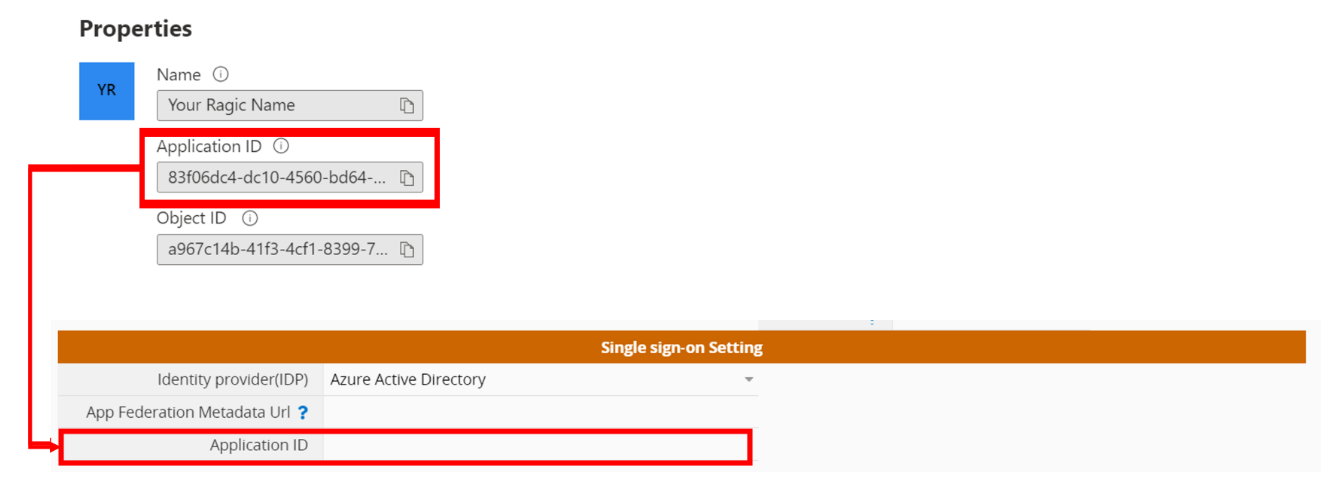
3. Après avoir créé l'application, renseignez son "ID d'application", disponible dans les propriétés de l'application, dans le champ "ID de l'application" des Paramètres de l'entreprise de Ragic.
Étape 5. Ajouter des utilisateurs à l'application
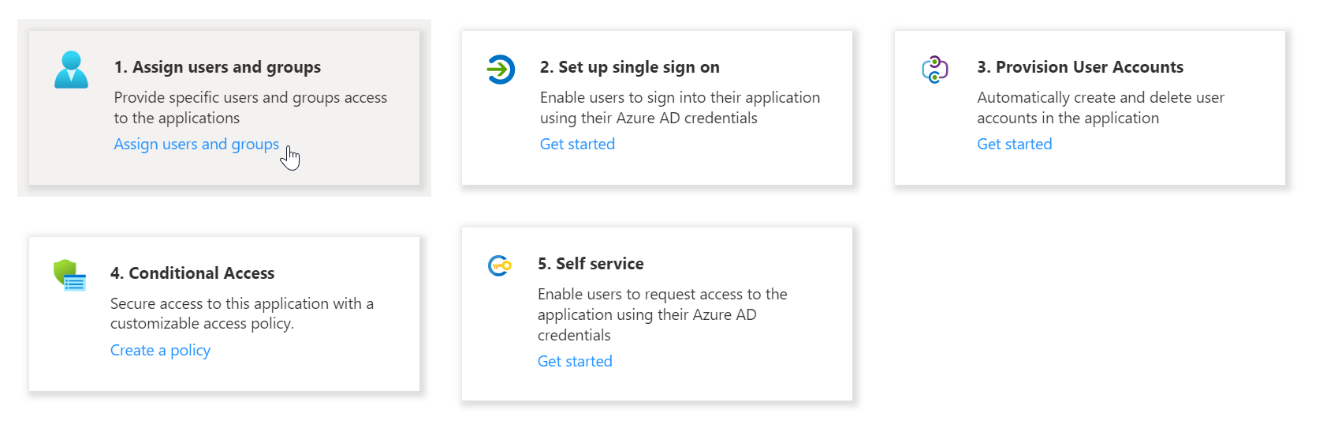
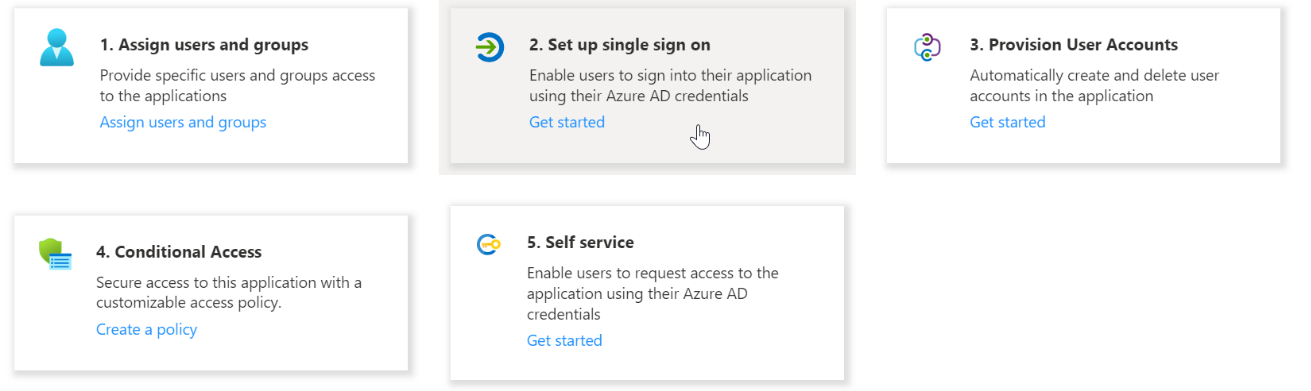
Étape 6. Configurer l'authentification unique (SSO) de l'application
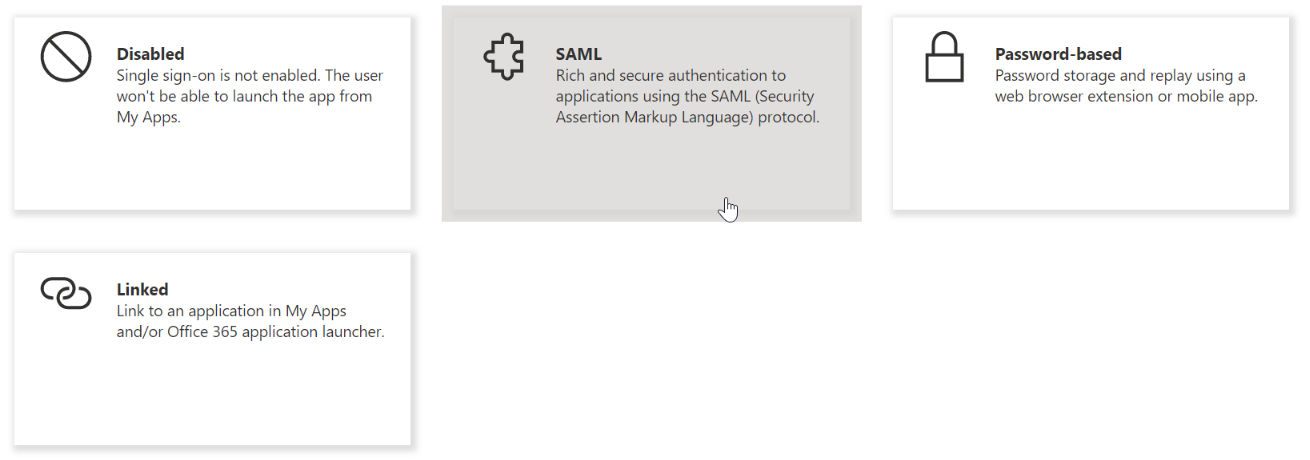
Étape 7. Sélectionnez SAML
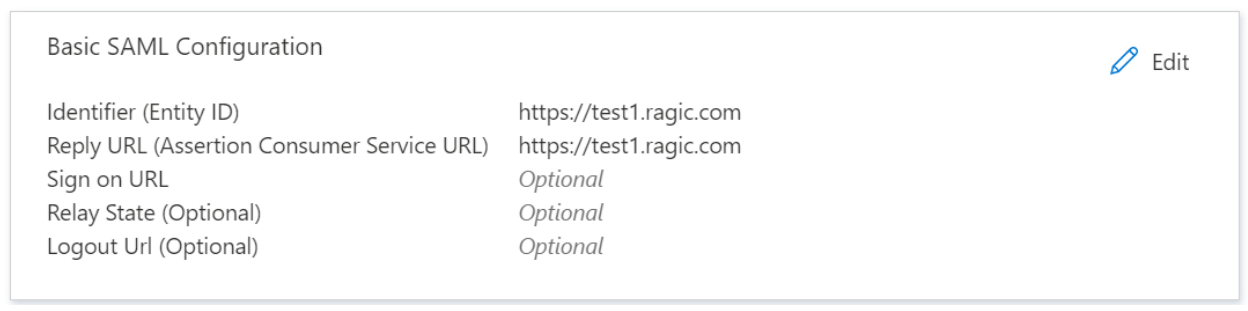
Étape 8. Configurer les paramètres
1. Dans les paramètres de base, renseignez "l'Identifiant (ID d'entité)" et "l'URL de réponse (URL du service ACS)"avec l'URL du serveur sur lequel votre instance Ragic est hébergée (par exemple : https://test1.ragic.com).
2. Dans la section "Attributs et revendications", remplacez l'identifiant utilisateur unique par l'adresse e-mail de l'utilisateur.

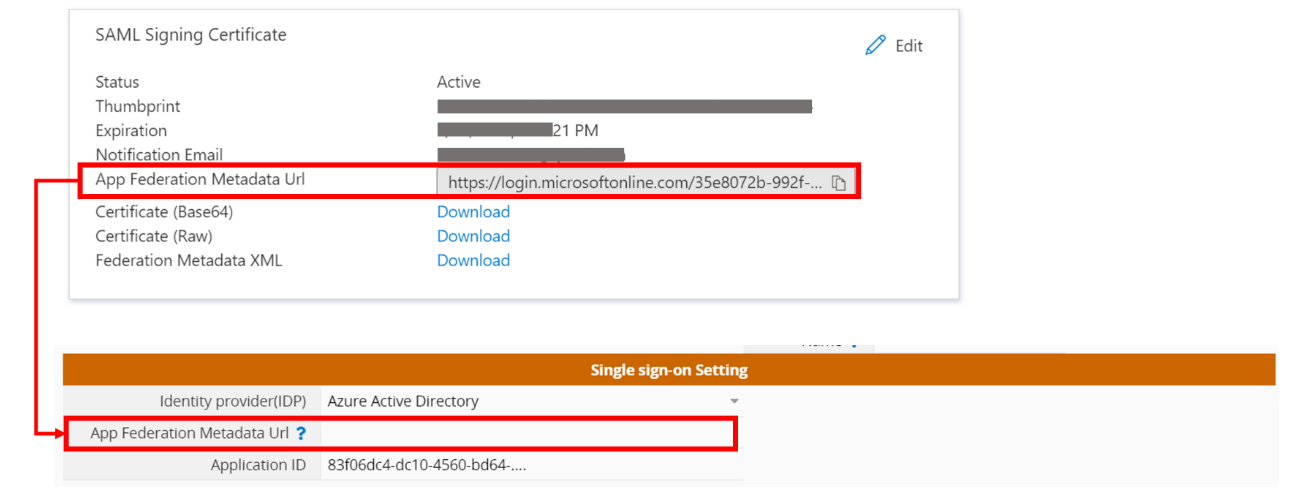
3. Copiez "l'URL des métadonnées de fédération de l'application" (App Federation Metadata URL), disponible dans la section "Certificat de signature SAML", puis renseignez-la dans les "Paramètres d'organisation" de Ragic.
 Merci pour votre précieux retour !
