 Design guide
Design guide
Design guide
Each record in Ragic has corresponding Entry Managers. Entry Managers work together with the sheet Access Rights to determine whether a user can access or edit a specific record.
Entry Managers are suitable for scenarios where record access rights need to be extended flexibly. For example, when a user belongs to a group whose sheet access right is set to Survey User, the user can only create and edit their own records. If the user also needs permission to edit records created by other users, the Assign feature can be used. Assigned users will be added as Entry Managers for the record, allowing them to access and edit the assigned record.
In Ragic, users can become Entry Managers of a record through the following methods:
1. Record Creator: The user who creates and saves the record will automatically become its Entry Manager by default.
2. Assigned Users or Groups: Through the Select User or Select Group fields in a sheet, you can enable the Set selected user/group as entry manager option. The system will grant access to the selected users or groups and add them as Entry Managers. For detailed instructions, please refer to this article.
3. Record Approvers: When an Approval Flow starts, the system will automatically add the approver of each approval step as an Entry Manager when the approval reaches that step, granting them permission to manage and edit the record.
4. Guest Users:
When a Guest User accesses a record through a link received via E-mail, the Guest User's E-mail will automatically be added as an Entry Manager for that record.
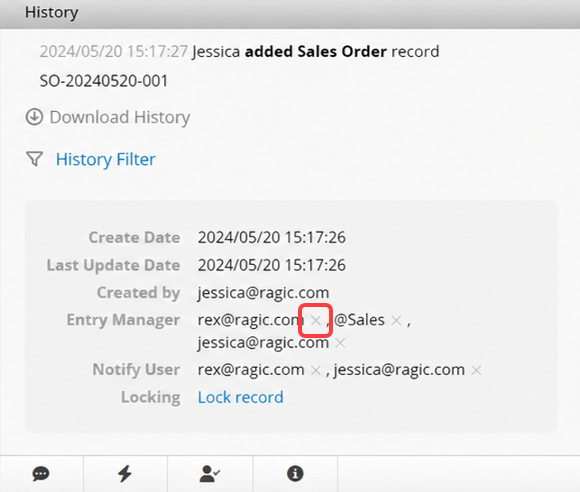
To view the Entry Managers of a record, click the i icon in the bottom right corner of the form page. In the Entry Manager list, regular users are displayed by their "E-mail" addresses, while groups are displayed as "@Group Name". If a record has multiple Entry Managers, they will be separated by commas.
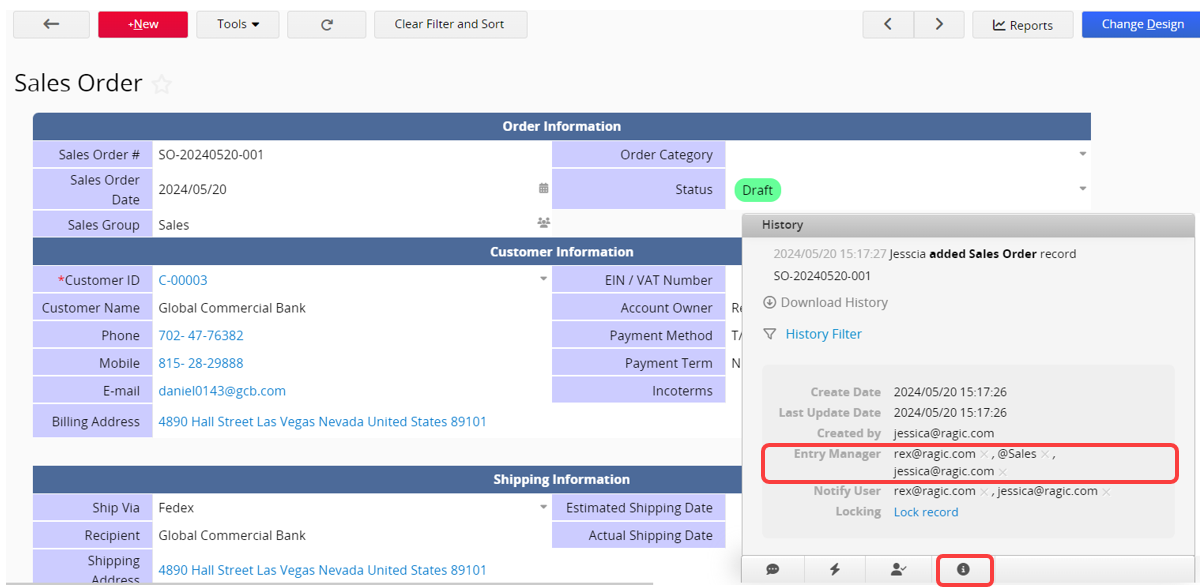
Becoming an Entry Manager of a record does not mean the user has full access rights to that record. User actions are still restricted by the sheet access rights. For example:
1. Sheet Access Rights are set to Survey User with the advanced setting No edit:
When a user becomes an Entry Manager of the record, they can only view the record and cannot edit it.
2. Sheet Access Rights are set to Viewer or No Rights:
Viewer: Even if assigned as an Entry Manager, the user can only view the record and cannot edit it.
No Rights: Even if assigned as an Entry Manager, the user cannot view the record because they do not have permission to access the sheet.
When Creating a New Sheet from a Subtable, each Subtable row is treated as an independent record on the New Sheet.
The following example explains how the Entry Manager is assigned under different conditions.
Example Scenario:
1. There is a "Project" sheet (the Parent Sheet).
2. The sheet contains a Subtable listing various project tasks.
3. A new sheet called "Task List" is generated from the Subtable (hereafter referred to as the New Sheet).
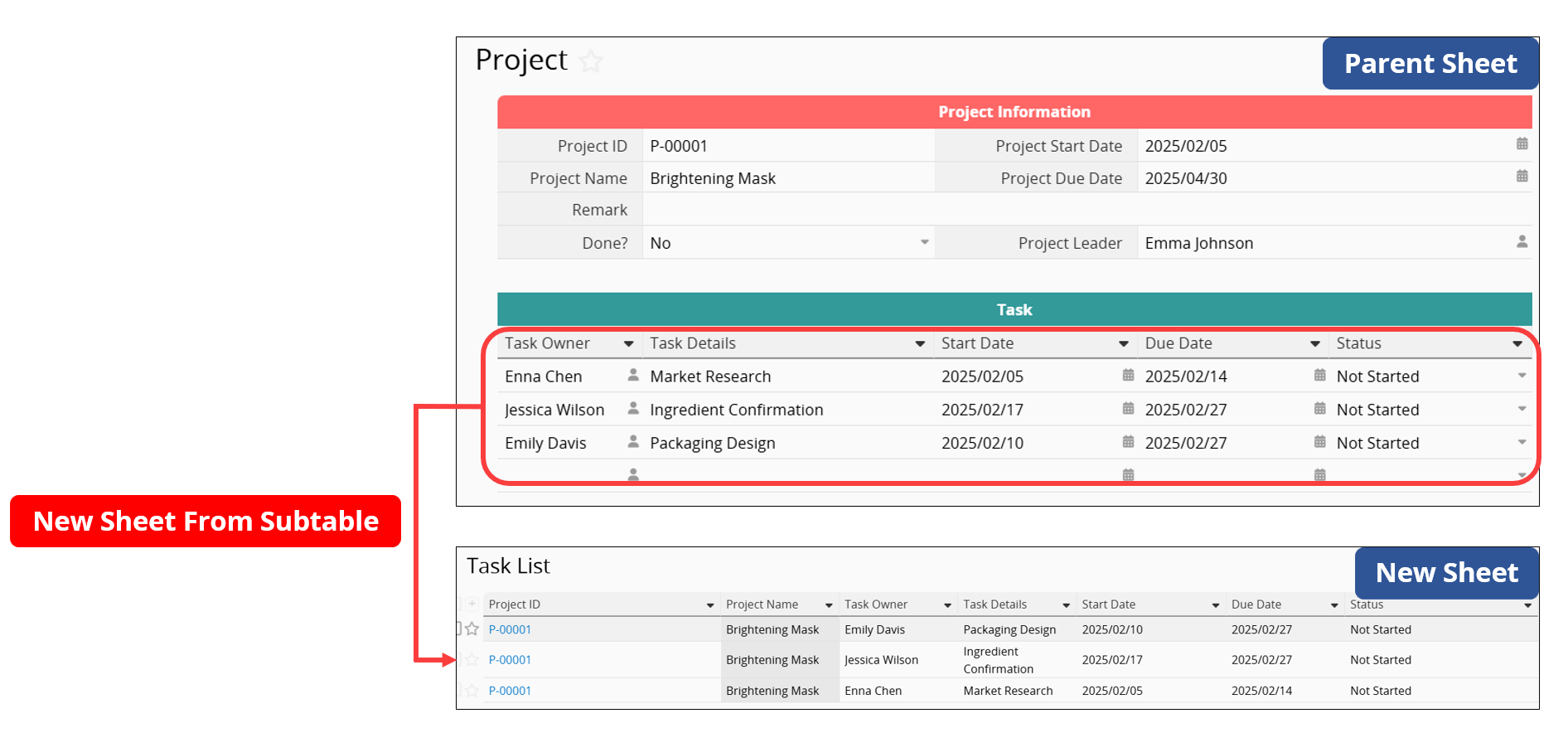
(1) When the record is created on the Parent Sheet: If a New Sheet is generated from a Subtable, the user who created the record on the Parent Sheet is automatically assigned as the Entry Manager of the corresponding record on the New Sheet, as the record is essentially created by the same user.
(2) When the record is created directly on the New Sheet: The user who creates the record becomes its Entry Manager. This does not affect the Entry Manager of the related record on the Parent Sheet.
Only assignments in independent fields grant users Entry Manager rights. Assigning a user in a Subtable field does not make them the Entry Manager of the corresponding record.
After Creating a New Sheet from a Subtable, the effect of the assignment depends on where the assigned field is located. Below are three common scenarios:
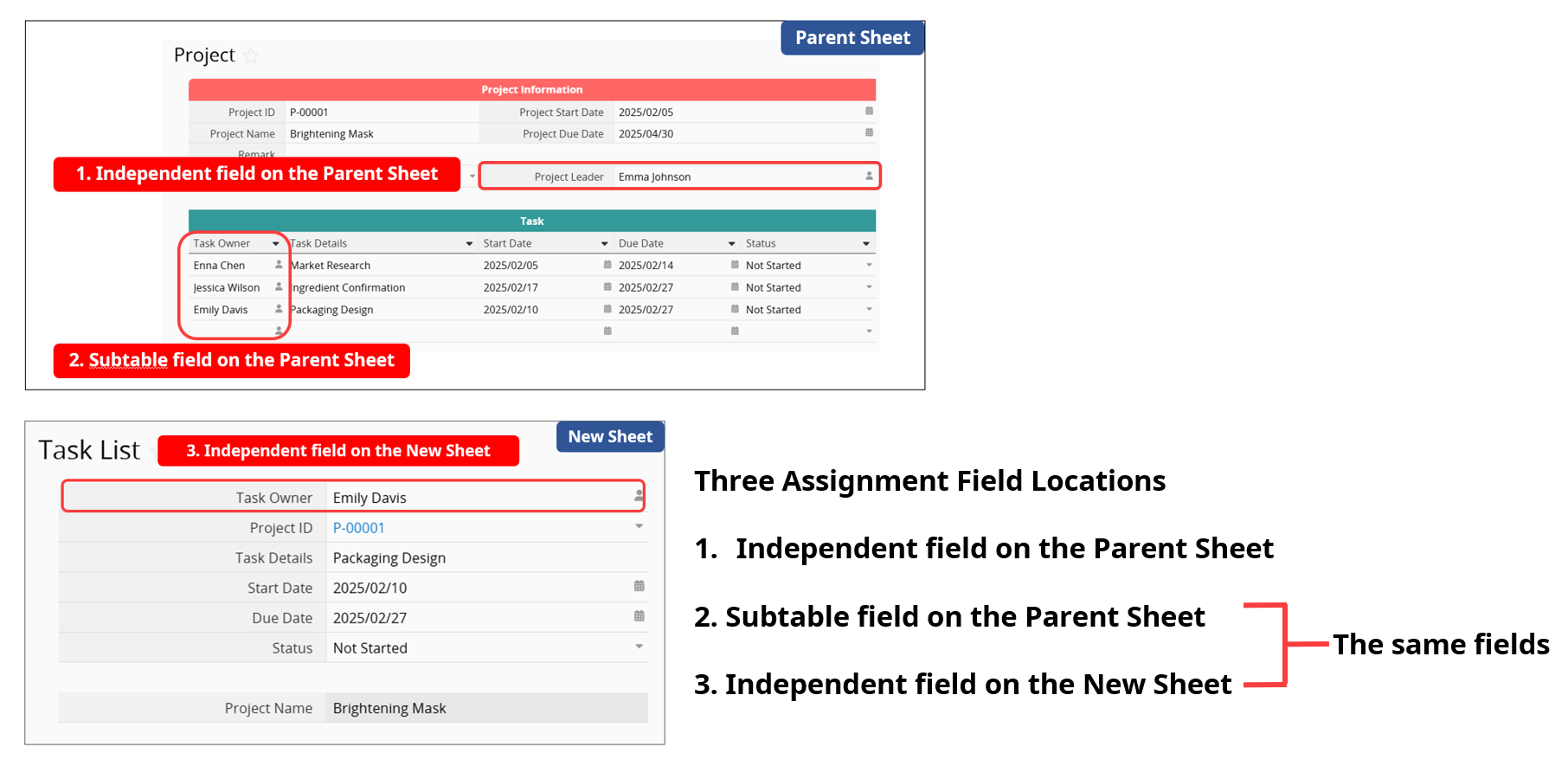
| Assignment Location | Range of New Sheet Records Assigned to Entry Manager |
|---|---|
| 1. Independent field on the Parent Sheet ("Project Leader") | All records in the New Sheet generated from the Subtable of that Parent Sheet |
| 2. Subtable field on the Parent Sheet ("Task Owner") | Only the record in the New Sheet generated from the specific Subtable row |
| 3. Independent field on the New Sheet ("Task Owner") | Only that specific New Sheet record |
Additional Notes:
(1) If you want users with access to the Parent Sheet to automatically become Entry Managers when creating records on the New Sheet, add the assignment field from the Parent Sheet ("Project Leader") to the New Sheet using Link Fields From Parent Sheets. This will ensure the assigned user from the Parent Sheet is carried over and set as the Entry Manager on the New Sheet.
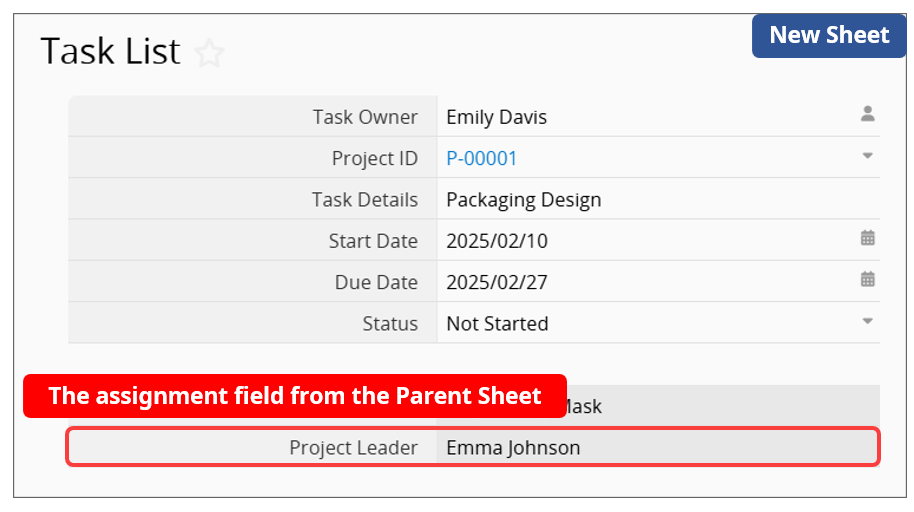
(2) For records created directly on the New Sheet, the Entry Managers will not be the user assigned on the Parent Sheet. However, if you update or reapply the assignment in the independent field ("Project Leader") on the Parent Sheet, the Entry Managers of those new records will be updated accordingly.
(1) If the approval process is started from the Parent Sheet: The approver becomes the Entry Manager of both the Parent Sheet record and its corresponding records on the new sheet.
(2) If the approval process is started from the New Sheet: The approver becomes the Entry Manager of only that record on the New Sheet.
Guest User permissions only take effect on independent fields, allowing Guest Users to become Entry Managers of the corresponding records. Using guest fields in a Subtable does not affect the Entry Managers of the corresponding records.
(1) If permissions are granted through an independent guest field in the Parent Sheet: The Guest User becomes the Entry Manager of only the Parent Sheet record.
(2) If permissions are granted through an independent guest field in the New Sheet: The Guest User becomes the Entry Manager of only the New Sheet record.
If you need to remove a user’s Entry Manager rights, you can use the following methods:
1. Clear the assignment field value: If the permission was granted through assignment, you can remove the user or group value from the assignment field in the record. After saving, the system will automatically remove the user’s or group’s Entry Manager rights.
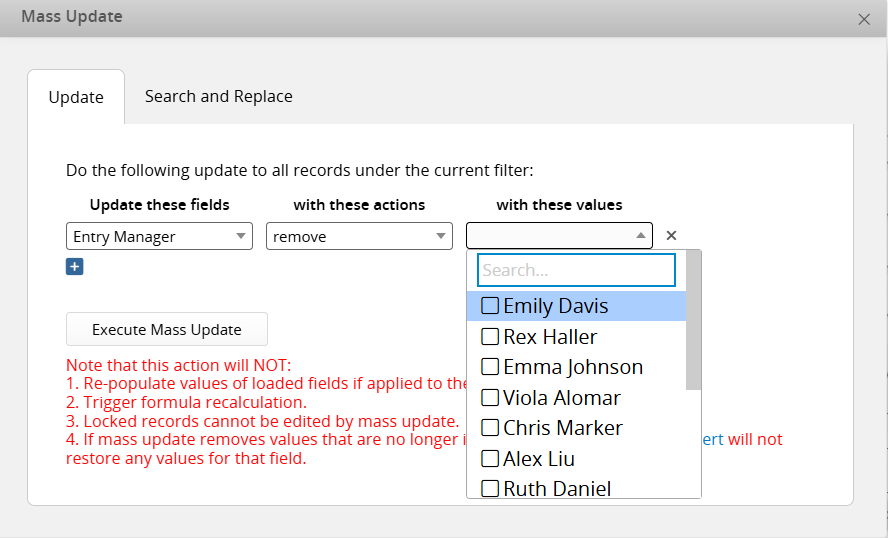
2. Remove through Mass Update: Use Mass Update to clear the assignment field value, or directly remove specific Entry Managers from multiple records at once.
3. Remove manually: In the information i window at the bottom right corner of the record, click the x next to a user or group name to remove their management rights. Unless necessary, manual removal is not recommended, as it may cause discrepancies between the actual Entry Managers and the record history.
1. In Design Mode, changing an assignment field into a User field or Group field (by disabling the Set selected user/group as entry manager option) will not affect the Entry Manager lists of existing records.
2. In Design Mode, enabling or disabling the Guest User E-mail Validation option on an independent E-mail field will not automatically update the Entry Manager lists of existing records.
1. When performing Mass Update (including modifying assignment fields, Guest User fields, or removing Entry Managers) and reverting the changes, the system will only update the Entry Managers of the Parent Sheet and will not synchronize Entry Managers in New Sheets generated through Create a New Sheet from Subtable.
2. After performing a Mass Update on Guest User fields, reverting the changes will not remove Guest Users who have already been added as Entry Managers.
1. If an Approval Flow for a record is canceled, users added as Entry Managers through the approval flow will not be automatically removed.
2. When manually removing the value of an independent guest field, Guest Users who have already been added as Entry Managers will not be removed from the Entry Manager list.
 Thank you for your valuable feedback!
