 Design guide
Design guide
Design guide
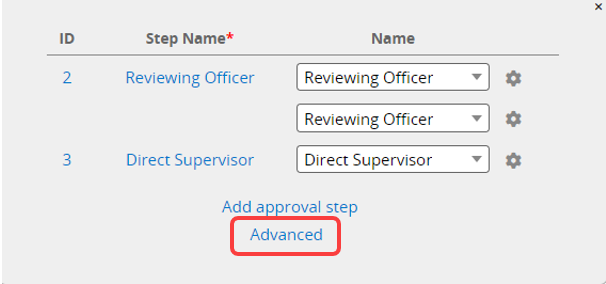
Click Advanced below to view and configure additional settings for your approval workflow.
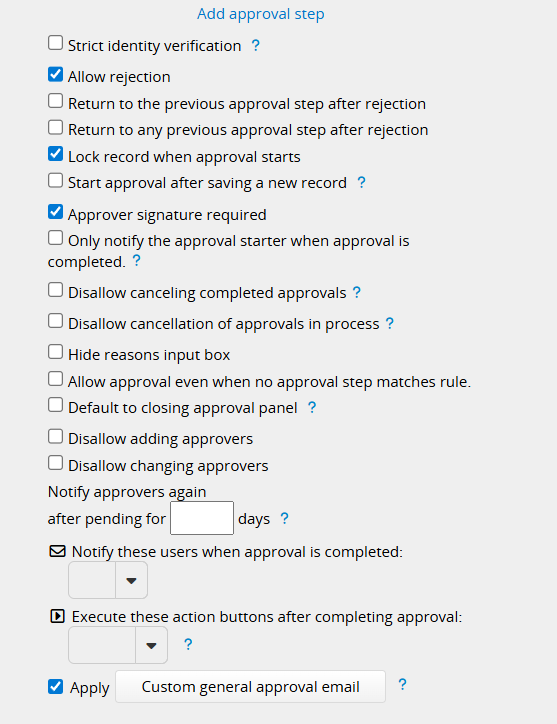
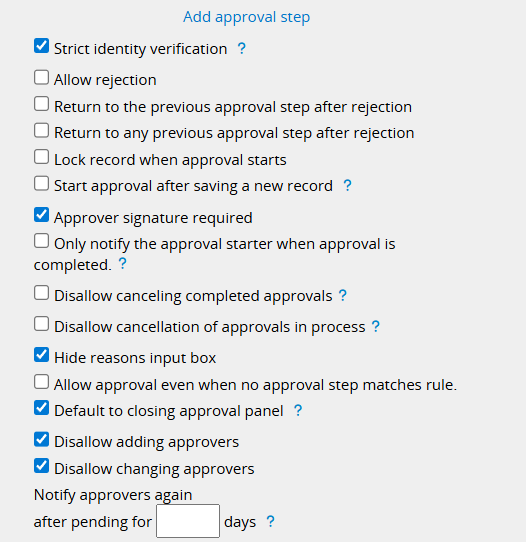
Requires approvers to enter their login password during approval to verify user identity and ensure the authenticity of electronic records.
Note: If you log in to Ragic with your Google account, follow this method to set a password and use it to approve records.
Approvers will be required to provide a signature when approving. Once checked, users cannot Subsequent Step Approval.
The field for the approver to enter the reason will not be displayed. Once checked, the Subsequent Step Approval will be automatically enabled and cannot be disabled.
When checked, the approval panel will be closed by default when opening a sheet, so it doesn’t block content. When unchecked, the panel will remember your last open/close state in this browser.
When enabled, adding approvers is not allowed in this approval process.
When enabled, changing approvers is not allowed in this approval process.
Only one of the following three options can be selected.
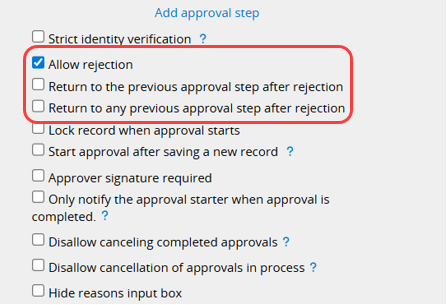
When enabled, the option to reject the approval is available to approvers, and rejecting the request will cancel the entire approval process.
Whether to allow rolling back to the previous step after rejection. When disabled, rejecting the request will cancel the entire approval process.
Whether to allow rolling back to a specified step after rejection. When disabled, rejecting the request will cancel the entire approval process.
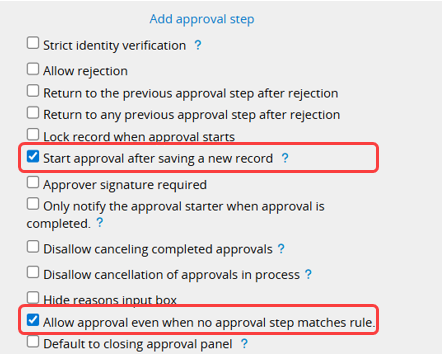
The approval process will only start if one record meets all the following criteria:
1. No manual selection of approvers is required in any approval step.
2. At least one approval step matches the approval rules.
3. Created by internal users.
Allow approval to start when no approval steps meet their respective rules, and enable users to decide whether to complete it.
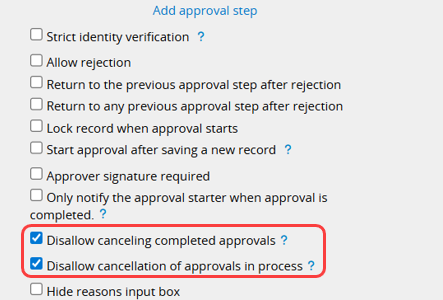
If this setting is not enabled, only the SYSAdmin, Group Administrator (who manages the group tab associated with the sheet), and users with Feature Access to cancel approvals can cancel a completed approval by default. Once enabled, the "Cancel approval" option will no longer be available after the approval is completed. The system will execute the action button using the authority of the final approver, so ensure that the user who approves the final step has access to execute this action button for it to run automatically.
By default, only the approval starter, SYSAdmins, Group Administrator (who manages the group tab associated with the sheet), and users with Feature Access can cancel the ongoing approval process. If you want to disallow the approval starter from canceling the ongoing approval, please enable this setting.
Note: Enabling this setting overrides all access rights settings, including Feature Access Settings. The approval starter cannot cancel the approval in this sheet, whether they are SYSadmins or part of a group with "Cancel Approval" permission.
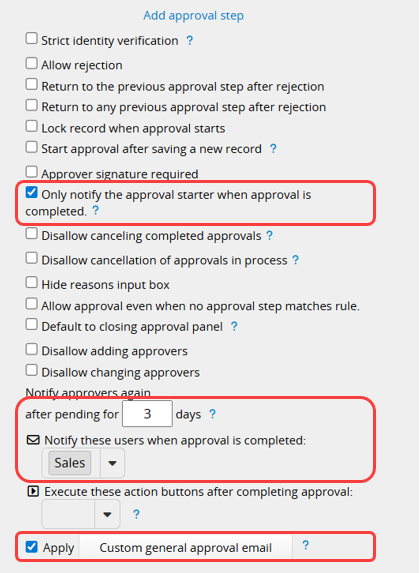
This setting does not affect the users selected in Notify these users when approval is completed. Those users will still be notified.
When no approvers have completed an approval step in a specified number of days, the system will automatically notify all approvers in this step again.
You can notify any user, user group, or Select User field.
Note: Notification recipients set here will be added as record managers, like approvers, so they can view the record and receive notifications. They'll still receive notification emails even if their own settings are turned off, so make sure they've agreed before adding them.
Please refer to this section.
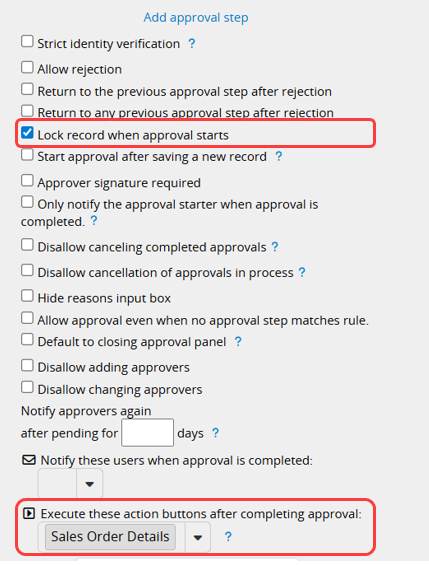
The record will be locked once the approval process starts to prevent users from modifying it.
The supported action buttons are as follows:
1. Custom Action Buttons (excluding Convert Records: Generate Draft and Mail Merge)
2. Lock Record
3. Unlock Record
4. Apply all formulas to this record
5. Link & Load Sync
Note:
(1) Regardless of whether the last approver has the rights to execute the Action Button or create records in the target sheet (e.g., converting a record to the target sheet) after executing the Action Button (e.g., if their rights are "Viewer" or "No Rights", which do not include record creation permissions), the system will always execute the Action Button under the last approver's identity.
(2) When this setting is enabled, the "Cancel Approval" button will be hidden for approved records, preventing cancellation after the approval process is complete. Disabling this setting will make the "Cancel Approval" button visible again. However, if you need to cancel the approval of already processed records, it's recommended to manually reverse the affected data and actions to avoid data errors.
After configuring the Advanced settings, don’t forget to click Save.
 Thank you for your valuable feedback!
