 Design guide
Formulas for obtaining data related to Subtable fields, such as returning a specified row of a Subtable, retrieving the number of unique or non-empty Subtable rows, etc.
Below is the list of the supported formulas. Please note that the following formulas are case-sensitive.
| Formula | Description |
|---|---|
| FIRST(value) | Returns the first data point of the column in your Subtable. For details, click here. |
| FIRSTA(value) | Returns the first non-empty data point of the column in your Subtable. For details, click here. |
| LAST(value) | Returns the last data point of the column in your Subtable. For details, click here. |
| LASTA(value) | Returns the last non-empty data point of the column in your Subtable. For details, click here. |
| SUBTABLEROW(value,nth_row) | Returns the data from a specified row of the column in your Subtable. This can only be set in independent fields. For details, click here. |
| COUNTA(value) | Counts the number of Subtable rows where the specified field is not empty. The formula will count if the specified field is not empty, even if other fields in the row are empty. It does not require the entire row to be non-empty. For details, click here. |
| RUNNINGBALANCE(value, [allow_backend_formula_recalculation=false]) | Returns the sum of the values in this and previous rows of the specified field in your Subtable. If set to true, it allows backend formula recalculation for this formula. To use this formula, Subtable records must be created in sequential order. For details, click here. |
| LARGE(arg, nth, [arg2]) | Returns the value of a specified Subtable field based on its ordinal position, or the value of another field in the same row. For details, click here. |
| UNIQUE(value,[separator]) | Lists the unique values of the referenced Subtable field. For details, click here. |
| UNIQUE(value).length | Calculates the number of unique values of the referenced Subtable field. For details, click here. |
| VLOOKUP(value, queryField, returnField, [approximateMatch=true], [findMultiple=false]) | Returns the values in the Subtable that meet the specified conditions. For details, click here. |
Ragic formulas reference Field Headers directly, which makes formulas easier to apply, especially in Subtables, where complex formulas are unnecessary.
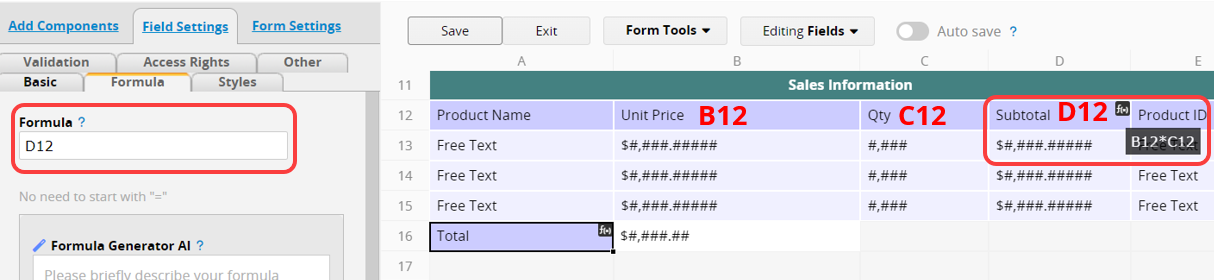
Here's an example of calculations in the "Sales Order" sheet:
In the Subtable, the Unit Price (B12) and Quantity (C12) of each item are listed.
Multiplying these values provides the Total Amount (D12=B12*C12) owed for each item.
Then, the subtotal in the Total field (A17) is the sum of the Total Amount (D12) in the Subtable.
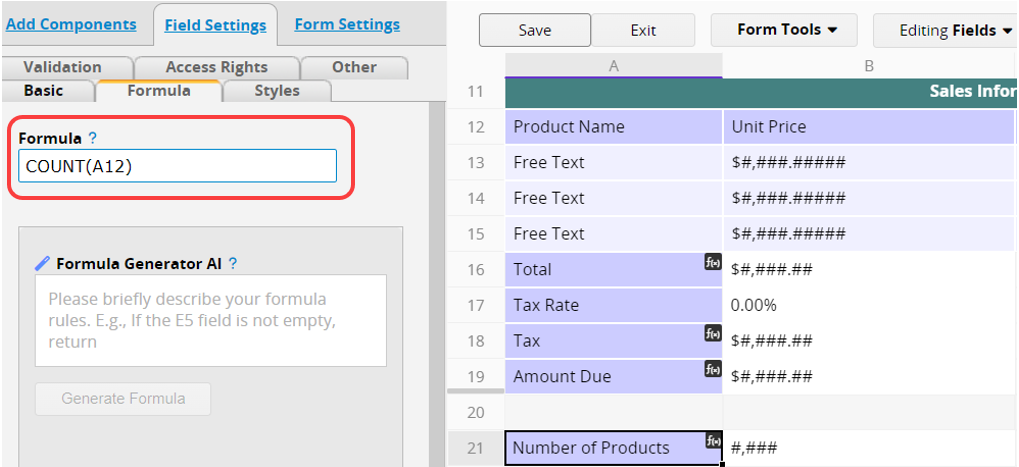
Formulas can also work on the Subtables themselves. For instance, if you need to count how many rows there are in a Subtable, you can simply create a separate field in your sheet that uses the COUNT() formula.
For details and applications of Subtable formulas, refer to the next section. For conditional formula applications in Subtables, refer to this section.
Use the following formulas to return a specific field value from a Subtable row. Refer to the table below.
| Formula | Application | Example |
|---|---|---|
| FIRST(value) | Returns the first record, used to retrieve the top or earliest data. Applicable to both independent and Subtable fields. | FIRST(A11) |
| FIRSTA(value) | Returns the first non-empty record, ignoring empty rows. Applicable to both independent and Subtable fields. | FIRSTA(A11) |
| LAST(value) | Returns the last record, used to retrieve the bottom or most recent data. Applicable to both independent and Subtable fields. | LAST(A11) |
| LASTA(value) | Returns the last non-empty record, ignoring empty rows. Applicable to both independent and Subtable fields. | LASTA(A11) |
| SUBTABLEROW(value, nth_row) | Returns data from a specified row, used to retrieve a middle or specific row. Applicable only to independent fields. | SUBTABLEROW(A11, 3) |

Counts the number of Subtable rows where the specified field is not empty, regardless of whether the content is text, numbers, or formula results. Empty fields are excluded. Commonly used for statistics, data validation, or report analysis.
Note: The formula will count if the specified field is not empty, even if other fields in the row are empty. It does not require the entire row to be non-empty.
Example:
In a Subtable with a File Upload field, each row may include attached files, while empty fields indicate no uploads. Applying COUNTA("File Upload") in the File Count field quickly calculates how many Subtable rows contain uploaded files.

Returns the sum of the current and previous row values in a Subtable column, commonly used for amounts, quantities, or other fields requiring cumulative totals.
| Formula | Syntax |
|---|---|
| RUNNINGBALANCE | RUNNINGBALANCE(value, [allow_backend_formula_recalculation=false]) |
Arguments:
value (required): The field to be accumulated.
allow_backend_formula_recalculation (optional): Defaults to false. When set to true, the formula allows backend recalculation.
Note: Subtable records must be created in sequential order.
Example: Calculating the running total
In the "Running Total" field of a Subtable, apply the formula: RUNNINGBALANCE("Daily Transaction Amount", true).
This formula adds each day's transaction in sequence, displaying the cumulative total row by row, and allows automatic backend recalculation.

Returns the value of a specified Subtable field based on its ordinal position, or the value of another field in the same row. Commonly used for statistical analysis, ranking, or performance evaluation. Duplicate values are ranked sequentially rather than treated as equal.
| Formula | Syntax |
|---|---|
| LARGE | LARGE(arg, nth, [arg2]) |
Arguments:
arg (required): The numeric field to query.
nth (required): The ordinal position to return (for example, 1 for the largest value, 2 for the second largest).
arg2 (optional): The field in the same row whose value is returned.
Example: Finding top performers and their quarterly sales
In a Subtable recording each salesperson's quarterly performance with "Salesperson Name" and "Quarterly Sales" fields:
To find the highest quarterly sales, apply the formula LARGE("Quarterly Sales", 1). This returns the highest sales amount for the quarter.

To find the name of the top-performing salesperson, apply LARGE("Quarterly Sales", 1, "Salesperson Name"). The system returns the name of the salesperson with the highest quarterly sales.
To find the second-highest performer, use LARGE("Quarterly Sales", 2, "Salesperson Name").

To return the smallest value in the Subtable, combine it with the COUNT() function.
For example: LARGE("Quarterly Sales", COUNT("Quarterly Sales"), "Salesperson Name")
This formula returns the smallest value in the "Quarterly Sales" field and the corresponding "Salesperson Name".

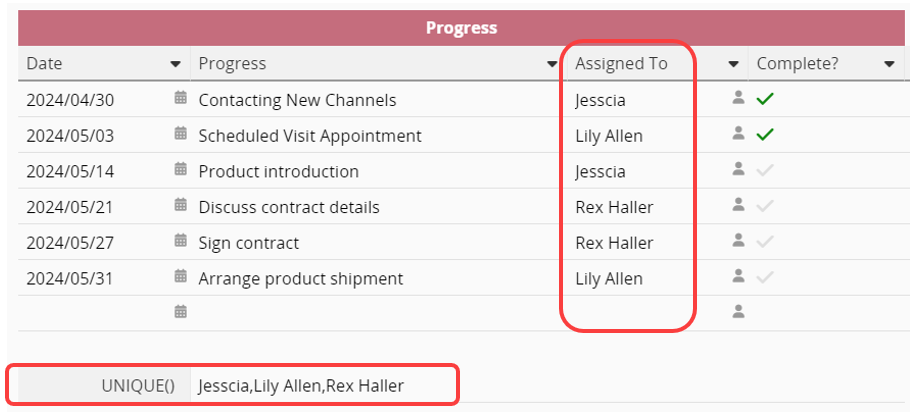
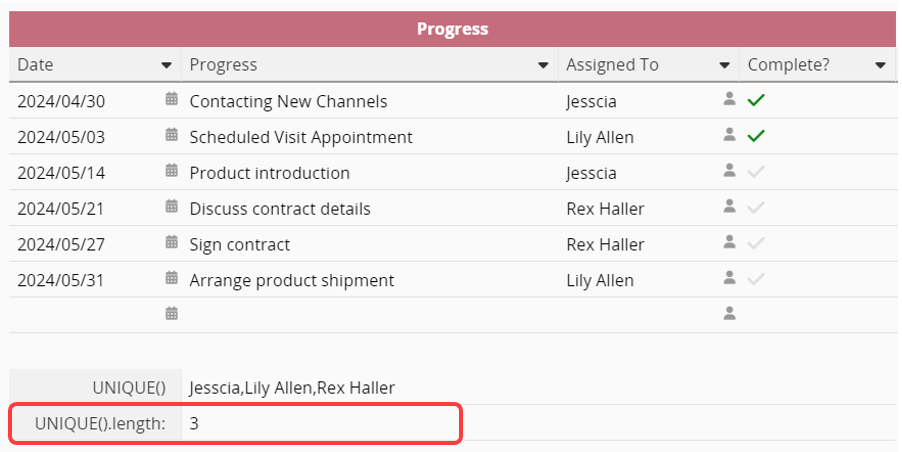
You can use UNIQUE() and UNIQUE().length to find or calculate the number of unique values in a Subtable.
UNIQUE(): Lists the unique values of the referenced Subtable field. If you don't modify the separator in your formula, Subtable values will default to using "," as the separator, resulting in the image below.
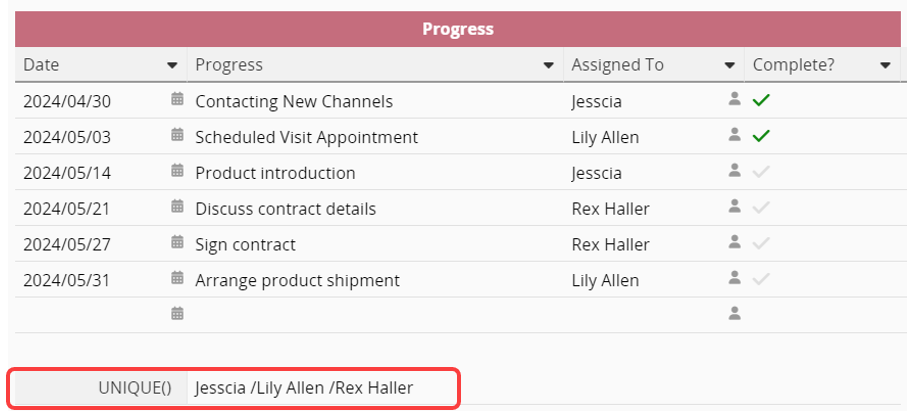
If you would like to configure your separator, you should modify your formula to UNIQUE(field,"separator"). For example, you can use UNIQUE(A1,"/"), UNIQUE(A1," "), or UNIQUE(A1,", "). The result would be "Angie/Rex/Lillian", "Angie Rex Lillian", or "Angie, Rex, Lillian" respectively.
UNIQUE().length: Calculates the number of unique values of the referenced Subtable field.
For example:
The VLOOKUP function returns the field value of Subtable rows if a specified condition evaluates to TRUE.
| Formula | Syntax |
|---|---|
| VLOOKUP | VLOOKUP(value, queryField, returnField, [approximateMatch=true], [findMultiple=false]) |
Arguments:
value (required): The value you want to look up. Can be a number, expression, reference to another field, or a text string.
queryField (required): The Subtable field where the lookup value is located.
returnField (required): The Subtable field that contains the return value.
[approximateMatch=true] (optional): The approximateMatch argument specifies whether you want VLOOKUP to find an approximate or an exact match. The default value is true (approximate match). Set it to false if you would like to find an exact match.
[findMultiple=false] (optional): The findMultiple argument determines whether returnField returns multiple values. The default value is false. If multiple rows may match the criteria, set it to true.
Example:
If you want to find the teacher of a specific class in the Subtable below:
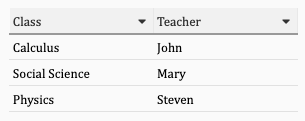
You may create a new Free Text field for the user to input the query class. Then, create another Free Text field and apply the VLOOKUP(A9, A4, B4, false, false) or VLOOKUP(A9, A4, B4) formula. It will return the teacher's name according to the class entered.
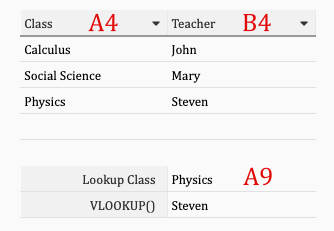
To return multiple values that meet the criteria and perform an approximate match, you can apply VLOOKUP(A9, A4, B4, true, true).
 Thank you for your valuable feedback!