 Design guide
Formulas for obtaining date and time-related data, such as returning the year, month, day, time, or specific workdays.
Below is the list of the supported formulas. Please note that the following formulas are case-sensitive.
| Formula | Description |
|---|---|
| TODAY() | Returns the current date. In case of automatic daily recalculation, please replace TODAY() with TODAYTZ(). |
| TODAYTZ() | Returns the current date according to Company Local Time Zone in your Account Settings. |
| NOW() | Returns the current date and time. |
| NOWTZ() | Returns the current date and time according to the Company Local Time Zone in your Account Settings. |
| EDATE(start_date, months) | Returns the serial number that represents the date that is the indicated number of months before or after a specified date (the start_date). For details, click here. |
| EOMONTH(start_date, months) | Returns the serial number for the last day of the month, which is a specified number of months before or after start_date. For details, click here. |
| YEAR() | Returns the year value of a date field. |
| MONTH() | Returns the month value of a date field. |
| DAY() | Returns the day value of a date field. |
| DATE(year,month,day) | Combines values in referenced numeric fields into a date. Please use four-digit years to prevent confusion. |
| WEEKDAY() | Returns the day of the week, using numbers 1 (Sunday) through 7 (Saturday). |
| WORKDAY(start_date,days,["holidays"], ["makeup_workdays"]) | Returns a number that represents a date that is the indicated number of working days before or after a given date. For details, click here. |
| WORKDAY.INTL(start_date,days,[weekend_no],["holidays"], ["makeup_workdays"]) | Returns the serial number of the date before or after a specified number of workdays with custom weekend parameters. For details, click here. |
| NETWORKDAYS(start_date,end_date,["holidays"], ["makeup_workdays"]) | Returns the number of whole working days between a start_date and an end_date. For details, click here. |
| NETWORKDAYS.INTL(start_date,end_date,[weekend_no],["holidays"], ["makeup_workdays"]) | Returns the number of whole workdays between two dates using parameters to indicate which and how many days are weekend days. For details, click here. |
| ISOWEEKNUM(date) | Returns the ISO week number of the year for a given date. Every week begins on Monday. |
| WEEKNUM(date,[return_type]) | Returns the week number of a specific date in that year; you can define which day the week begins. For details, click here. |
| DATEVALUE(date_text, date_format) | Applied on date (time) fields where you can convert a referenced date of a free text field to a date (time) value. For this formula, "date_text" is the date in a free text field that you will be referencing, and "date_format" is the format of the referenced field with the date. For example, if A1 is a free text field with the value "2019/02/01" and you would like to convert it to a value on the date field, you can use the formula DATEVALUE(A1,"yyyy/MM/dd") on the date field to obtain the converted result. |
| HOUR() | There are three ways to use this formula:
1. Setting the parameter as a numerical value between 0-1 will return the number of hours as a proportion of 24 hours defined by the parameter. For example: HOUR(0.5)=12. 2. Setting the parameter as a date field will return the field's hour value. For example, if field A9's value is 2020/10/30 18:30:19, HOUR(A9)=18. 3. Setting the parameter as a date will return the hour value. For example, HOUR("2020/10/13 17:35:22")=17. |
| MINUTE() | There are three ways to use this formula:
1. Setting the parameter as a numerical value between 0-1 will return the number of minutes as a proportion of 60 minutes defined by the parameter. For example: MINUTE(0.5)=30. 2. Setting the parameter as a date field will return the field's minute value. For example, if field A9's value is 2020/10/30 18:50:19, MINUTE(A9)=50. 3. Setting the parameter as a date will return the minute value. For example, MINUTE("2020/10/13 17:35:22")=35. |
| SECOND() | There are three ways to use this formula:
1. Setting the parameter as a numerical value between 0-1 will return the number of seconds as a proportion of 60 seconds defined by the parameter. For example: SECOND(0.5)=30. 2. Setting the parameter as a date field will return the field's second value. For example, if field A9's value is 2020/10/30 18:50:19, SECOND(A9)=19. 3. Setting the parameter as a date will return the second value. For example, SECOND("2020/10/13 17:35:22")=22. |
| TIME(hour, minute, second) | The decimal number returned by TIME is a value ranging from 0 (zero) to 0.99988426, representing the times from 0:00:00 (12:00:00 AM) to 23:59:59 (11:59:59 PM).
Hour: A number from 0 (zero) to 32767 representing the hour. Any value greater than 23 will be divided by 24 and the remainder will be treated as the hour value. For example, TIME(27,0,0) = TIME(3,0,0) = 0.125 or 3:00 AM. Minute: A number from 0 to 32767 representing the minute. Any value greater than 59 will be converted to hours and minutes. For example, TIME(0,750,0) = TIME(12,30,0) = 0.520833 or 12:30 PM. Second: A number from 0 to 32767 represents the second. Any value greater than 59 will be converted to hours, minutes, and seconds. For example, TIME(0,0,2000) = TIME(0,33,20) = 0.023148 or 12:33:20 AM. |
A formula referencing Date fields can calculate dates N number of days in the future or past.
For example, if A1 is a Date field, then A1+7 will be the date for 7 days after A1.
Another common use is calculating age: if B1 is a birthday, you can set the formula to "(TODAY() - B1)/365.25" to represent the current age.
Check the list of supported formulas for detailed information about formulas that work with dates.
To calculate time differences within a day, you need a Date field (HH:mm format) or a Numeric field for calculations.
For example, if A1 is the start time (HH:mm) and A2 is the end time (HH:mm), there are two ways to calculate the duration from time A1 to time A2 based on the total number of hours:
1. Use a Date field A3 with formatting (HH:mm) by setting up the formula "A2-A1".
2. Use a Numeric field A3 with formatting (0.0) by setting up the formula "(A2-A1)/60".
Note:
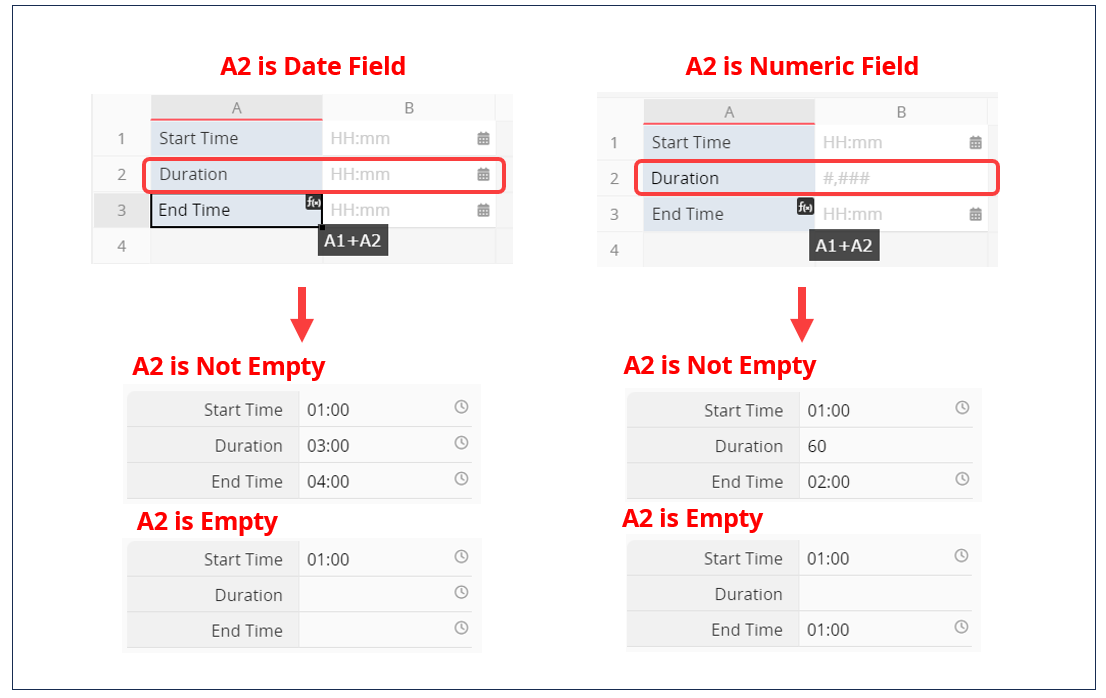
(1) The Date fields referenced in the formula cannot be empty; otherwise, the formula will not trigger (a time value cannot be calculated by adding or subtracting an empty value). If fields might be empty, it is recommended to change the field type to a Numeric field to ensure the formula triggers successfully.
Example:
A1 is the "Start Time" (HH:mm), and A2 is the "Duration" (HH:mm). To calculate the A3 "End Time" (HH:mm) using the formula "A2 + A1", if A2 might be empty, the formula for A3 will not trigger, resulting in an empty value for A3. However, if you change A2 to a Numeric field (representing the duration in minutes), A3 will still display its content even if A2 is empty.
(2) If your start and end times span different dates, you will need to use a Date field formatted to include both time and date elements.
For example, if A1 is the start date and time (yyyy/MM/dd HH:mm) and A2 is the end date and time (yyyy/MM/dd HH:mm), you will require a Numeric field for A3 formatted as (0.0) and apply the formula "(A2-A1)*24".
Returns a number that represents a date that is the indicated number of working days before or after a date (the starting date). The WORKDAY function takes a date and returns the nearest working day in the future or past, based on an offset value you provide. Working days exclude weekends and, optionally, any dates specified as holidays, but include specified makeup workdays.
Use WORKDAY to calculate invoice due dates, expected delivery times, total days of work performed, or whenever you need to consider working and non-working days.
| Formula | Syntax |
|---|---|
| WORKDAY | WORKDAY(start_date,days,["holidays"], ["makeup_workdays"]) |
Arguments:
Start_date (required): A date that represents the start date.
Days (required): The number of non-weekend and non-holiday days before or after start_date. A positive value for days yields a future date; a negative value yields a past date.
Holidays (optional): An optional list of one or more dates to exclude from the working calendar, such as government and floating holidays. The list should be an array constant of serial numbers representing dates.
Makeup_workdays (optional): An optional list of one or more dates to include in the working calendar, such as a make-up workday on Saturday. The list should be an array constant of serial numbers representing dates.
Example 1:
Apply the formula "WORKDAY(A1,A2,["2017/06/16","2017/06/19"])" to a date field.
When A1 contains "2017/06/15", A2 contains "9", and "2017/06/16" and "2017/06/19" are specified as holidays, the formula calculates the 9th workday after the start date. After excluding weekends and the two holidays, the result is 2017/06/30.
Example 2:
Apply the formula "WORKDAY(A1,A2,["2017/06/16","2017/06/19"],["2017/06/24"])" to a date field.
When A1 contains "2017/06/15", A2 contains "9", "2017/06/16" and "2017/06/19" are specified as holidays, and "2017/06/24 (Sat)" is designated as a workday, the formula calculates the 9th workday after the start date. It excludes weekends and the two holidays but counts the designated workday. The result is 2017/06/29.
Note: When using the holidays or makeup_workdays arguments, to avoid setting them individually for each sheet, you can define an array Global Constant for consistent dates across the database and use it in the formula. For more details, please refer to this section.
Returns the serial number of the date before or after a specified number of workdays with custom weekend parameters. Weekend parameters indicate which and how many days are weekend days. Weekend days and any days that are specified as holidays are not considered workdays, but specified makeup workdays are included.
| Formula | Syntax |
|---|---|
| WORKDAY.INTL | WORKDAY.INTL(start_date,days,[weekend_no],["holidays"], ["makeup_workdays"]) |
Arguments:
Start_date (required): A date that represents the start date.
Days (required): The number of non-weekend and non-holiday days before or after start_date. A positive value for days yields a future date; a negative value yields a past date.
Weekend_no (optional): If the weekend days are not on Saturday and Sunday, you can use a weekend number that specifies when weekends occur.
Holidays (optional): An optional list of one or more dates to exclude from the working calendar, such as government and floating holidays. The list should be an array constant of serial numbers representing dates.
Makeup_workdays (optional): An optional list of one or more dates to include in the working calendar, such as a make-up workday on Saturday. The list should be an array constant of serial numbers representing dates.
Example:
Apply the formula "WORKDAY.INTL(A1,A2,2,["2017/06/16","2017/06/19"])" to a date field.
When A1 contains "2017/06/15", A2 contains "9", the weekend number 2 sets Sunday and Monday as the weekend, and "2017/06/16" and "2017/06/19" are specified as holidays, the formula calculates the 9th workday after the start date. After excluding Sundays, Mondays, and the two holidays, the result is 2017/06/29.
Note: When using the holidays or makeup_workdays arguments, to avoid setting them individually for each sheet, you can define an array Global Constant for consistent dates across the database and use it in the formula. For more details, please refer to this section.
Returns the number of whole working days between the start_date and end_date. Working days exclude weekends and any dates identified as holidays, but specified makeup workdays are included. Use NETWORKDAYS to calculate employee benefits that accrue based on the number of days worked during a specific term.
| Formula | Syntax |
|---|---|
| NETWORKDAYS | NETWORKDAYS(start_date,end_date,["holidays"], ["makeup_workdays"]) |
Arguments:
Start_date (required): A date that represents the start date.
End_date (required): A date that represents the end date.
Holidays (optional): An optional list of one or more dates to exclude from the working calendar, such as government and floating holidays. The list should be an array constant of serial numbers representing dates.
Makeup_workdays (optional): An optional list of one or more dates to include in the working calendar, such as a make-up workday on Saturday. The list should be an array constant of serial numbers representing dates.
Example 1:
Apply the formula "NETWORKDAYS(E1,E2,['2017/10/04','2017/10/09','2017/10/10'])" to a Numeric field.
When E1 contains "2017/10/01", E2 contains "2017/10/31", and "2017/10/04", "2017/10/09", and "2017/10/10" are specified as holidays, the formula counts the workdays between the two dates. After excluding weekends and the three holidays, the result is 19.
Example 2:
Apply the formula "NETWORKDAYS(E1,E2,['2017/10/04','2017/10/09','2017/10/10'],['2017/10/28','2017/10/29'])" to a Numeric field.
When E1 contains "2017/10/01", E2 contains "2017/10/31", "2017/10/04", "2017/10/09", and "2017/10/10" are specified as holidays, and "2017/10/28 (Sat)" and "2017/10/29 (Sun)" are designated as workdays, the formula excludes weekends and the three holidays but counts the two designated workdays. The result is 21.
Note: When using the holidays or makeup_workdays arguments, to avoid setting them individually for each sheet, you can define an array Global Constant for consistent dates across the database and use it in the formula. For more details, please refer to this section.
Returns the number of whole workdays between two dates using parameters to indicate which and how many days are weekend days. Weekend days and any days that are specified as holidays are not considered workdays, but specified makeup workdays are included.
| Formula | Syntax |
|---|---|
| NETWORKDAYS.INTL | NETWORKDAYS.INTL(start_date,end_date,[weekend_no],["holidays"], ["makeup_workdays"]) |
Arguments:
Start_date and End_date (required): The dates for which the difference is to be computed. The start_date can be earlier than, the same as, or later than the end_date.
Weekend_no (optional): If the weekend days are not on Saturday and Sunday, you can use a weekend number that specifies when weekends occur.
Holidays (optional): An optional list of one or more dates to exclude from the working calendar, such as government and floating holidays. The list should be an array constant of serial numbers representing dates.
Makeup_workdays (optional): An optional list of one or more dates to include in the working calendar, such as a make-up workday on Saturday. The list should be an array constant of serial numbers representing dates.
Example:
Apply the formula "NETWORKDAYS.INTL(E1,E2,11,['2017/06/16'])" to a Numeric field.
When E1 contains "2017/06/01", E2 contains "2017/06/30", the weekend number 11 sets Sunday as the only weekend day, and "2017/06/16" is specified as a holiday, the formula counts the workdays between the two dates. After excluding Sundays and the holiday, the result is 25.
Note: When using the holidays or makeup_workdays arguments, to avoid setting them individually for each sheet, you can define an array Global Constant for consistent dates across the database and use it in the formula. For more details, please refer to this section.
The following number values indicate the following weekend days:
| Weekend number | Weekend day(s) |
|---|---|
| 1 or omitted | Saturday, Sunday |
| 2 | Sunday, Monday |
| 3 | Monday, Tuesday |
| 4 | Tuesday, Wednesday |
| 5 | Wednesday, Thursday |
| 6 | Thursday, Friday |
| 7 | Friday, Saturday |
| 11 | Sunday only |
| 12 | Monday only |
| 13 | Tuesday only |
| 14 | Wednesday only |
| 15 | Thursday only |
| 16 | Friday only |
| 17 | Saturday only |
This function returns the week number of a specific date in the year. You can define which day the week begins.
| Formula | Syntax |
|---|---|
| WEEKNUM | WEEKNUM(date,[return_type]) |
Arguments:
Date (required): The date field to calculate.
Return_type (optional): A number that specifies which day the week begins. The default is 1 (Sunday as the first day of the week). Other valid values are listed in the table below.
There are two systems used for this function:
System 1: The week containing January 1 is the first week of the year, and is numbered week 1.
System 2: The week containing the first Thursday of the year is the first week of the year, and is numbered as week 1. This system is the methodology specified in ISO 8601, which is commonly known as the European week numbering system.
If there are no specific requirements, it is recommended to use System 1.
| Return_type | Week begins on | System |
|---|---|---|
| 1 or omitted | Sunday | 1 |
| 2 | Monday | 1 |
| 11 | Monday | 1 |
| 12 | Tuesday | 1 |
| 13 | Wednesday | 1 |
| 14 | Thursday | 1 |
| 15 | Friday | 1 |
| 16 | Saturday | 1 |
| 17 | Sunday | 1 |
| 21 | Monday | 2 |
Example:
The Date field (A2) has the value 2020/01/07 (Tuesday). Using the WEEKNUM function with different syntax yields the following results:
| Formula | Result |
|---|---|
| WEEKNUM(A2) | 2 |
| WEEKNUM(A2, 13)(Week starts on Wednesday) | 1 |
Calculates a date by adding or subtracting a specified number of months from a given date, automatically handling month and year transitions. Commonly used for recurring schedules, due date management, and financial operations.
| Formula | Syntax |
|---|---|
| EDATE | EDATE(start_date, months) |
Arguments:
start_date (required): The starting date, entered directly or from a date field.
months (required): The number of months to add or subtract; positive moves forward, negative moves backward.
Example 1: Calculate the next billing date
If billing occurs on the 15th of each month, enter EDATE("Last Billing Date", 1) in the "Next Billing Date" field to automatically calculate the next billing date.

Example 2: Set an early tax reminder
To set an early reminder for tax preparation, enter EDATE("Tax Filing Date", -2) in the "Tax Reminder Date" field to calculate the date two months before the tax filing date.

Calculates the last day of the month after adding or subtracting a specified number of months from a given date. Commonly used for payroll, financial closing, and contract expiration management.
| Formula | Syntax |
|---|---|
| EOMONTH | EOMONTH(start_date, months) |
Arguments:
start_date (required): The starting date, entered directly or from a date field.
months (required): The number of months to add or subtract; positive moves forward, negative moves backward.
Example 1: Rent due reminder
If rent is paid every two months, enter EOMONTH("Last Payment Date", 2) in the "Next Rent Due Date" field to calculate the next end-of-month due date and help staff send reminders in advance.

Example 2: Early rent reminder
If rent is due at the end of each month and reminders should be sent one month earlier, enter EOMONTH("Rent Due Date", -1) in the "Due Date Reminder" field to calculate the last day of the previous month for advance notifications.

 Thank you for your valuable feedback!