 FAQ
FAQ
FAQ
FAQ
As a No Code / Low Code platform, Ragic provides a wide range of built-in workflow automation features that help reduce manual data entry time, minimize human error, and ensure data integrity. However, some automation settings are in Advanced Settings and may not be immediately visible, which can lead users to spend additional time writing custom scripts. Below is a curated list of commonly used built-in automation features and their use cases for your reference:
When creating a Send Custom E-mail Action Button, you can use parameters to retrieve field values and insert them into a customized message.
In Advanced Settings, you can enable the Automatically run when saving option. When enabled, the email will be sent automatically whenever the record is saved. (By default, custom emails are set to run automatically only when the record is initially created. If you would like the email to be sent automatically every time the record is saved, simply uncheck this setting.)
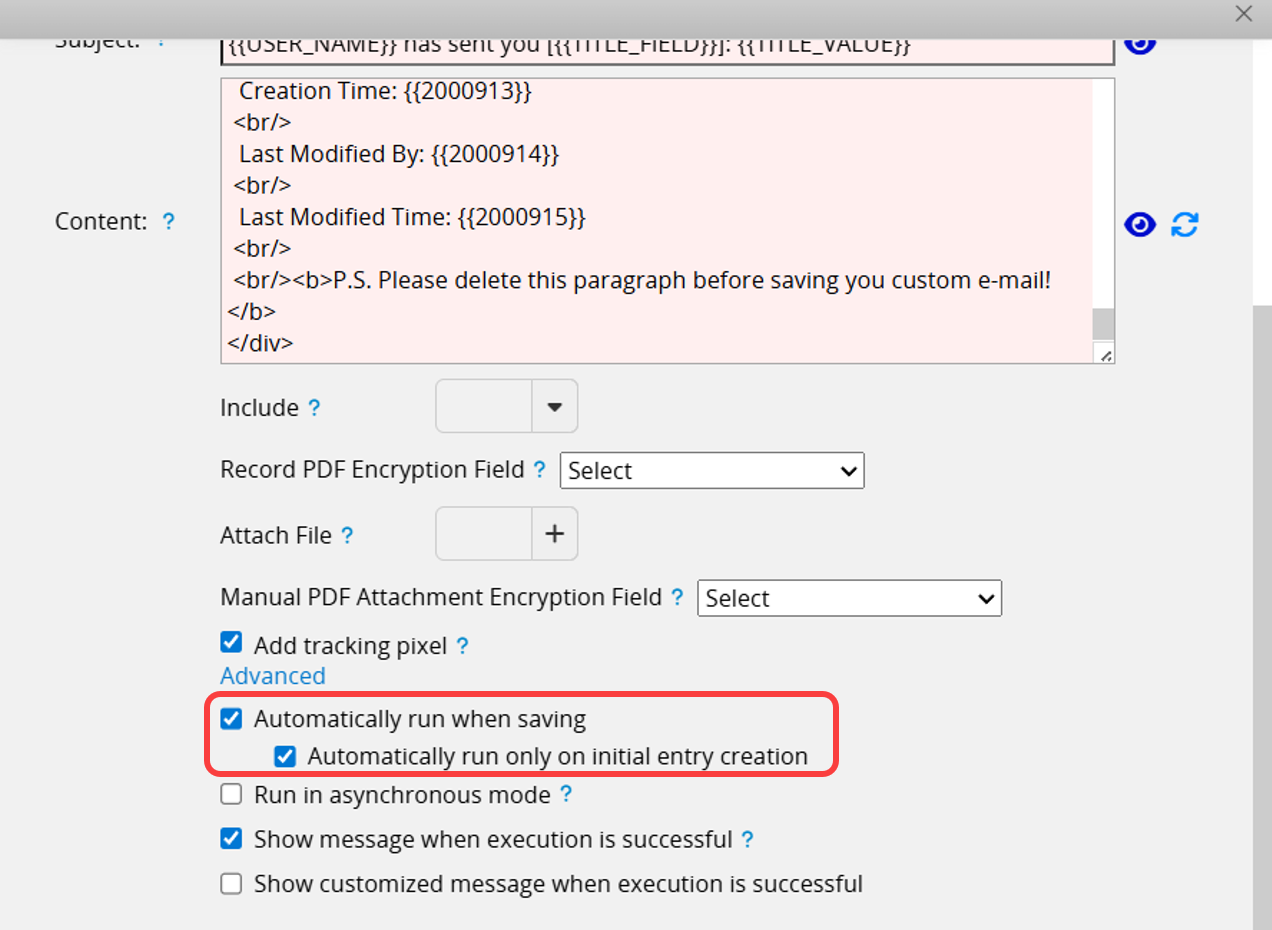
Use Case: Processes that require immediate confirmation, such as submitting a complaint form or placing an order. Sending a confirmation email promptly helps establish a communication channel, for example, by including a tracking link or contact information, and reassures users.
The Update Value on Another Sheet Action Button allows you to update specific fields in a different sheet, for example, deducting stock based on the "Stock ID" value. By enabling Automatically run when saving in the Advanced Settings, you can prevent users from forgetting to click the button, which would otherwise lead to inventory discrepancies.
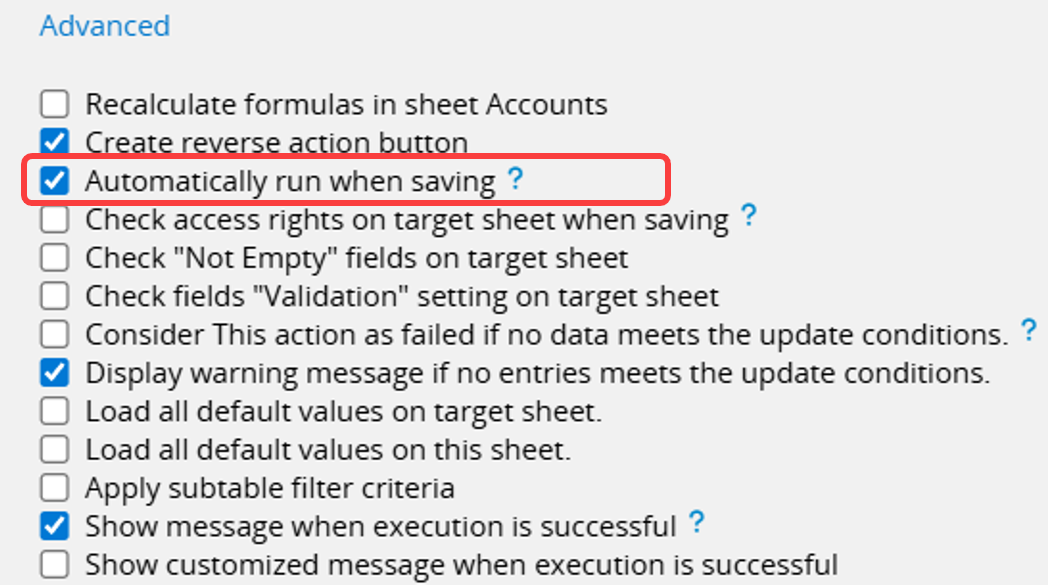
Use Case: In an "Equipment Checkout" sheet, set the "Checkout" button to Automatically run when saving. This ensures the equipment status is updated immediately, preventing situations where items appear available even though they are checked out.
By default, the Convert Records Action Button copies all Subtable rows into the destination sheet. However, there are cases where users may want to convert only specific rows or create multiple entries based on a particular field. This can be done using the Apply Subtable Filtering Criteria and Apply Subtable Grouping Criteria options in Advanced Settings.
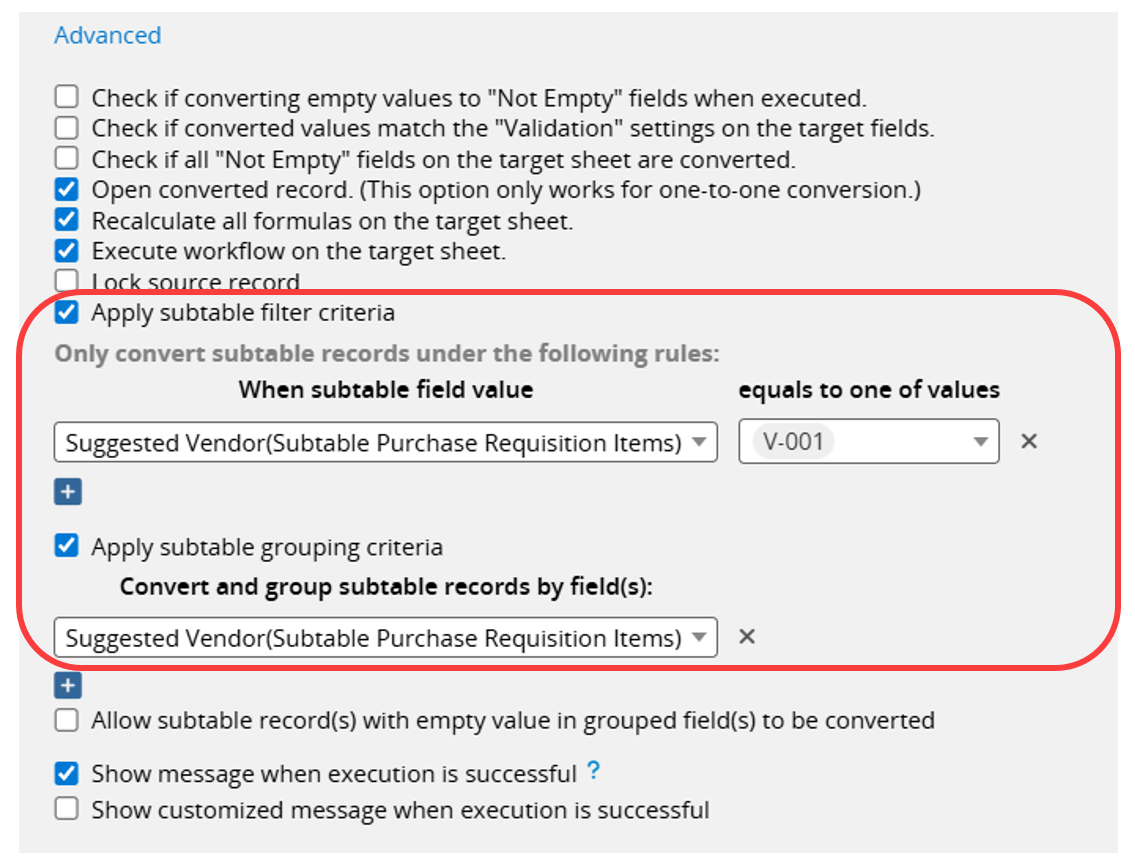
Use Case: After finalizing a "Purchase Requisition", you can automatically generate separate "Purchase Orders" grouped by the "Preferred Vendor" field. This eliminates the need to manually copy and paste or delete irrelevant rows.
You can configure Reminders by defining the reference date field, reminder rule, and recipients. You can further filter the entries via Shared Views if needed.
Use Case: Send an automated reminder to both parties one day before the scheduled appointment.
Using the Shared View Notification feature with Shared Views allows you to receive real-time notifications when records are updated.
Use Case: Receive an instant notification as soon as a product’s stock drops below a critical threshold.
You can set up the Form Submission Reminder to prompt users to complete a sheet either regularly or as a one-time task.
Use Case: Remind employees to submit quarterly objectives, weekly work reports, or event registration forms.
When a sheet has an Approval Flow, you can enable Execute These Action Buttons After Completing Approval in Advanced Settings. This allows the specified action buttons to run automatically once the approval is complete.
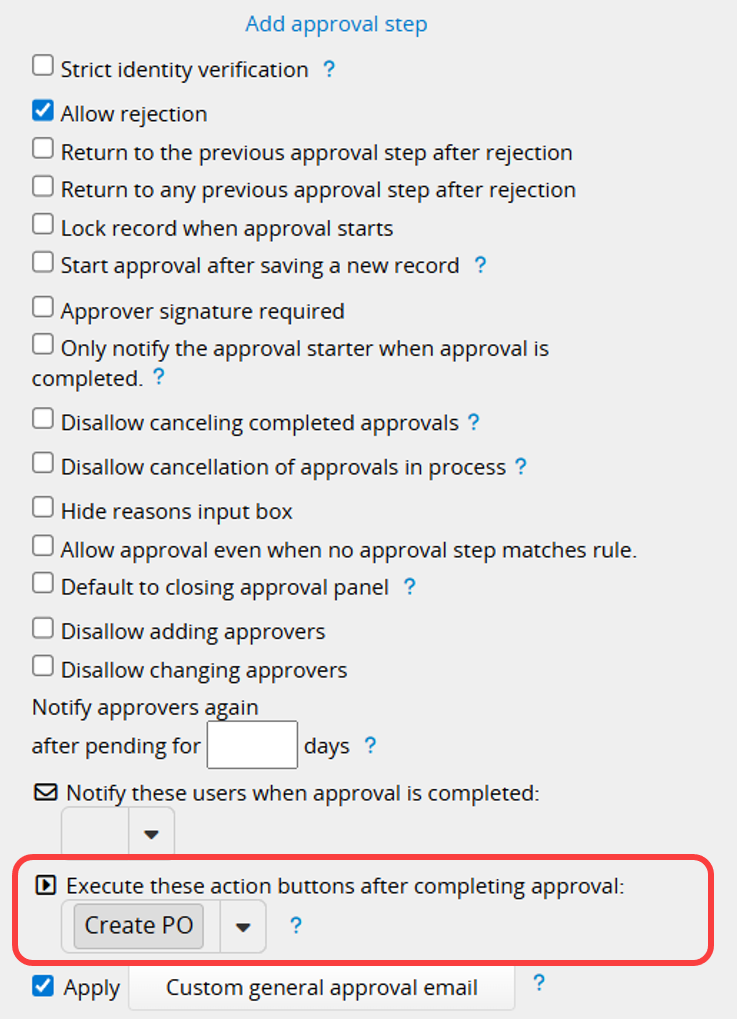
Note: Since reversing an approval does not undo these executed Action Buttons, the system disables the "Cancel Approval" option once this automation is enabled.
Use Case: Once a "Purchase Order" entry is approved, it can be automatically converted into a "Sales Order" entry while simultaneously sending an email to the procurement department.
While Ragic supports adding a Lock Record action as a button, it still relies on manual user execution. In addition, it cannot be easily combined with other action buttons or triggered by specific conditions. An effective alternative is to use Conditional Formatting. You can configure a rule so that when specific conditions are met, all fields automatically become read-only.
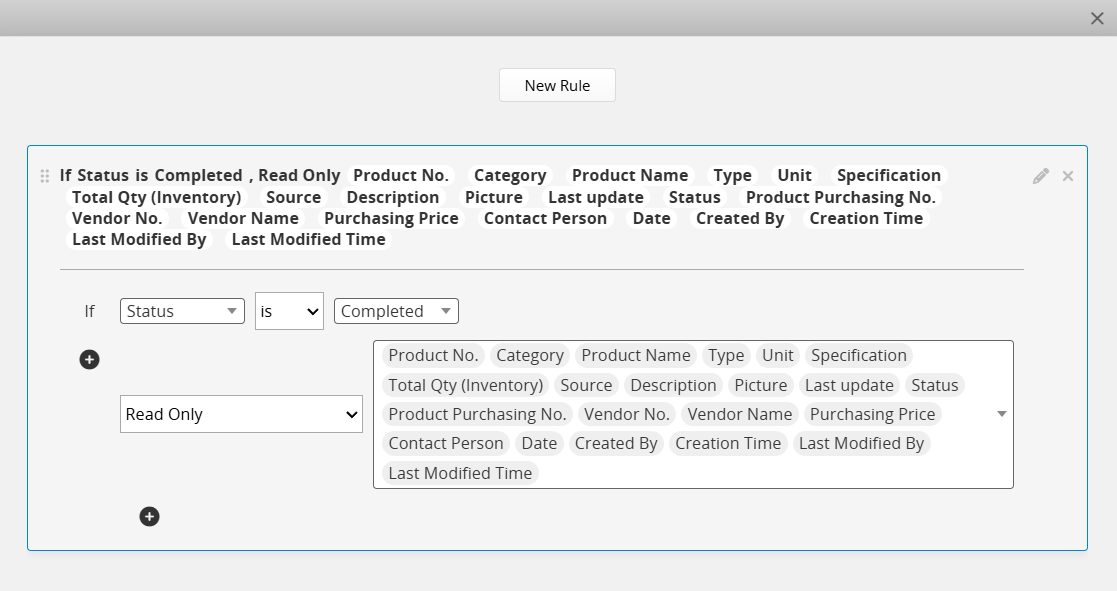
Use Case: When a "Purchase Order" status changes to "Completed" or a "Quote" is converted to an order, the entire record becomes read-only to prevent accidental modifications to historical data.
You can assign multiple long-term, ongoing jobs to Ragic AI, allowing it to automatically carry out configured tasks. For detailed instructions, please refer to this section.
Use Case: Automatically checking sheet entries, filling in fields, sending email notifications, or replying to emails.
 Thank you for your valuable feedback!
