 FAQ
FAQ
FAQ
FAQ
Once users fill out a Ragic embedded form, they can receive a copy of their submission in two ways:
1. Automatically send a confirmation email to a specified address
2. Provide a link to print the submission directly
These two methods work well for scenarios such as repair requests, event registrations, or order confirmations, where external users need to keep a printed or emailed copy of their submission, similar to Google Forms' "Send me a copy of my responses" option. Both methods are explained below.
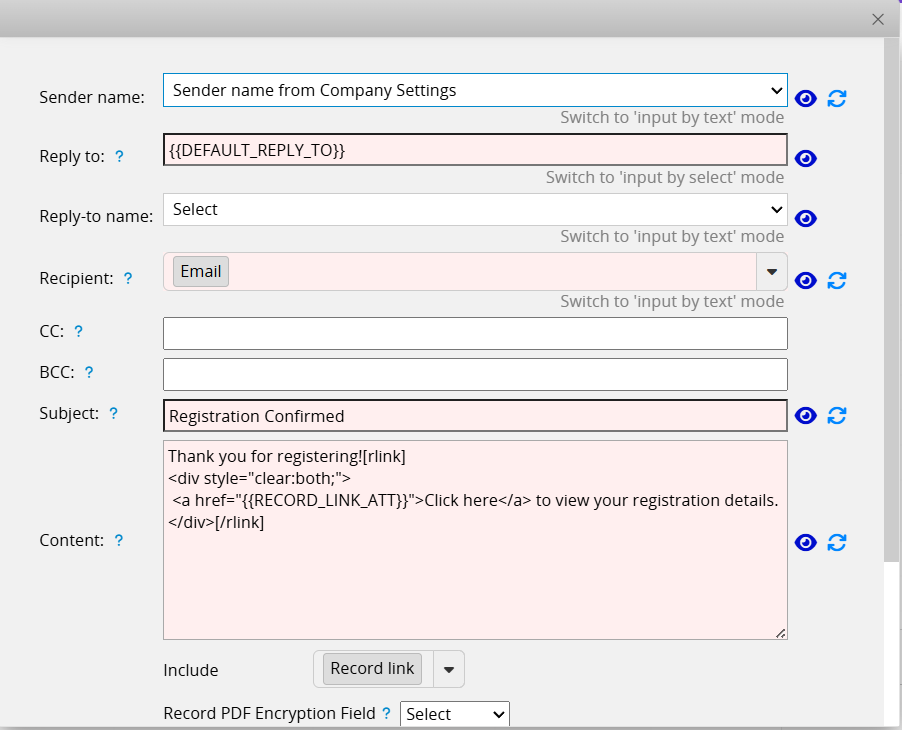
Using the Send Custom Email action button together with the Automatically run when saving setting, you can automatically send the record's content to a specified email address when a user submits the embedded form. To send it to the submitter's own address, add an E-mail field so users can enter their own address.
Setup Steps:
1. Set up the Send Custom Email Action Button, specify the recipient (e.g., the E-mail field entered by the submitter), and include a link to the record in the email.
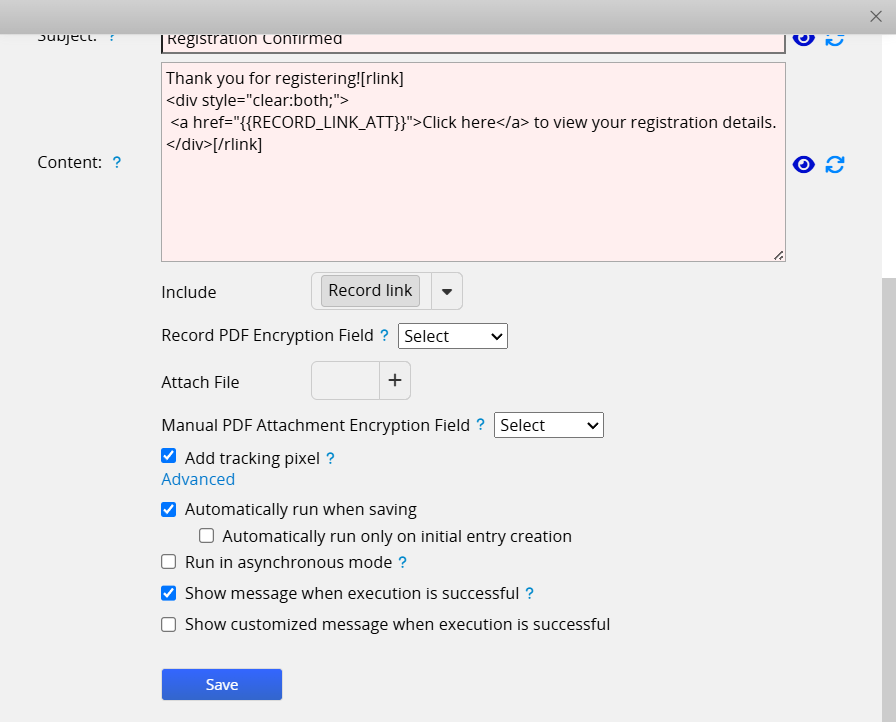
2. In the Action Button's Advanced Settings, check Automatically run when saving. By default, this triggers only when a record is first created. To also trigger it on every modification, uncheck Automatically run only on initial entry creation.
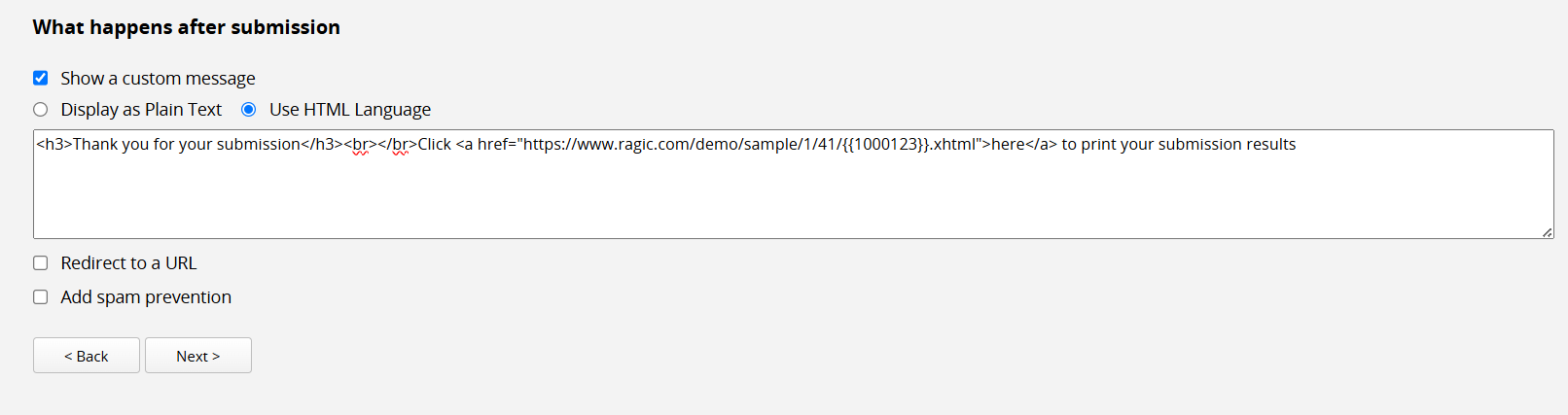
After a user submits data via the embedded form, you can display a custom message containing a link to the record's Printer Friendly page (or its PDF, Mail Merge, Custom Print Report, etc.). Clicking the link opens the page in a new window for the submitter to print.
Setup Steps:
1. In Design Mode, add an Auto Generated field and select the {RAGIC_ID} format. This will automatically populate the field with the record's unique ID upon saving.
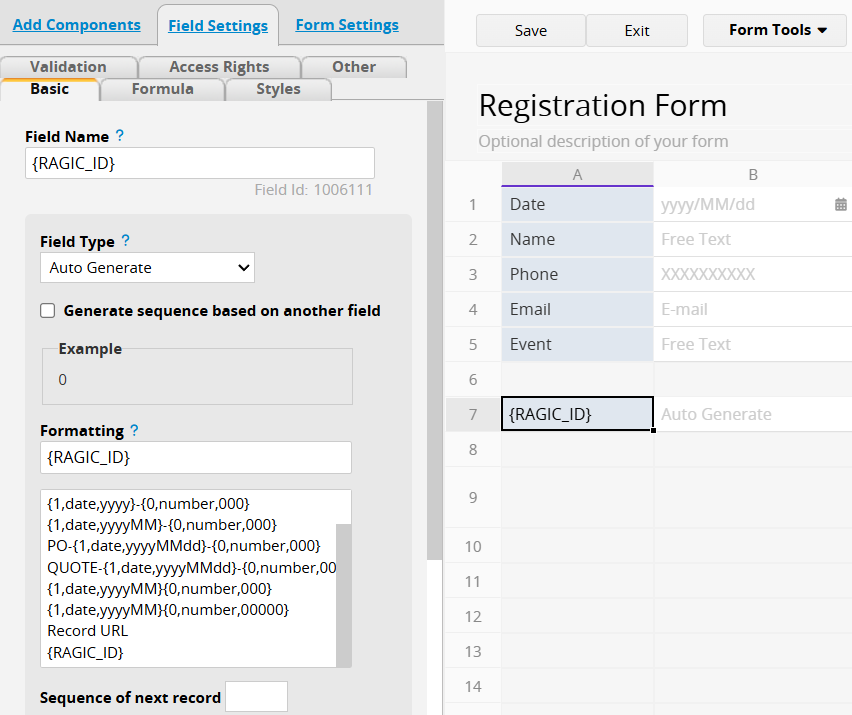
2. Check the Field ID of the RAGIC_ID field you just created (for example, 1000123).
3. Following the format for Printer Friendly/PDF Download/Mail Merge/Custom Print Report URLs, combine the sheet's path with the Field ID to build the print link, for example:
Printer Friendly:
https://www.ragic.com/[Account Name]/[Tab Path Parameter]/[Sheet Path Parameter]/{{1000123}}.xhtml
PDF:
https://www.ragic.com/[Account Name]/[Tab Path Parameter]/[Sheet Path Parameter]/{{1000123}}.pdf
4. In the embedded form's post-submission settings, use the Show a Custom Message option to embed the print link in the message. HTML is supported, for example:
Result:
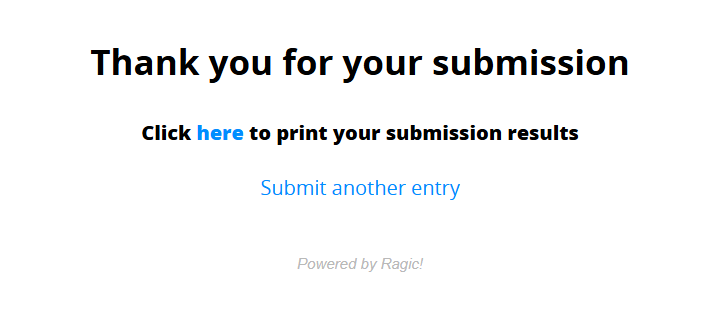
Note: The Printer Friendly link opens the print view in a new window, and submitters still need to manually click the browser's print option to print. URL formats such as Excel or Custom Print Report will download a file instead, which submitters must download first and then print using their own printing software.
 Thank you for your valuable feedback!