 User guide
User guide
User guide
If you can't use this feature, this may be related to your Feature Access Settings. Please contact your SYSAdmin to check whether the "Mention @Ragic AI" permission is enabled.
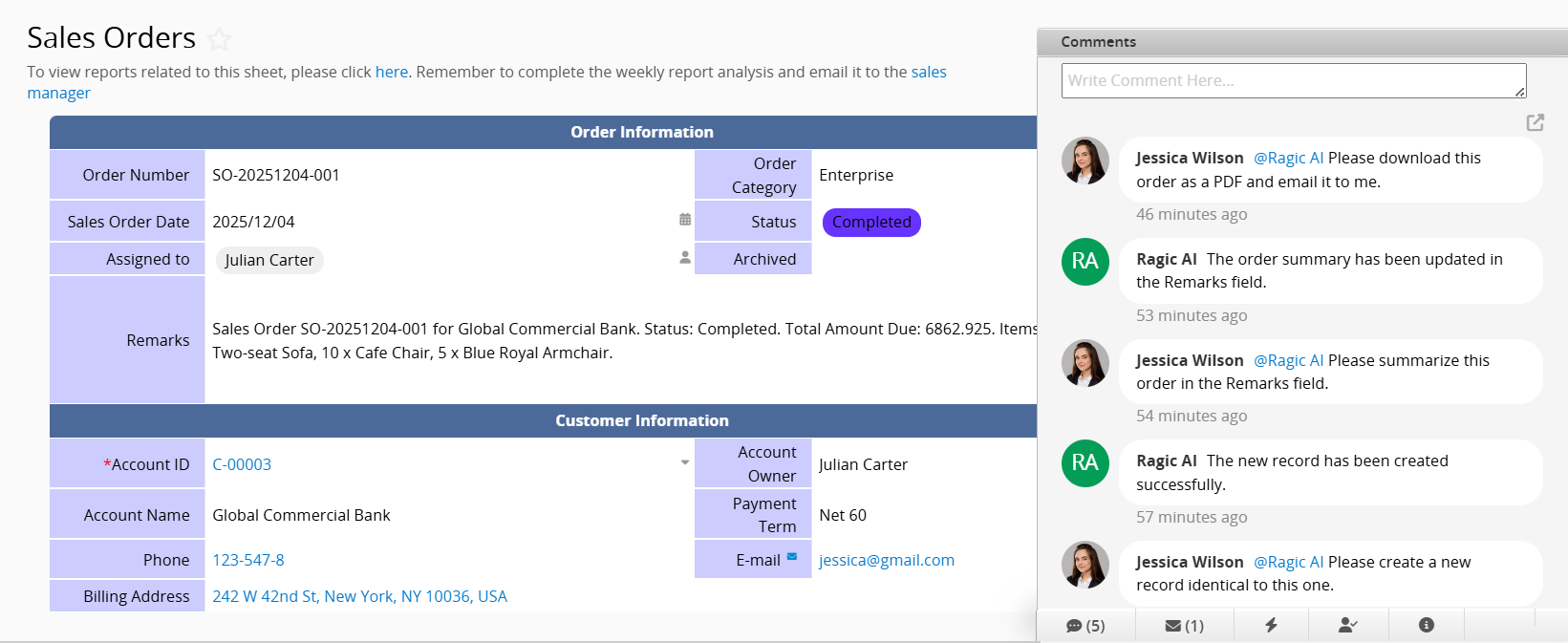
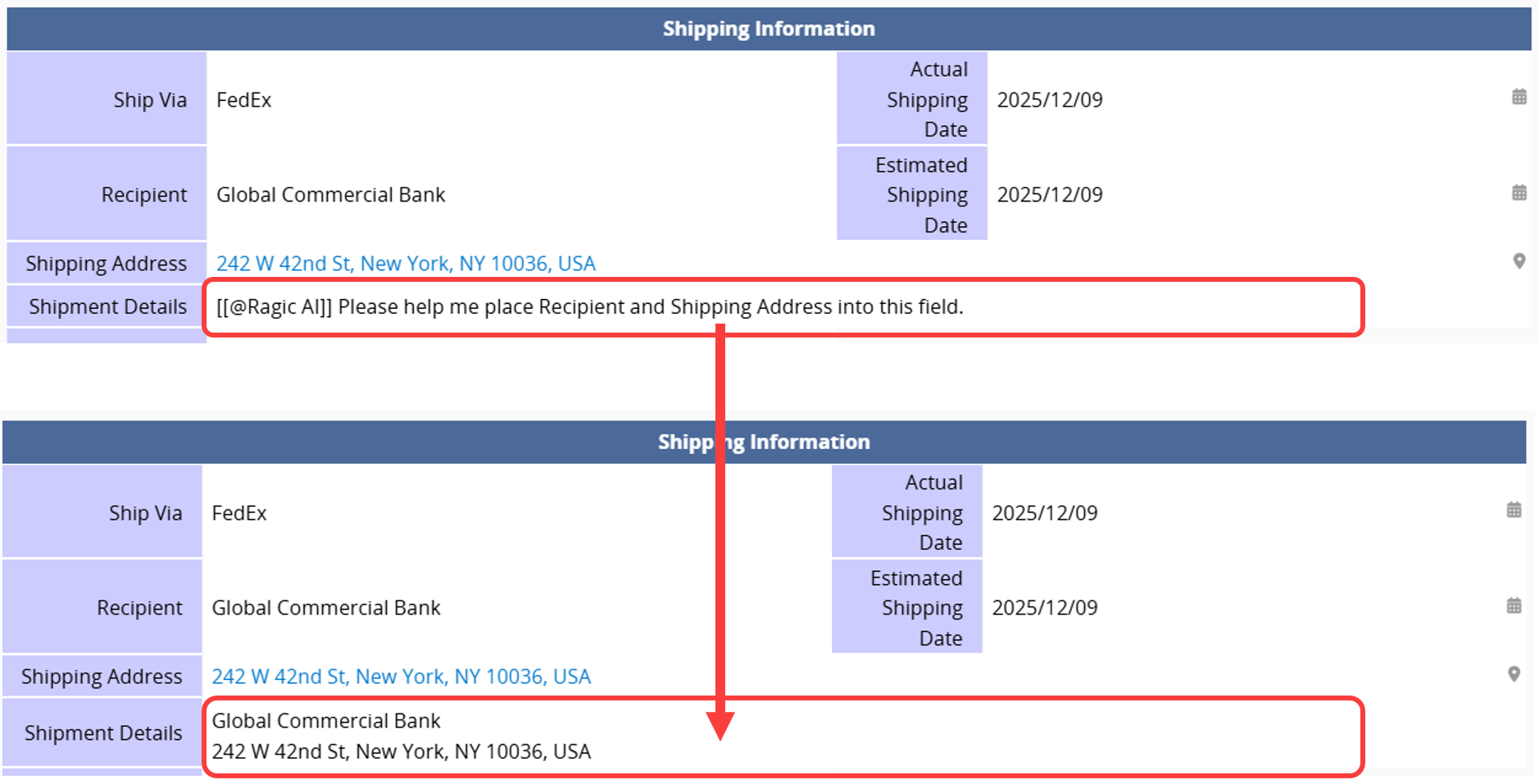
Users can call AI by typing @Ragic AI through the Mention feature, either in the Comments section at the bottom right of a sheet or directly within sheet fields. This works much like assigning tasks to a colleague. Ragic AI can analyze sheet data, update or create records, export files, and send emails to enhance overall operational efficiency.
Examples of how to call AI:
1. Call AI in the Comments section
2. Call AI within a sheet field
The available features include, but are not limited to, the following:
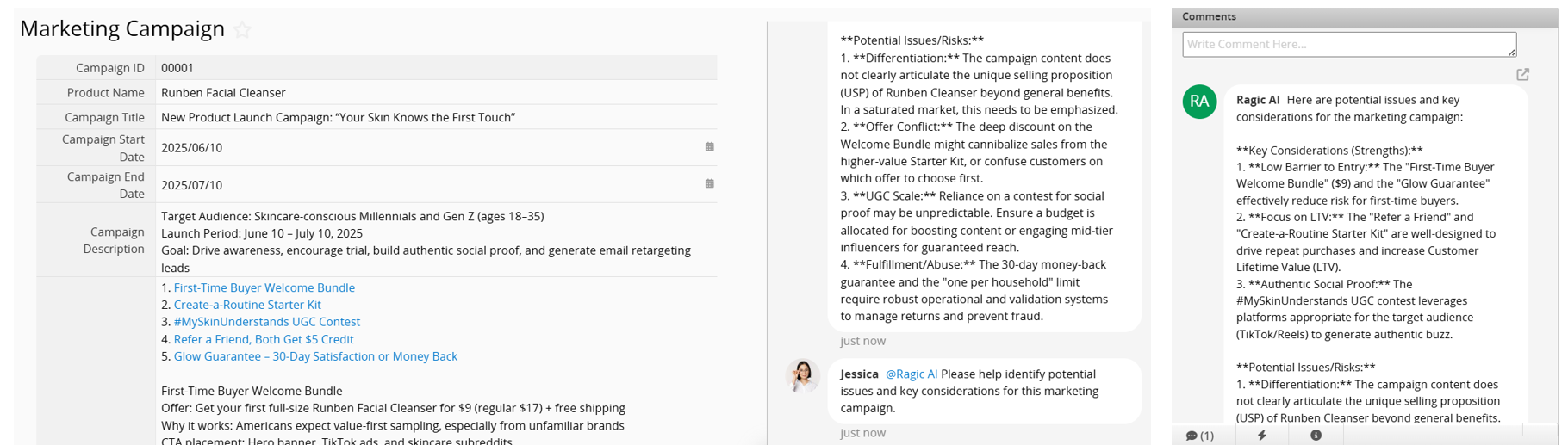
1. Querying and Analyzing Data
Provides analysis of the current sheet data, including record summaries and identification of potential issues with recommendations.
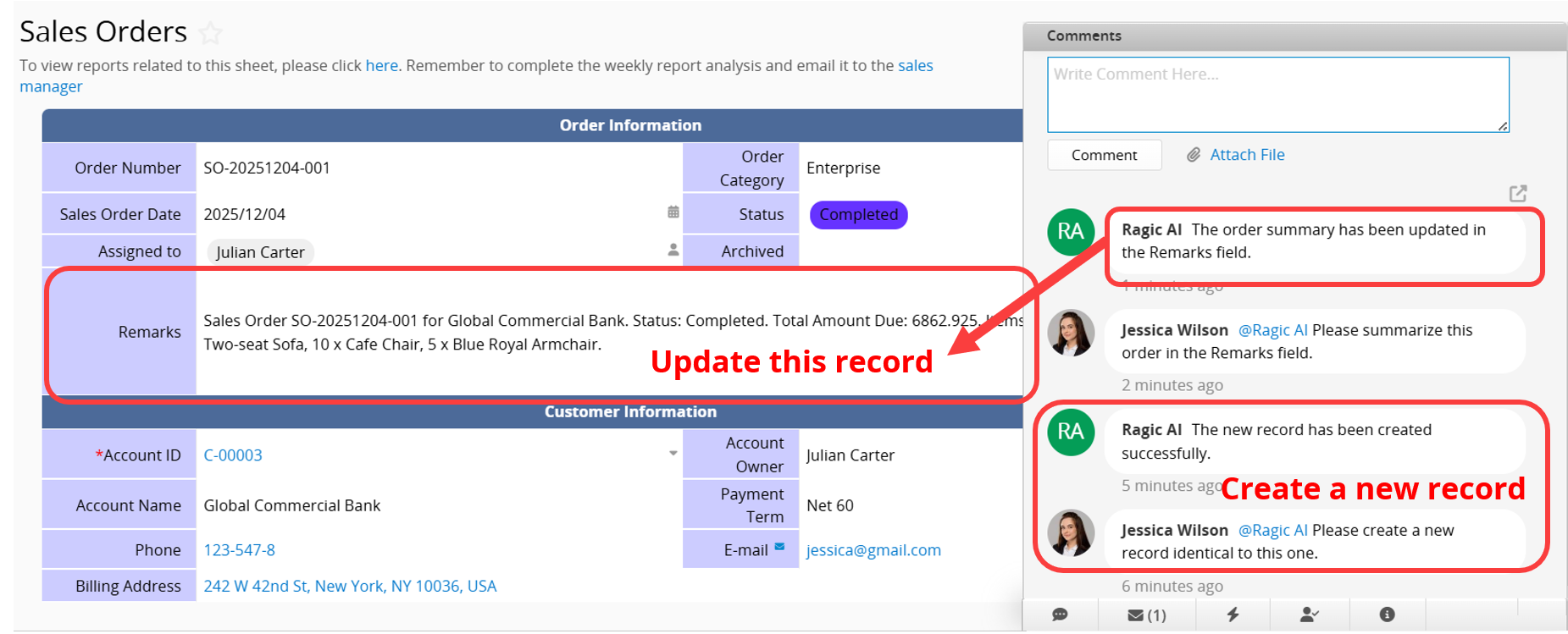
2. Updating and Creating Records
Supports updating field values based on your instructions, such as adjusting order statuses or editing remarks, and creating new records when needed, for example, generating a new sales order.
3. Exporting Data and Sending Emails
Supports exporting data as PDF or Excel files and sending them only to the current user, or uploading the files directly as attachments in the Comments section.
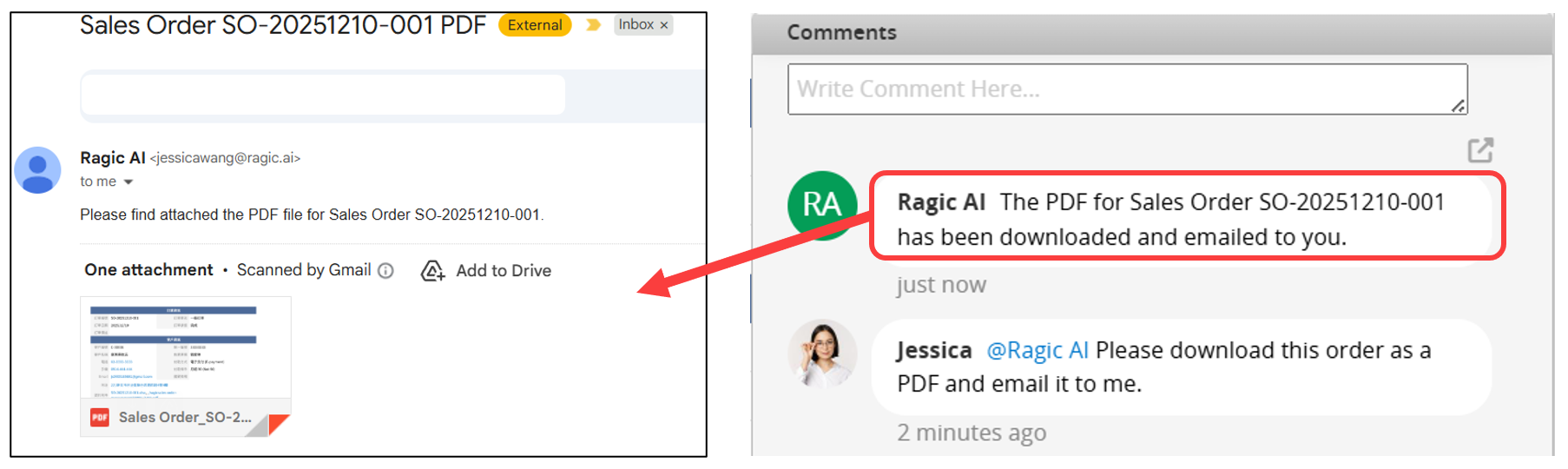
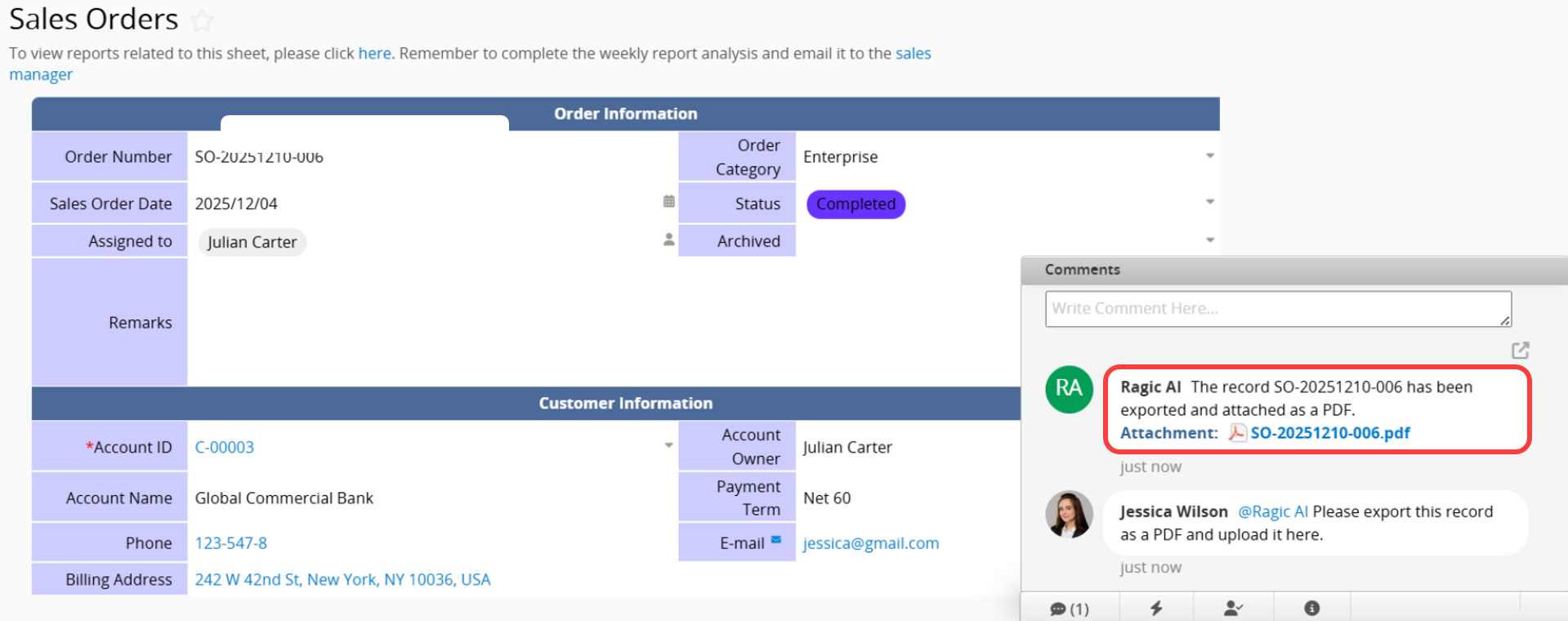
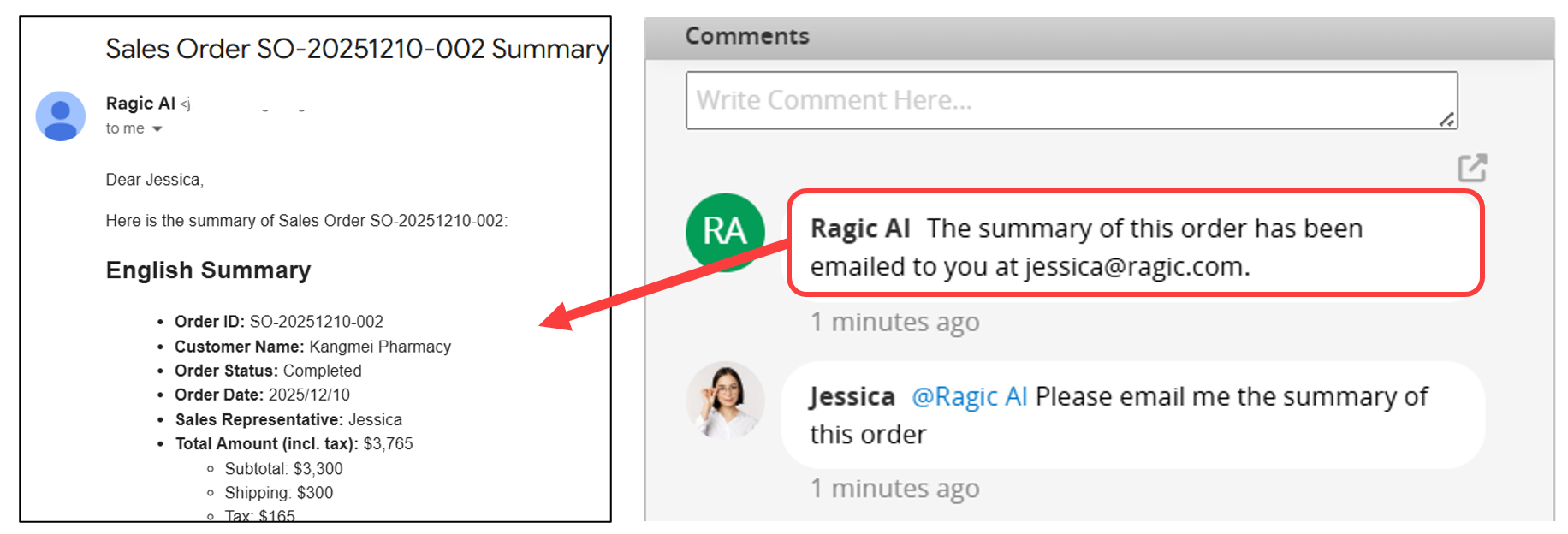
You can also specify custom content to be sent only to the current user.
Note:
1. After you enter a command, the AI may need some time to respond and complete the task.
2. Ensure your instructions are clear and specific. If the outcome is not as expected, refine your instructions and try again.
3. Currently, @Ragic AI only supports sending emails to the current user.
 Thank you for your valuable feedback!
