 Learning Center
Learning Center
Learning Center
Ragic’s Hiring template addresses the time-consuming nature of manual data consolidation in Excel and the lack of flexibility in off-the-shelf software. It also integrates seamlessly with other Ragic templates, allowing you to manage all related processes in one centralized system. Below is an overview of its key features.
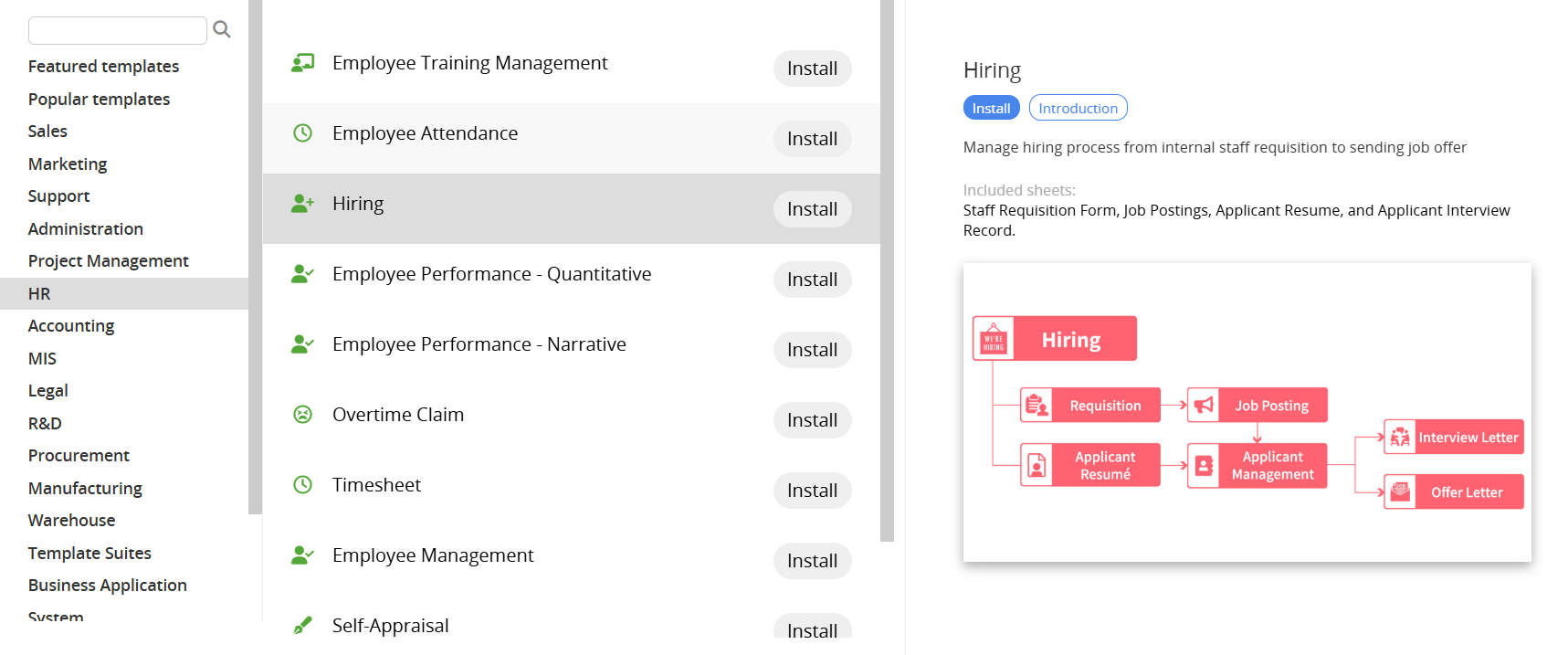
Installation: If you don’t have a Ragic account, click here to sign up and install the "Hiring" template. This entire process is free, and we will not charge you without your consent.
If you are already a Ragic user, you can find the "Hiring" template under the "HR" category in Install Templates and click "Install" to download it.
Features::
Ragic's HR-related templates include the "Hiring" template and employee management sheets once the person is hired. These include personnel ("Employee Management"), attendance ("Timesheet", "Overtime Claim", "Leave of Absence"), and evaluations ("Self-Appraisal", "Employee Performance").
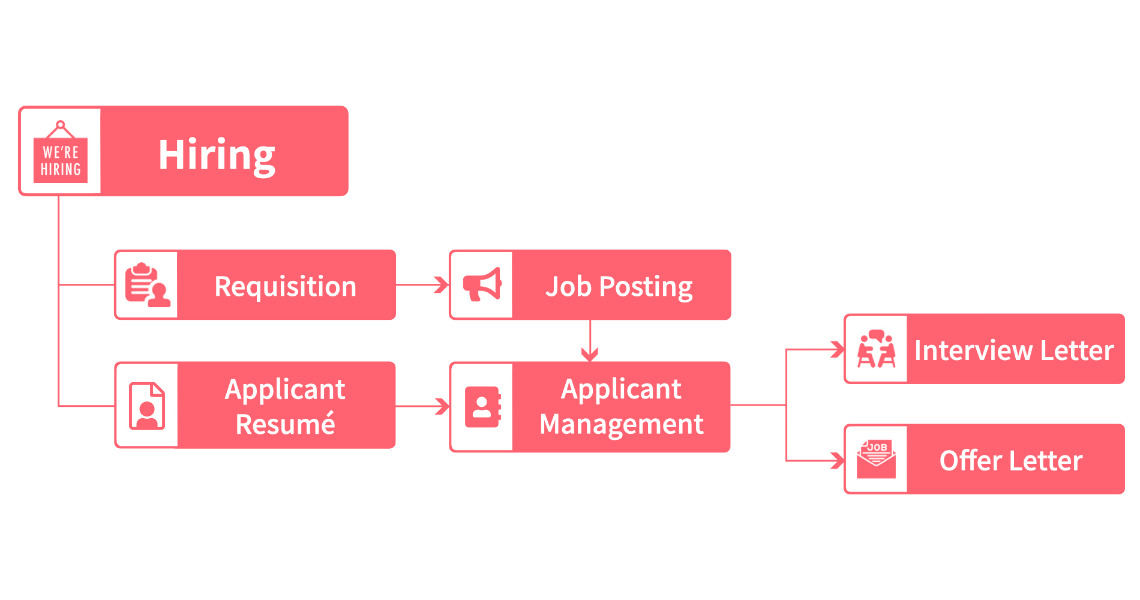
The Hiring Template has 4 sheets: "Staff Requisition Form", "Job Postings", "Applicant Resumé", and "Applicant Interview Record".
These 4 sheets are actually 2 sheets with Multiple Versions, which allows for appropriate Access Rights management when registering data from different channels. The first sheet, which lists the job opening and its descriptions, has two versions: "Staff Requisition Form", and "Job Postings". The former is for internal use, while the latter is for external job applicants. The second sheet, which manages resumé information, has a version for "Applicant Resumés" and "Applicant Management". The former accepts external submission, while the latter is internal information. Please refer to the flowchart below for the corresponding data input workflow.
The first step in hiring is deciding what type of person you want to hire and writing a job description. The HR, personnel staff, hiring manager, or the boss himself can go first to the "Staff Requisition Form" sheet and announce the hiring need internally.
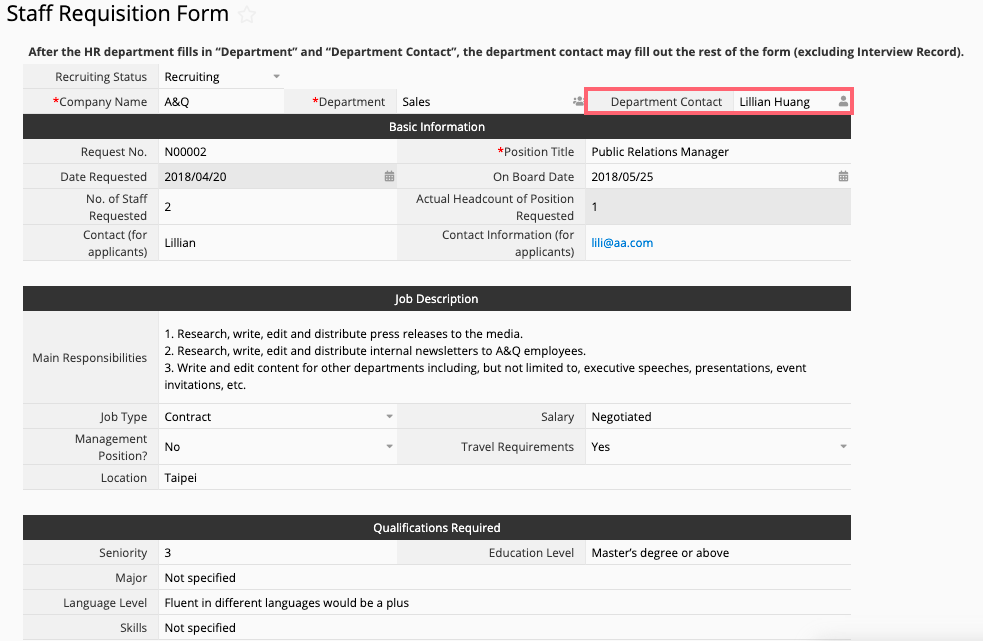
This sheet has a simple structure, the only thing slightly complex is configuring the Access Rights, since personnel information is sensitive. When you have just submitted your hiring needs, aside from restricting external access, the internal read/write rights must also be moderated. The Access Rights settings for this sheet are as follows:
(1) All employees (Internal Users) can submit hiring needs, but can only view and modify job opening information that they submitted themselves, and not that submitted by other employees. (Internal user set to Survey User)
(2) Human Resources (Default "HR" group) can manage all data, including adding new data, viewing, and modifying all data entries. ("HR" group set to Admin). If the boss is also involved, simply add the boss to the "HR" group.
(3) The exception to the two groups above is the user in the "Department Contact" field, who also has the rights to view and edit data, even if this user is not in the "HR" group nor the author of the data entry. For this field, the users can fill in the name of their supervisor or the department hiring manager so they can look over the data. Or, HR can fill in "Requisitioning Department" and "Department Hiring Contact" and leave it to the department hiring contact to fill in or edit the hiring needs, job description, and criteria. (The system is designed to Assign the data to the "Department Contact".)
After deciding who is responsible for filling out the sheet, just fill in the relevant information. The "Current Progress" field can be used to filter the entries by progress in the hiring process. Those set to "Now Hiring" are shown on the public "Job Description" sheets, so we recommend filling this in. "Company Name" and "Requisitioning Department" are used for contacting applicants for interviews and job offers, and are therefore set as required fields. "Requisition Number" is automatically generated by the system. The "Interview Record" section at the bottom does not need to be filled out; it will be automatically filled by the system. After filling the sheet, simply press save.
After submitting a "Staff Requisition Form", its other version, "Job Postings" sheet, will also get a new identical entry. As long as the status is set to "Recruiting", the entry will show up on the public "Job Postings" sheet. (By the way, this is accomplished using a Fixed Filter)
The "Job Description" sheet is set to be viewable by all users (including those who have not logged in), but entries cannot be added or modified. The sheet can be used as a job opening bulletin for the company. You can use Ragic's Web Embed Tool to embed the sheet on the company website. You can also copy the URL of the sheet and post the link on the website for people who need it, then they can view the information through the link to the sheet.
Fields that external users do not see, such as department contact, are removed from this sheet.
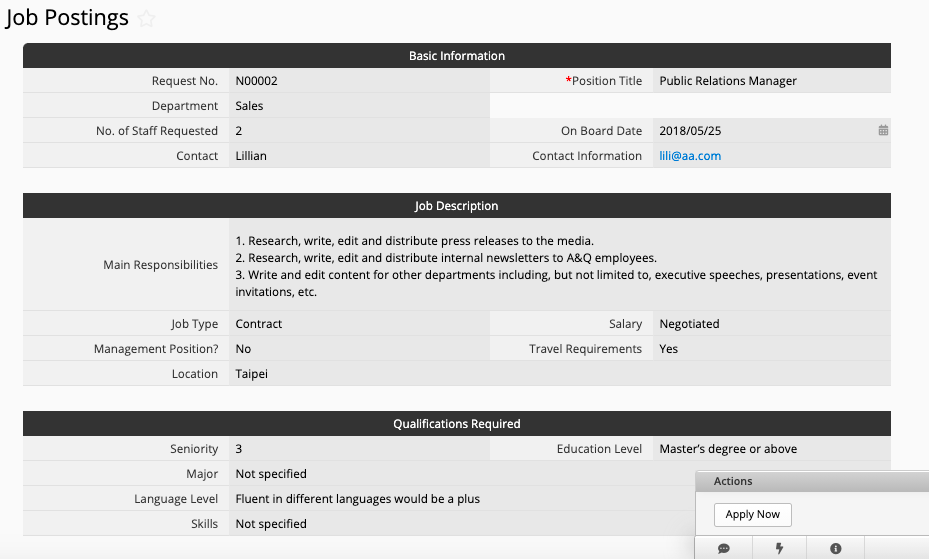
In the bottom right corner of the "Job Postings" sheet, there is a button called "Apply Now (Click to Fill Resumé)". Once this button is clicked, the user is taken to the next sheet, "Applicant Resumé", where the user can fill out their resumé.
Note that since the "Staff Requisition Form" and "Job Postings" sheet are Multiple Version sheets and share the same set of data, any changes to the "Staff Requisition Form" may affect the "Job Postings" sheet (unless the field is not present in the "Job Postings" sheet).
The applicant can directly fill in information on the "Applicant Resumé" sheet or upload their resumé. You can also enter resumé data that you received from other channels into this sheet. Alternatively, you can import entries directly from properly formatted Excel files.
This is a sheet that is accessible to all (including users who are not logged in). But the Access Right setting for everyone is set to Survey User, meaning the applicant can only see the data they filled in and not that of others, ensuring data privacy.
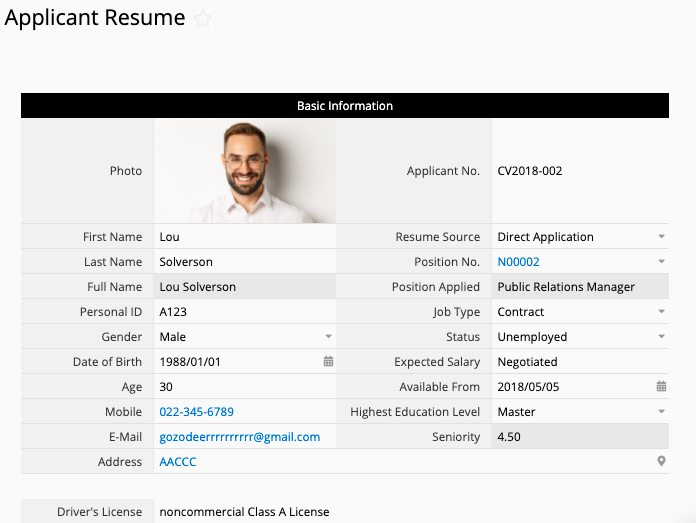
When filling out this sheet, the starred fields (*) are required. Click the "Photo" field to upload a photo file. Click fields that ask for an attachment to upload files. The greyed-out fields (Applicant No., Seniority, etc.) are automatically filled in and do not need to be manually entered.
Clicking "Position Applied" will list all job openings that are in the "Job Description" sheet. Click to select the title of the position. (This is designed using Ragic's Link and Load function)
"Applicant Interview Record" is another version of the "Applicant Resumé" sheet. All data from "Applicant Resumé" will be loaded in this sheet but set to read-only to avoid accidentally overwriting the data. Non-resumé fields are used for managing the interview and hiring process for this applicant.
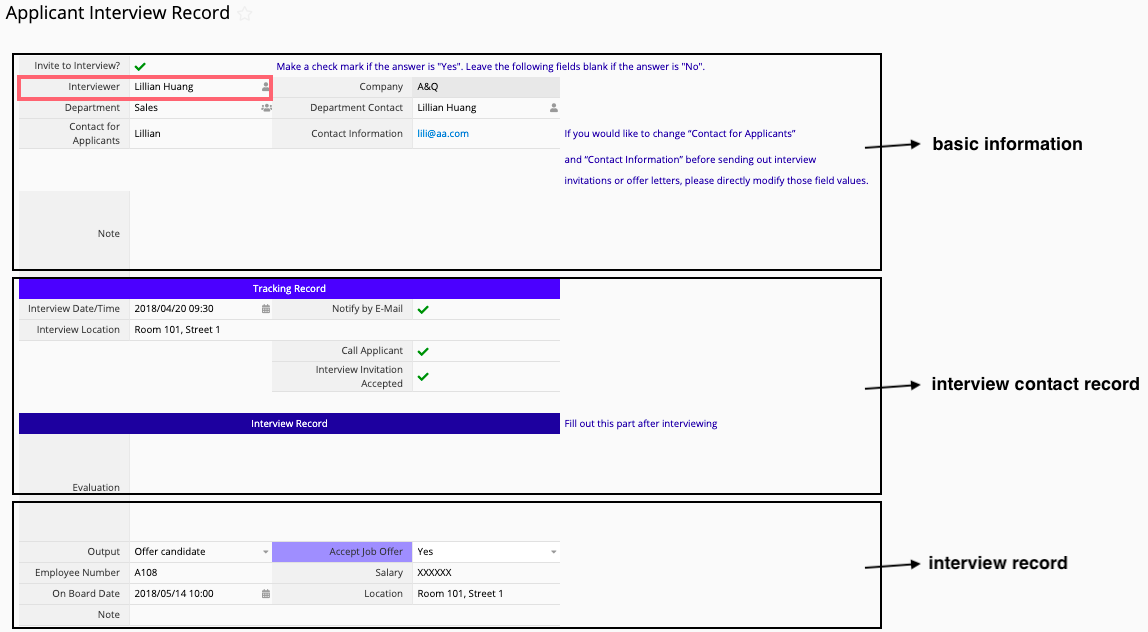
The Access Rights setting for this sheet is similar to those for the "Staff Requisition Form". The HR group has Admin rights, while regular users can fill in data without being able to see data from other users. The only exception is the user whose name is written in the field "Interviewer", who would acquire Admin rights for the entry.
As you can see, the sheet is divided into three sections by color. From top to bottom, they are: basic information, interview contact record, and interview record. If you decide not to interview this applicant, the second and third sections will be left empty. If you invite the applicant without receiving a response, the third section will be left empty. If the "Interviewer" field in the red box is filled in, this person will receive admin rights for this entry, so they can record and track the status of this applicant.
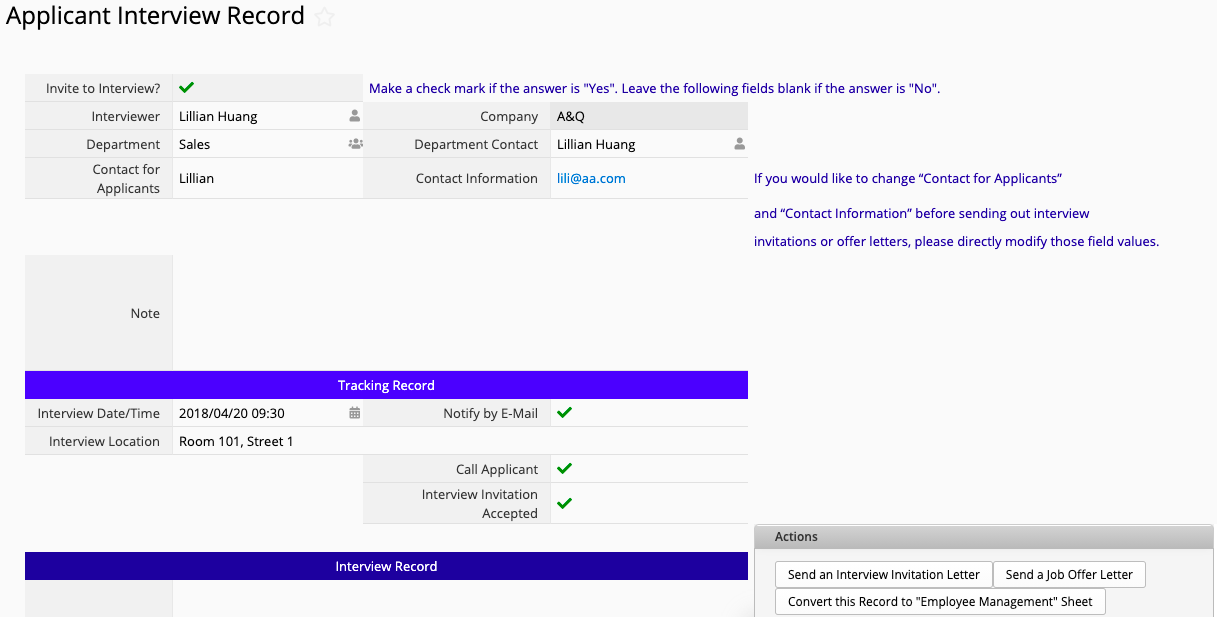
From the above screenshot, you can see that in the bottom right corner of the Applicant Management sheet, there are 3 buttons: "Send an Interview Invitation Letter", "Send a Job Offer Letter", and "Convert the Record to Employee Management Sheet". These are all designed using Ragic's Custom Action Button function.
Of the above, the "Send an Interview Invitation Letter" and "Send a Job Offer Letter" use the Custom E-mail Button function. Just click the "Send an Interview Invitation Letter" button, and the system will automatically send an interview invite to the email address on the applicant's resumé. Ditto for the job offer email. Before pressing the button to send an email, you can add a test entry in the "Applicant Resumé" sheet with your own email address so you can test to see if the contents of the email are what you expect, and whether the information from the fields is filled in correctly.
If the applicant replies to the Interview Invite email or Job Offer email sent by the system, the content of the replies is automatically saved in the "response" section of the corresponding "Applicant Management" sheet. You can directly respond to the applicant under the response. This works just like how our Customer Service Tickets Template does.
Note: The email address rule is: {account}.{}.{sheet parameter}@tickets.ragic.com. For example, if the URL for the form that sends the email is https://www.ragic.com/accountname/support1/1, then the email address would be accountname.support1.1@tickets.ragic.com. If you can customize the sheet, you can also set a different email address. Simply go to Design Mode > Form Tools > Send Custom Email and configure the Reply To field.
"Convert the Record to Employee Management Sheet" is a Convert Records button that can copy the resumé data to Ragic's "Employee Management" sheet. Before using this function, make sure you have downloaded and installed this free template.
| Sheet Name | Guest | Company Employee | HR (Or manager added to HR group) |
| Staff Requisition Form (Internal Use) | No Access (Cannot View) | (1) A regular employee can only see their own data (2) If "Department Contact" is not empty, the department contact can view/edit | Admin |
| Job Postings | Read-only | Read-only | Admin |
| Applicant Resumé | Can only see their own data. Cannot view or edit after submitting data and leaving the page. | Can only see their own data. | Admin |
| Applicant Interview Record | No Access (Cannot View) | (1) A regular employee can only see their own data (2) If "Interviewer" is not empty, then the interviewer can view/edit | Admin |
You can also customize the Hiring template to better fit your needs. Below are some advanced settings and modifications to the design:
Adding an Approval Process: If needed, you can configure an approval process in the Staff Requisition Form or "Applicant Interview Record" sheet, and only make job openings official and post them to the public bulletin after approval.
Adjust Mail-related Settings: You can enter Design Mode to modify the content of custom notification emails (Send Custom E-mail).
 Thank you for your valuable feedback!
