 Learning center
The Monthly Sales Trend Reporter agent template is a Ragic AI Agent that turns last month's sales orders into a structured monthly report: total orders and revenue, customers with unpaid orders, customer and product trends, and suggested next steps based on the numbers. Enter a retrieval month, and the report is saved in your database automatically, with no exporting to spreadsheets or copying between AI tools.
Who is this for? Business owners and sales managers who want a clear monthly view of what is selling and who is buying, and sales, finance, or operations teams who need to know which customers to follow up with about unpaid orders.
Please register for a Ragic account first if you haven't already. After registering, you can start with the Free Plan. To explore more features, you can also apply for a 30-day free Professional Plan trial with no credit card required. No charges will be made without your consent. For more information, please refer to the Pricing Page.
After logging in, click the  icon in the top right corner to open the AI panel, then click AI Agent.
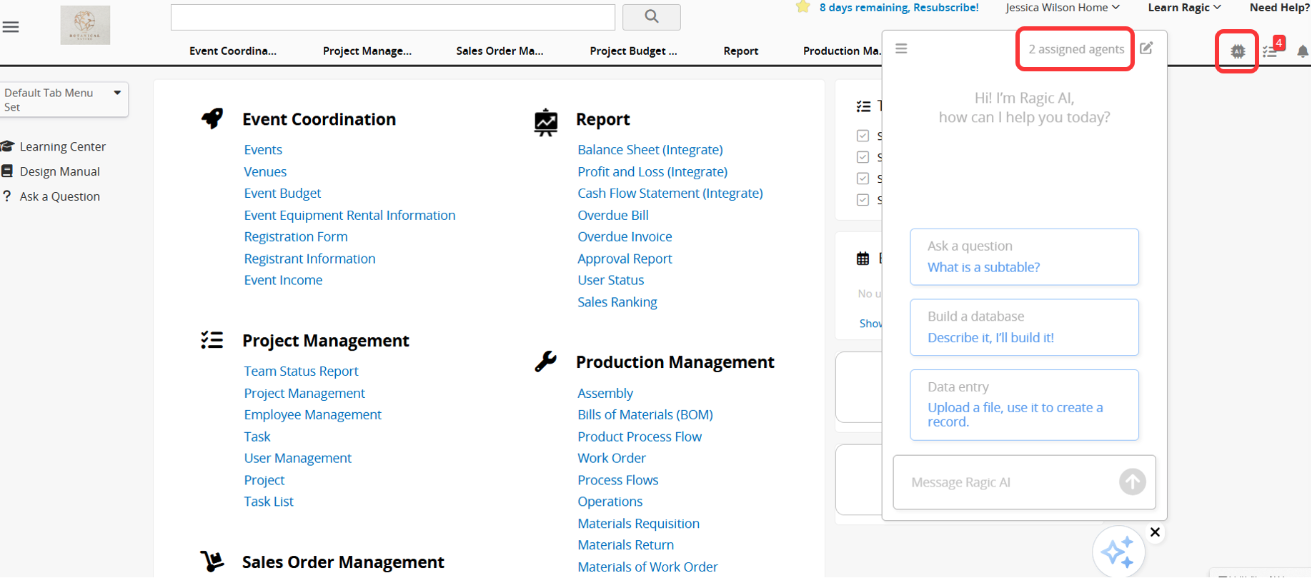
Before getting started with AI Agent, please note the following:
1. Running an AI Agent consumes AI Usage. The amount used varies depending on the complexity of the task and the selected Model.
2. Each database includes free monthly AI Usage for testing, and the amount varies by plan. Paid Plans include free usage based on the plan and the number of users. A Trial account receives a fixed amount of AI Usage for evaluation, regardless of plan or user count. The Free Plan also includes basic usage for testing. You can use the free AI Usage to explore and test the feature before deciding whether to upgrade your plan or purchase additional AI Usage.
3. When the free AI Usage is used up, the system will not charge you automatically. Instead, AI features will be paused. To continue using AI features, Paid Plans can purchase extra usage as needed. AI Usage is calculated in USD. Trial account cannot purchase additional AI Usage, and users on the Free Plan can continue using AI after monthly usage is refreshed. Charges are incurred only when you actively upgrade your plan or purchase additional AI Usage.
4. You can view the Usage Report for each Agent over the past 30 days, including call counts and usage costs. This helps you understand how AI Usage is being used and adjust Agent settings as needed.
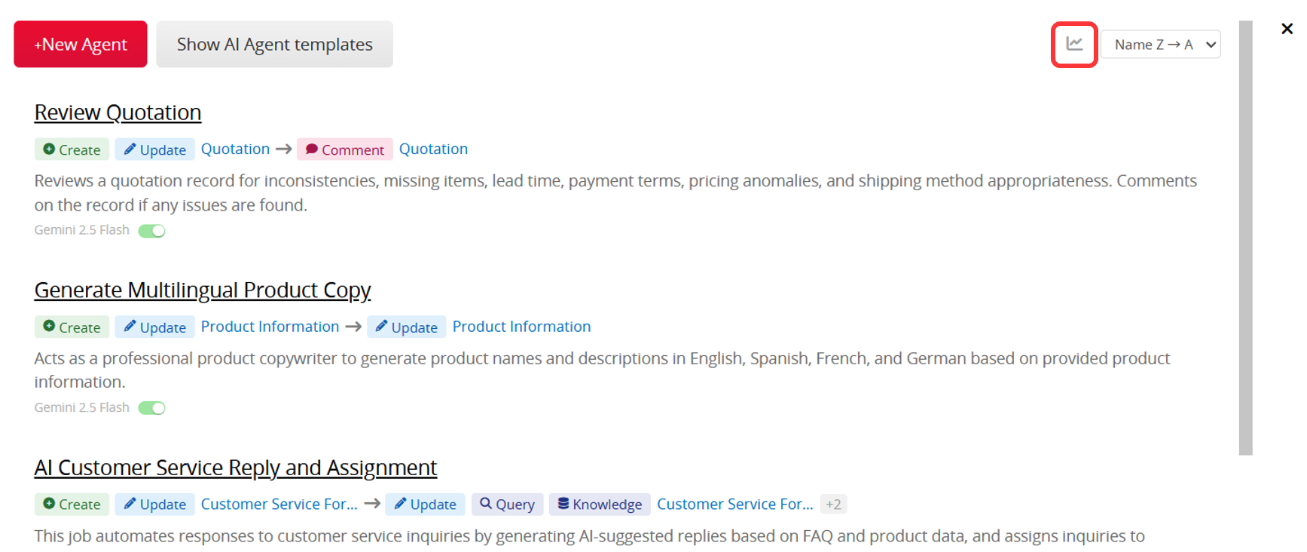
For more information, please refer to this article.
Find and apply the Monthly Sales Trend Reporter template.
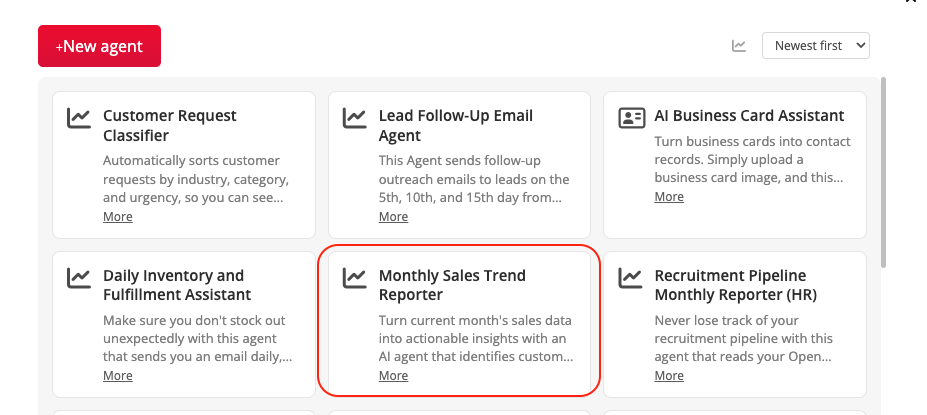
Depending on your current database needs, you can choose one of the following methods:
Method 1: Use the Template Sheets Directly
If your database is new or you have not yet created sales-related sheets, it is recommended to start with the template sheets. Once the template is saved, the system will automatically install three sheets and their settings: Sales Order, Sales Information, and Sales Monthly Report. You can begin testing immediately using the built-in fields and workflow without designing everything from scratch. This is also a quick way to understand how the AI Agent works.
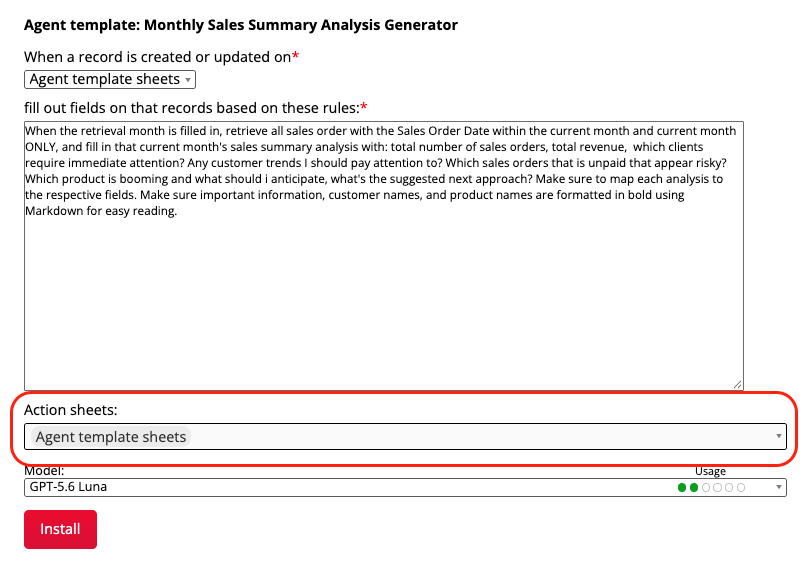
Method 2: Apply the Template to Your Existing Sheets
If your sales team already records sales orders in your own sheet, you can apply the AI Agent to your own sheets instead. Choose the sheets you'd like the agent to act on from your sheet list.
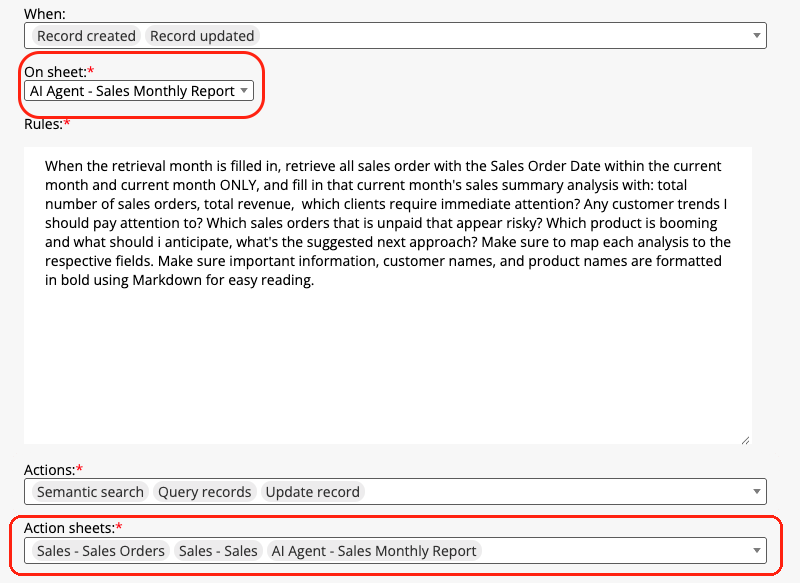
This option is ideal for teams with an established sales process, as it allows direct integration into current systems without rebuilding databases. However, after applying the template to your own sheets, you may need to adjust the Agent rules and settings, such as the field names the AI reads and the sheet it writes the report to, to better fit your workflow. For more details, please refer to this this section.
The template works with three sheets: Sales Order, where your team records each sale; Sales Information, which lists the product lines of every order and needs no data entry, because each line item in the Sales Order subtable automatically creates a new entry here; and Sales Monthly Report, where you trigger the AI Agent by selecting a date, and the AI Agent saves the monthly report.
Create a record for every sales order. The sheet is organized into the following sections:
| Section | What to record |
|---|---|
| Order Information | Customer ID, customer name, phone, mobile, email, billing and shipping address, sales order number, sales order date, shipping date, ship via, tracking number, payment status |
| Sales Information | Product ID, product name, unit price, and quantity for each product line, with the subtotal calculated for you |
| Totals | Total, tax rate, tax, and amount due |
| Note | Any additional remarks |
The more complete these records are, the more accurate the report will be. The sales order date, payment status, and amount due are especially important: they decide which orders belong to the month and which customers still owe you money.
Create a new record in the Sales Monthly Report sheet and enter a date in the month you want to analyze, for example 2026/06/30 for June 2026. After you save, the AI Agent reads that month's sales orders and fills in the rest of the record for you.
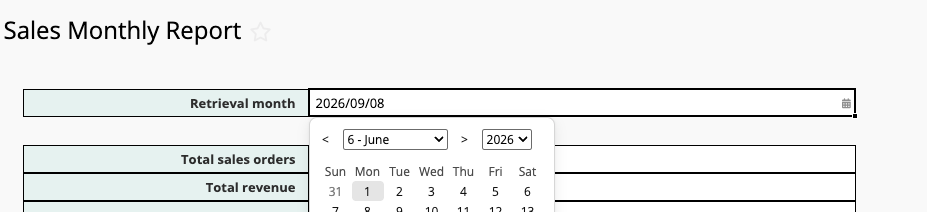
The report fills in the following fields:
When a month has very few orders, the report says there is no clear trend yet and what data would help, instead of guessing.
The template is only a starting point. You can adjust both the sheets and the AI prompt to match your sales process. Keep the two in sync: if you change a field in a sheet, update the prompt to match.
You can apply this agent to your own sheets, or edit the template sheets by adding or removing fields to fit how your team records sales, such as a sales rep, region, or product category. For the basics, see how to create a Ragic sheet.
If you also keep customer records in Ragic, for example with the free CRM template, you can connect them to the Sales Order sheet with Link and Load. When you create an order, the customer's details, such as name, contact information, and addresses, fill in automatically, and you can build a fuller picture of each customer and their sales history over time.
If you use your own sheets, or you have changed the template sheets, review the prompt and confirm the field names still match. For example, check that the fields the AI reads (such as sales order date, payment status, amount due, product, and quantity) exist in your sales order sheet, and that the fields it writes the report to exist in your report sheet.
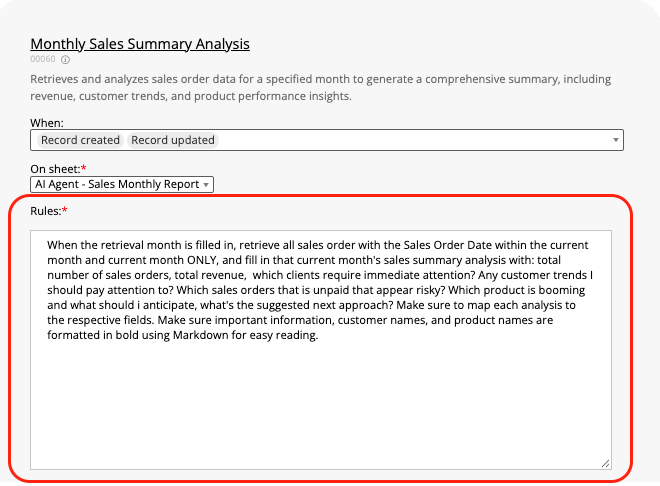
You can then tailor the report to your team:
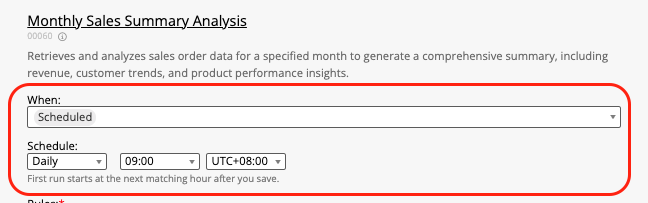
Change the trigger. By default, the report is generated when you enter a retrieval month in the Sales Monthly Report sheet. If you would rather receive a report automatically at the start of each month, you can adjust the Trigger to 'Schedule', set up the schedule you would like to receive your report, and adjust the prompt.
 Thank you for your valuable feedback!