 Learning center
Learning center
Learning center
Spending too much time creating product copy, translating content, and adapting messaging for different channels?
For brands, ecommerce businesses, and retailers, product information often starts as raw specifications from manufacturers or suppliers, then needs to be turned into compelling product descriptions and multilingual content for different sales channels.
While AI tools like ChatGPT and Claude can speed up content creation, managing large volumes of generated content often creates new challenges. Teams may still need to organize outputs, copy content between spreadsheets, or manage multiple versions across tools.
With the Ragic Agent template, you can automate product copy generation in a structured workflow. Generated content is saved directly to your database, making it easier to manage product descriptions, multilingual content, and related processes in one place.
If you do not have a Ragic account yet, please complete registration first. After registering, you can start with the Free Plan. To explore more features, you can also apply for a 30-day free Professional Plan trial with no credit card required. No charges will be made without your consent. For more information, please refer to the Pricing Page.
After logging in, click the  icon in the top right corner to open the AI panel, then click AI Agent.
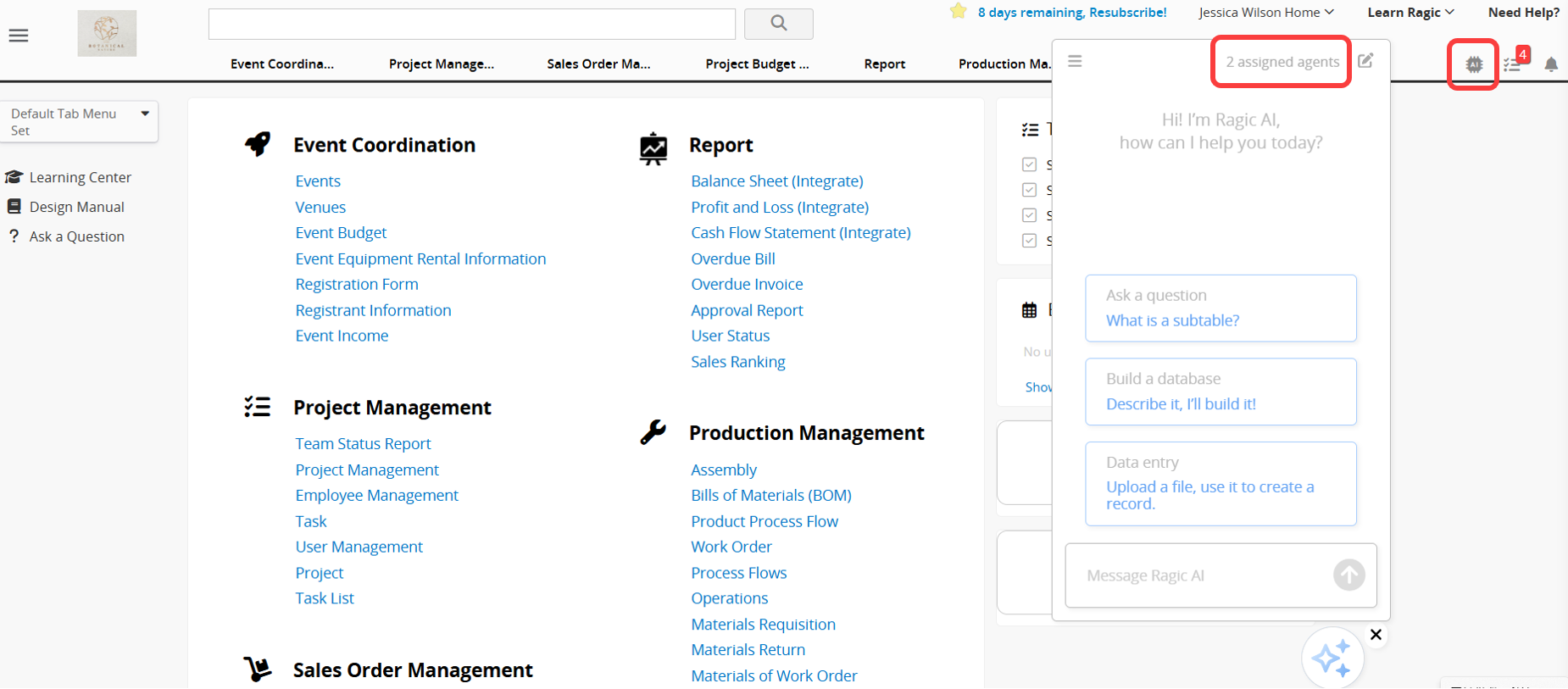
Before getting started with AI Agent, please note the following:
1. Running an AI Agent consumes AI Usage. The amount used varies depending on the complexity of the task and the selected Model.
2. Each database includes free monthly AI Usage for testing, and the amount varies by plan. Paid Plans include free usage based on the plan and the number of users. A Trial account receives a fixed amount of AI Usage for evaluation, regardless of plan or user count. The Free Plan also includes basic usage for testing. You can use the free AI Usage to explore and test the feature before deciding whether to upgrade your plan or purchase additional AI Usage.
3. When the free AI Usage is used up, the system will not charge you automatically. Instead, AI features will be paused. To continue using AI features, Paid Plans can purchase extra usage as needed. AI Usage is calculated in USD. Trial account cannot purchase additional AI Usage, and users on the Free Plan can continue using AI after monthly usage is refreshed. Charges are incurred only when you actively upgrade your plan or purchase additional AI Usage.
4. You can view the Usage Report for each Agent over the past 30 days, including call counts and usage costs. This helps you understand how AI Usage is being used and adjust Agent settings as needed.
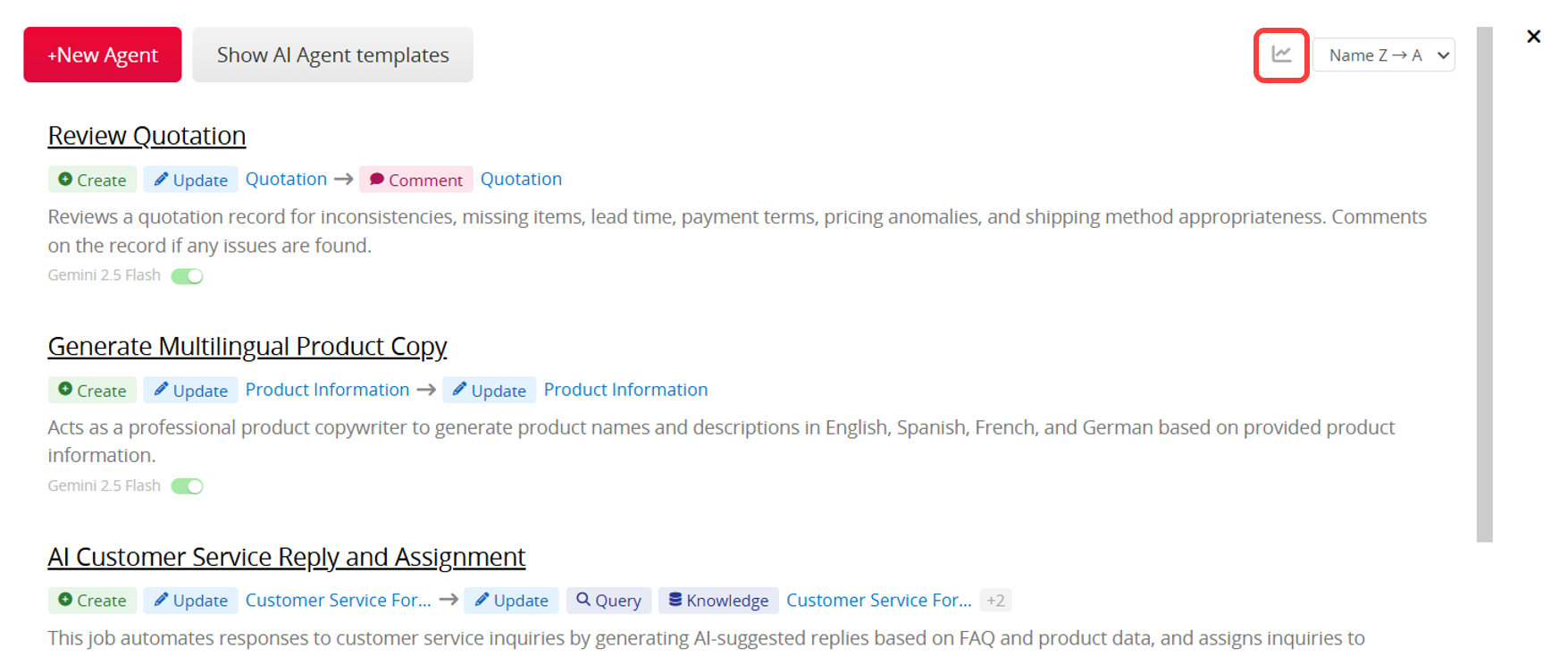
For more information, please refer to this article.
When creating a new AI Agent, you can find and apply the Multilingual Product Copywriter template at the top of the page.
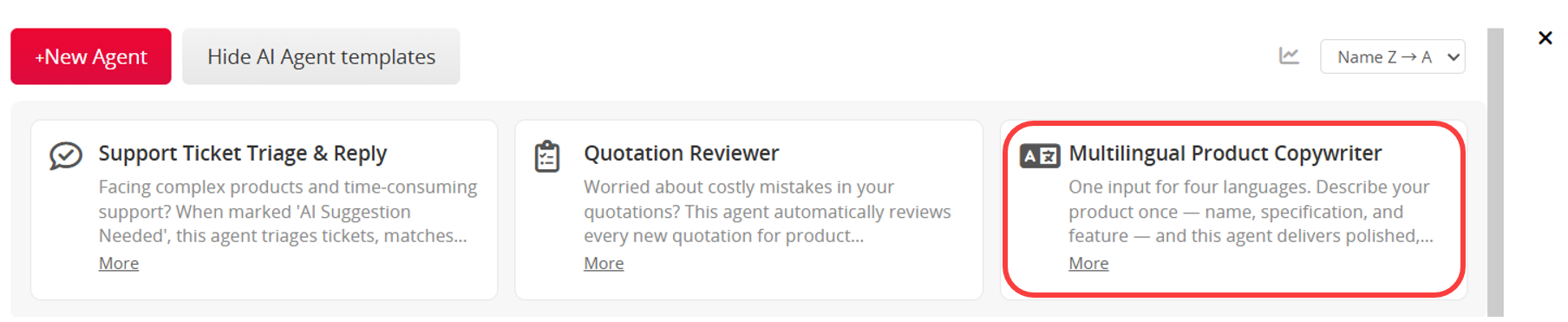
Depending on your current database needs, you can choose one of the following methods:
Method 1: Use the Template Sheets Directly
If your database is new or you have not yet created product-related sheets, it is recommended to start with the template sheets. Once the template is saved, the system will automatically install the related sheets and settings. You can begin testing immediately using the built-in fields and workflows without designing everything from scratch. This is also a quick way to understand how the AI Agent works.
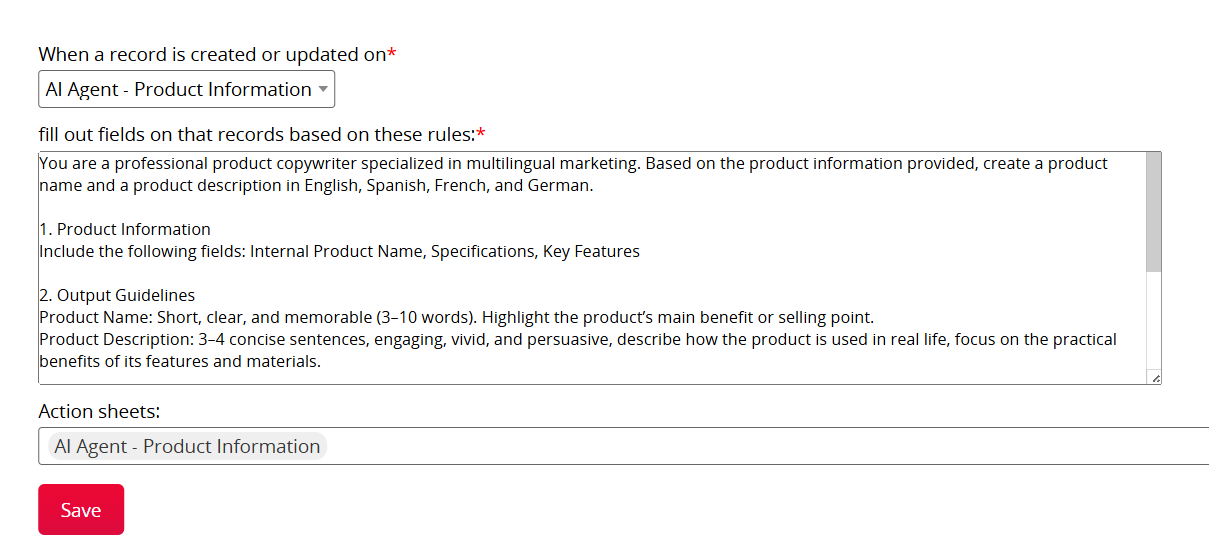
Method 2: Apply the Template to Your Existing Sheets
If you already have product sheets or an established workflow, you can apply the AI Agent to your own sheets instead.
This option is ideal for teams with existing product management or operational processes, as it allows direct integration into current systems without rebuilding databases. However, after applying the template to your own sheets, you may need to adjust the Agent rules and settings to better fit your workflow. For more details, please refer to this section.
When using the template sheets, you only need to fill in the following three fields: "Internal Product Name", "Specifications", and "Key Features".
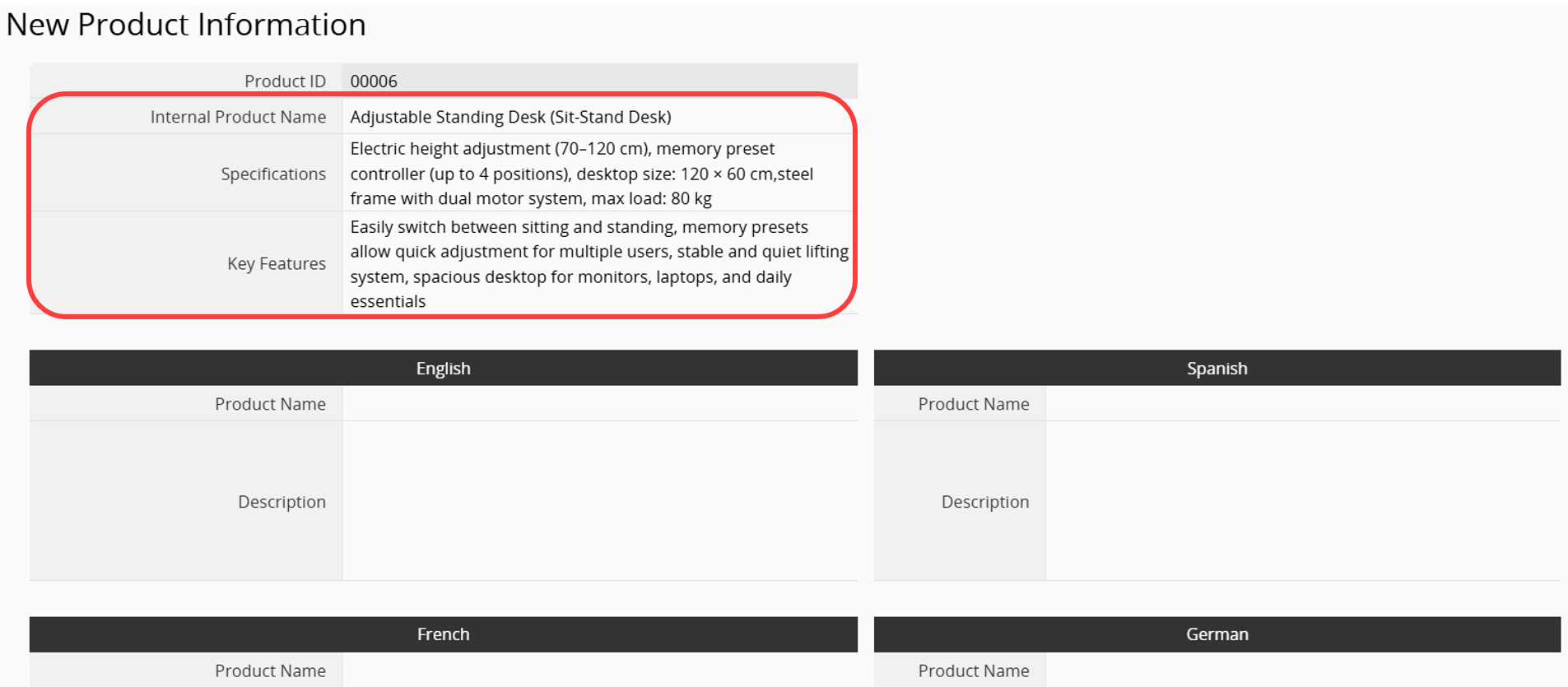
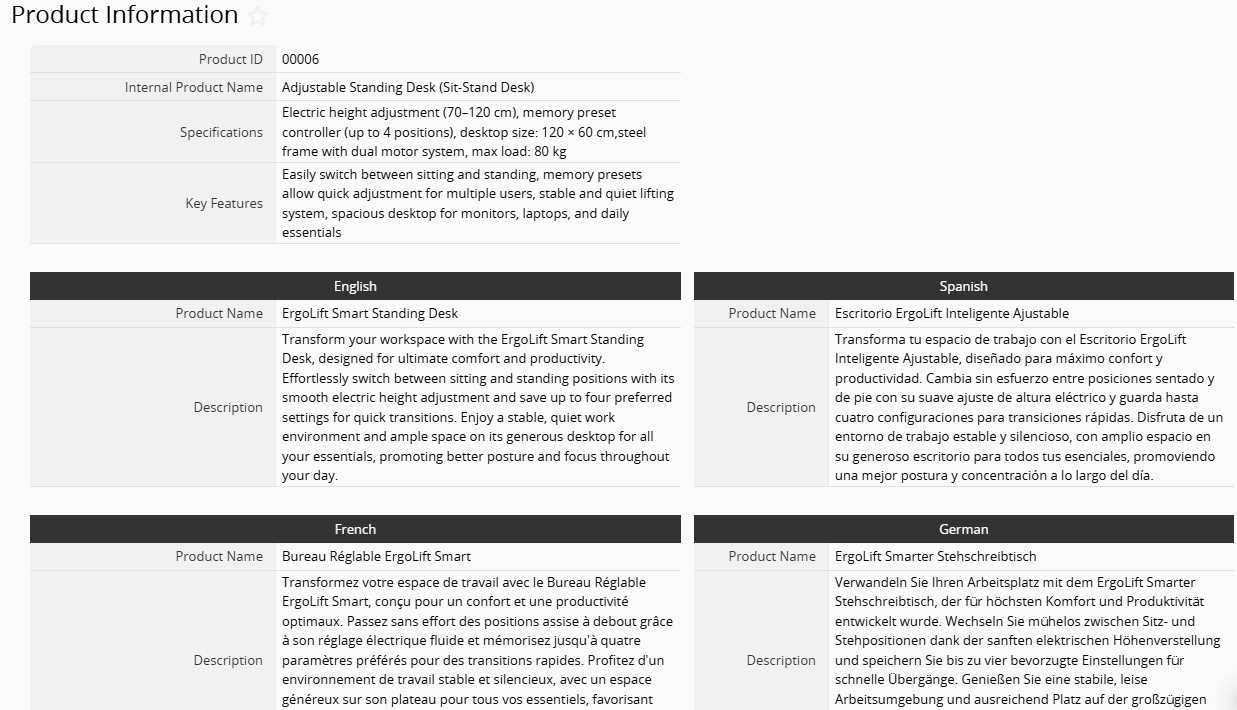
After saving the record, the system will automatically generate content in approximately 10 to 20 seconds, including an English product description and translated versions in Spanish, French, and German.
The template is only a starting point. You can customize fields, the AI prompt, and trigger rules to match your product management workflow.
If you are applying the template to your own sheets, first review the AI prompt and confirm whether any field settings need adjustment. For example, check whether the required fields exist, whether field names match, and whether the data being used aligns with your needs.
For example, if you want AI to generate product copy based on "Product Name", "Key Selling Points", and "Publishing Channel", you should also update the field descriptions in the AI prompt to match these inputs.
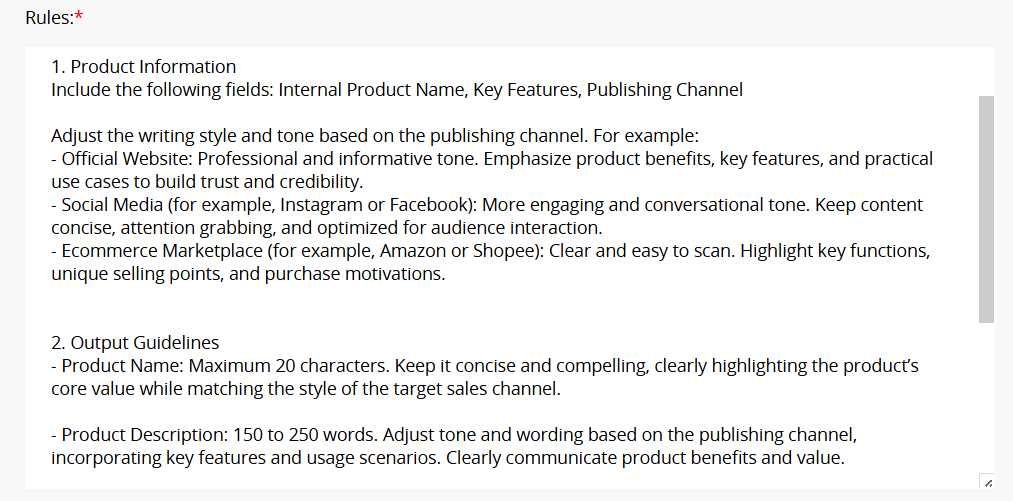
You can continue refining the setup through testing and iteration to find the approach that works best for your needs.
For example:
1. Avoid regenerating copy after updates: By default, the template regenerates content whenever a record is created or updated.
To prevent completed copy from being overwritten, you can configure a Shared View that the Agent only runs when specific conditions are met. This helps avoid unnecessary regeneration and reduces AI Usage.
For example, you can create a Selection field called "Generate Copy with AI? " and configure a Shared View where the field is set to "Yes". Add a formula to automatically change the field to "No" once content has been generated.
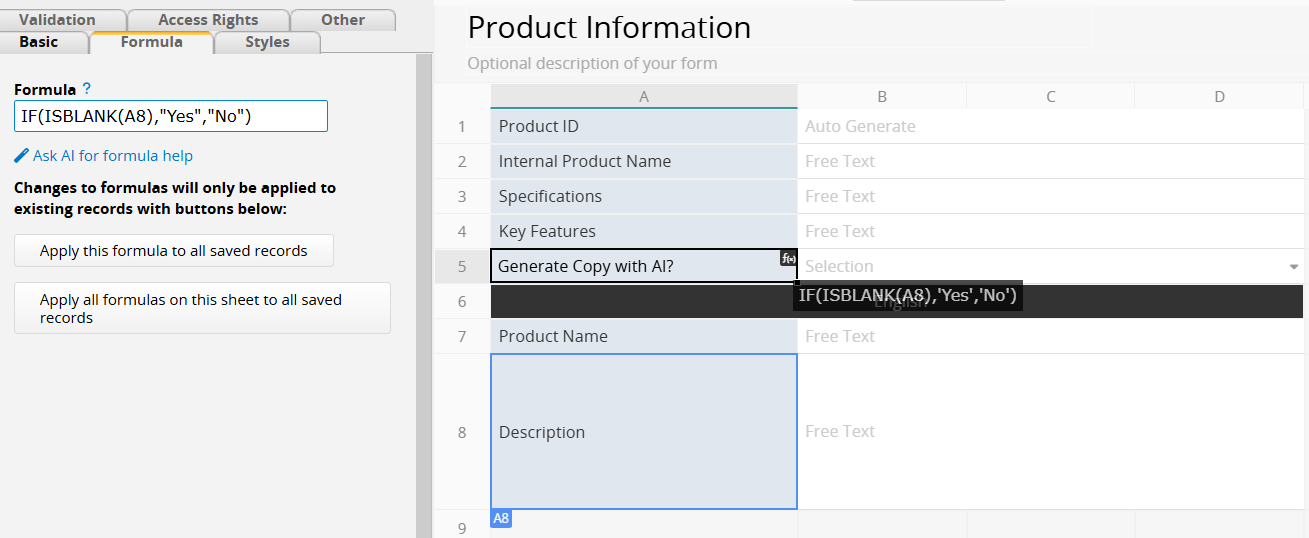
Then, in the AI Agent settings, specify that the Agent should run only when records matching this filter are updated.
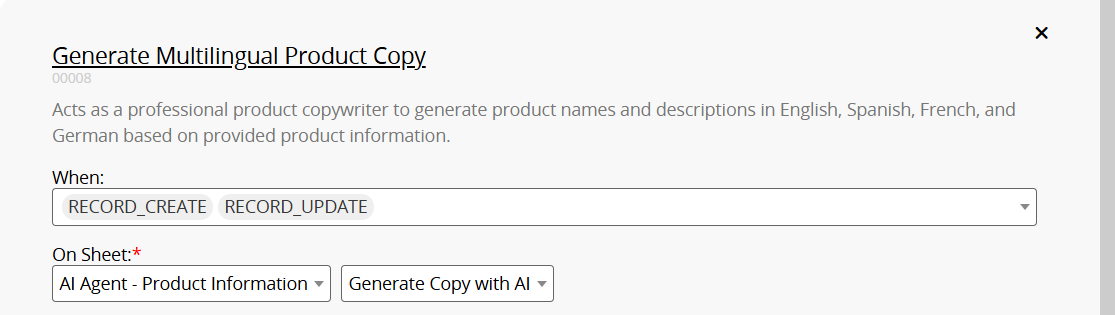
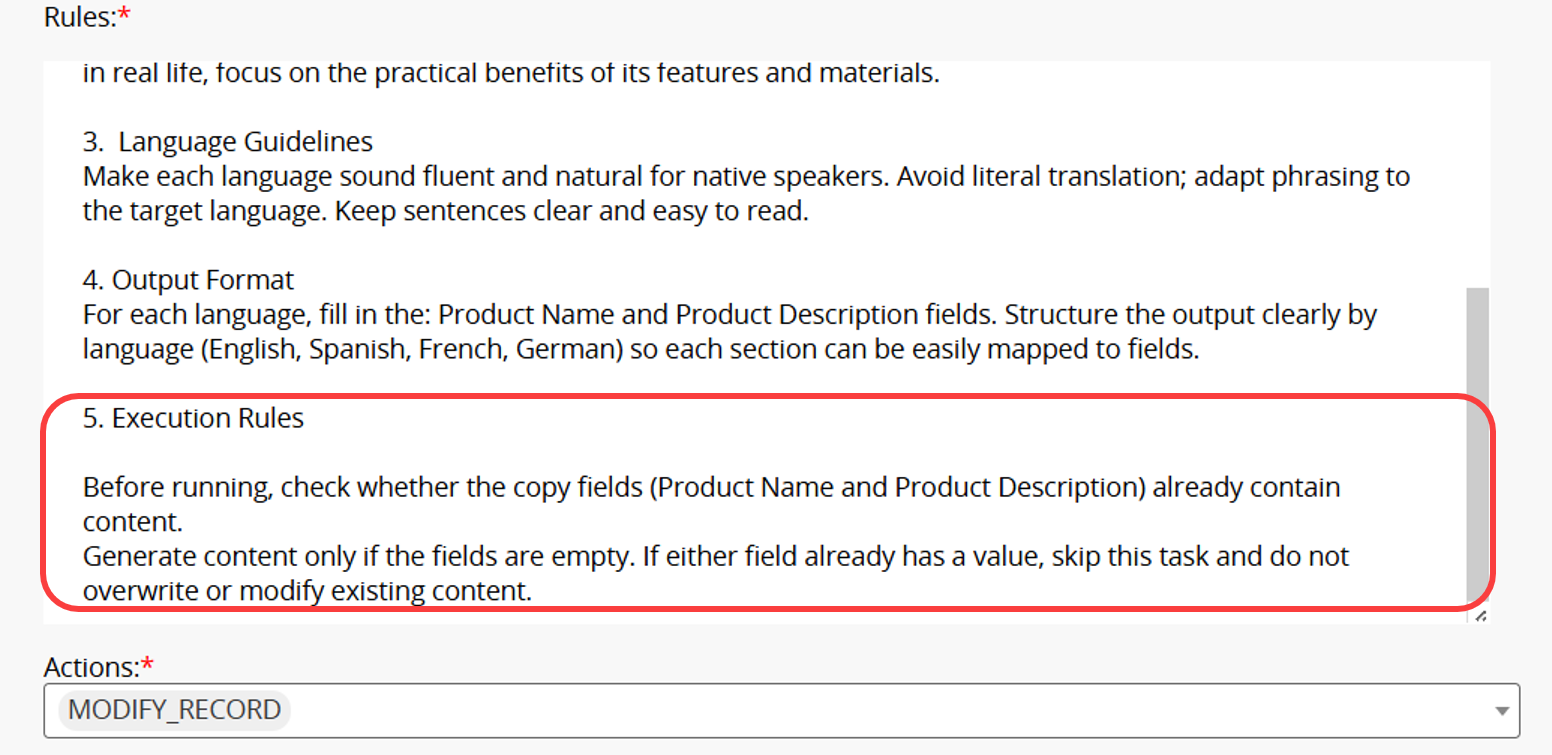
Alternatively, you can configure the AI prompt to generate content only when the copy field is empty, helping prevent existing content from being overwritten.
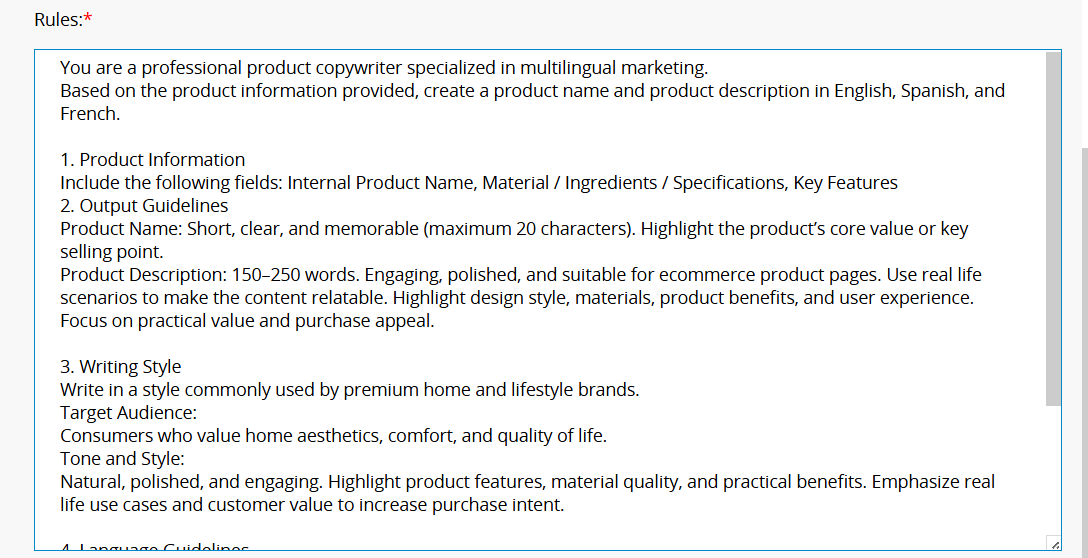
2. Customize Writing Style and Languages: Writing style, tone, and supported languages can all be customized to fit your needs. You can update the AI prompt to define your brand voice, target audience, and writing style, or add and remove languages to better align generated content with your brand and business needs.
 Thank you for your valuable feedback!