 Learning center
Learning center
Learning center
Facilities teams at factories, office buildings, and industrial parks regularly record meter readings for water, electricity, and gas, and then calculate daily usage. Because meter readings are cumulative, daily usage is the current reading minus the previous day's reading. Calculating this by hand on paper or in Excel is slow and error-prone.
This article uses a water meter as an example. You'll set up Ragic so that field staff can scan a QR Code on the meter, enter the day's reading, and let Ragic fill in the previous reading and calculate daily usage automatically. It covers three parts:
・Part 1: Calculating Daily Usage Automatically
・Part 2: Opening the Entry Sheet by Scanning a QR Code
・Part 3: How to Use It
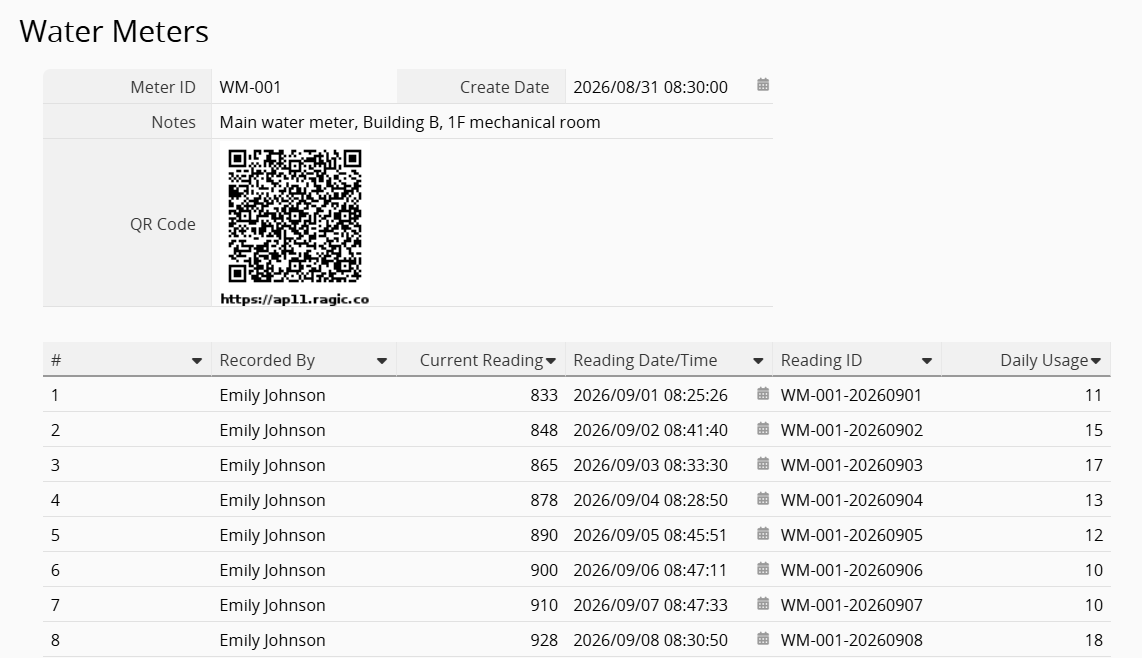
To calculate daily usage, Ragic needs the previous day's reading. However, a formula in a Subtable can only read values in its own row, so it can't pull a number from the row above. Instead, turn each day's reading into its own record. Ragic can then look up the previous day's record for the same meter and subtract it from the current reading.
In the "Water Meters" sheet (one record per meter), create a Key Field named "Meter ID", and then add a Subtable to log each day's reading.
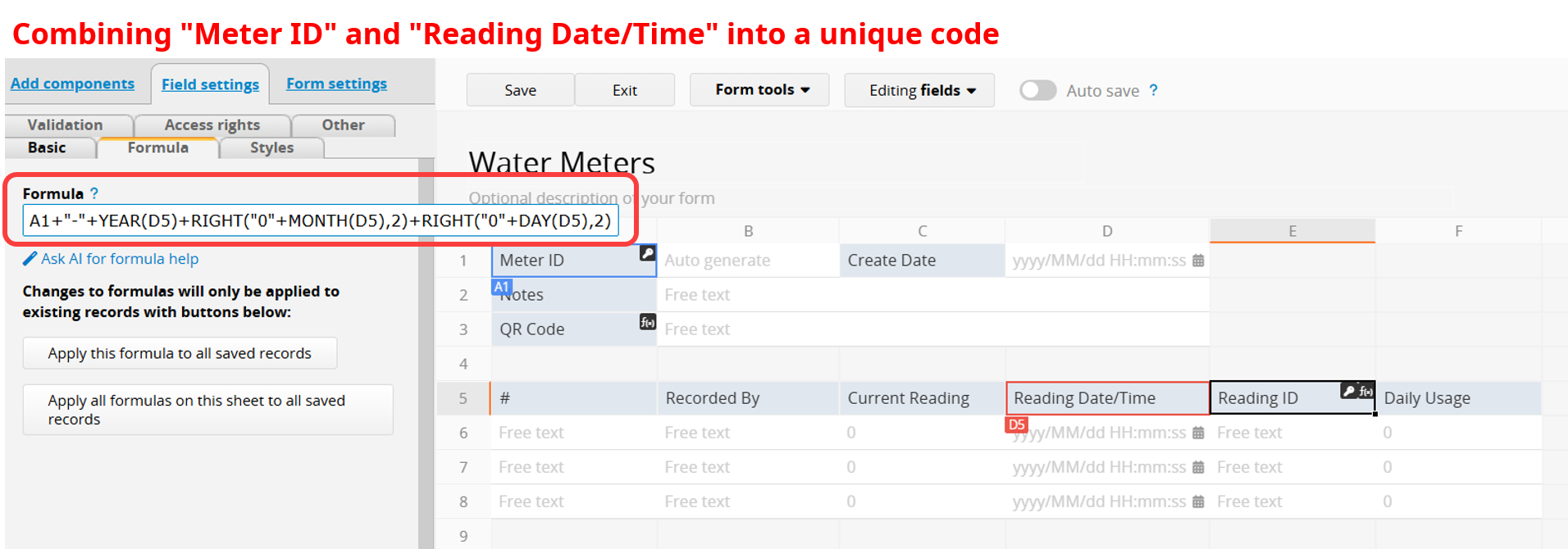
In the Subtable, add a "Reading ID" field with a string formula that combines "Meter ID" and "Reading Date/Time" into a unique code. For example, WM-001-20260720 identifies meter WM-001's reading on 2026/07/20. Here is an example formula (A1 is "Meter ID" and D5 is "Reading Date/Time"; adjust the cell references to match your sheet):
A1+"-"+YEAR(D5)+RIGHT("0"+MONTH(D5),2)+RIGHT("0"+DAY(D5),2)
Ragic will use this ID to find the previous day's record.
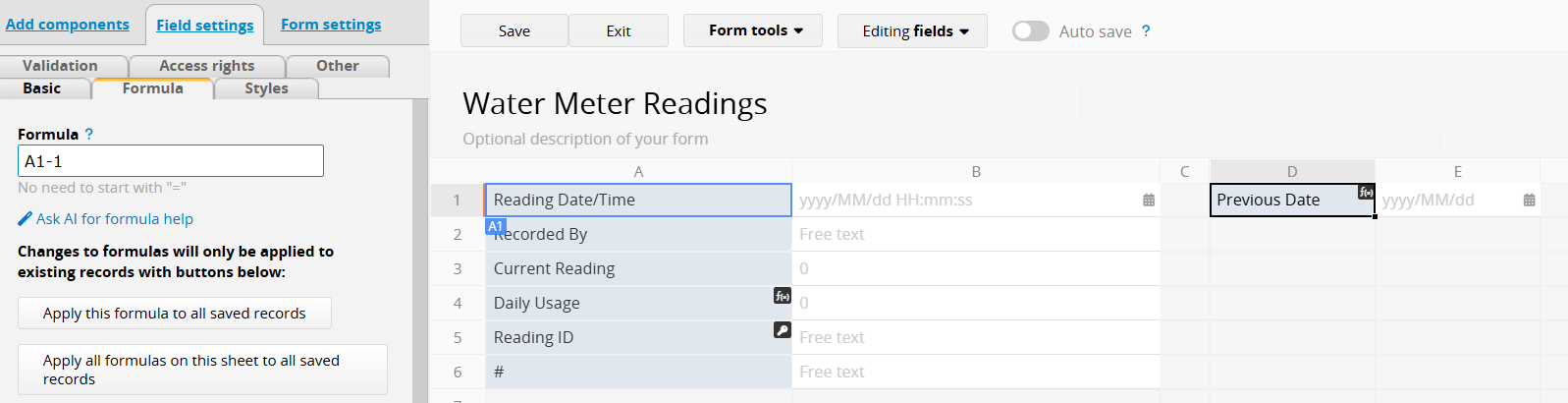
In Design Mode, open Form Tools, and then select New Sheet From Subtable. This creates a new "Water Meter Readings" sheet from the Subtable, so each day's reading becomes its own record that Ragic can look up.
The two share the same data: records added in "Water Meter Readings" also appear in the meter's Subtable. Use "Water Meter Readings" for daily entry (you'll open it by scanning a QR Code in Part 2), and the Subtable to review a single meter's history.
Next, use Link Fields From Parent Sheets to add "Meter ID" from "Water Meters" to this sheet. You'll need it later when building the "Reading ID".
Then create a formula field named "Previous Date" that subtracts 1 day from "Reading Date/Time".
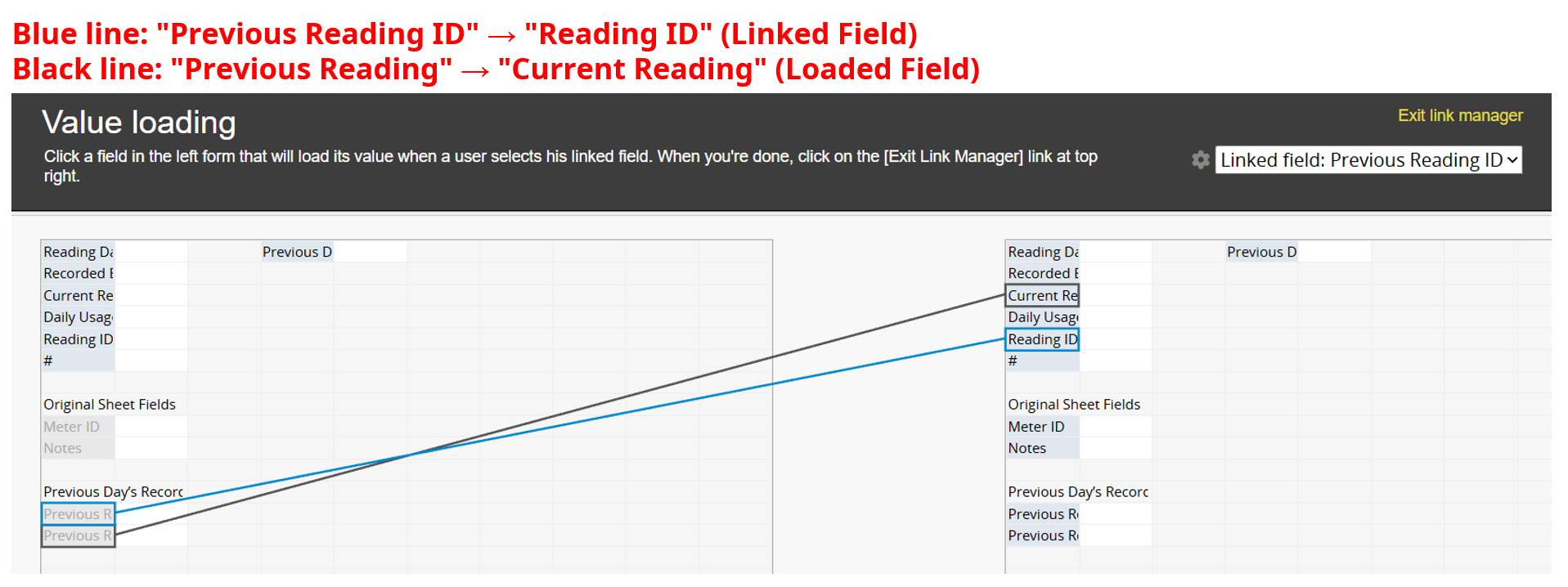
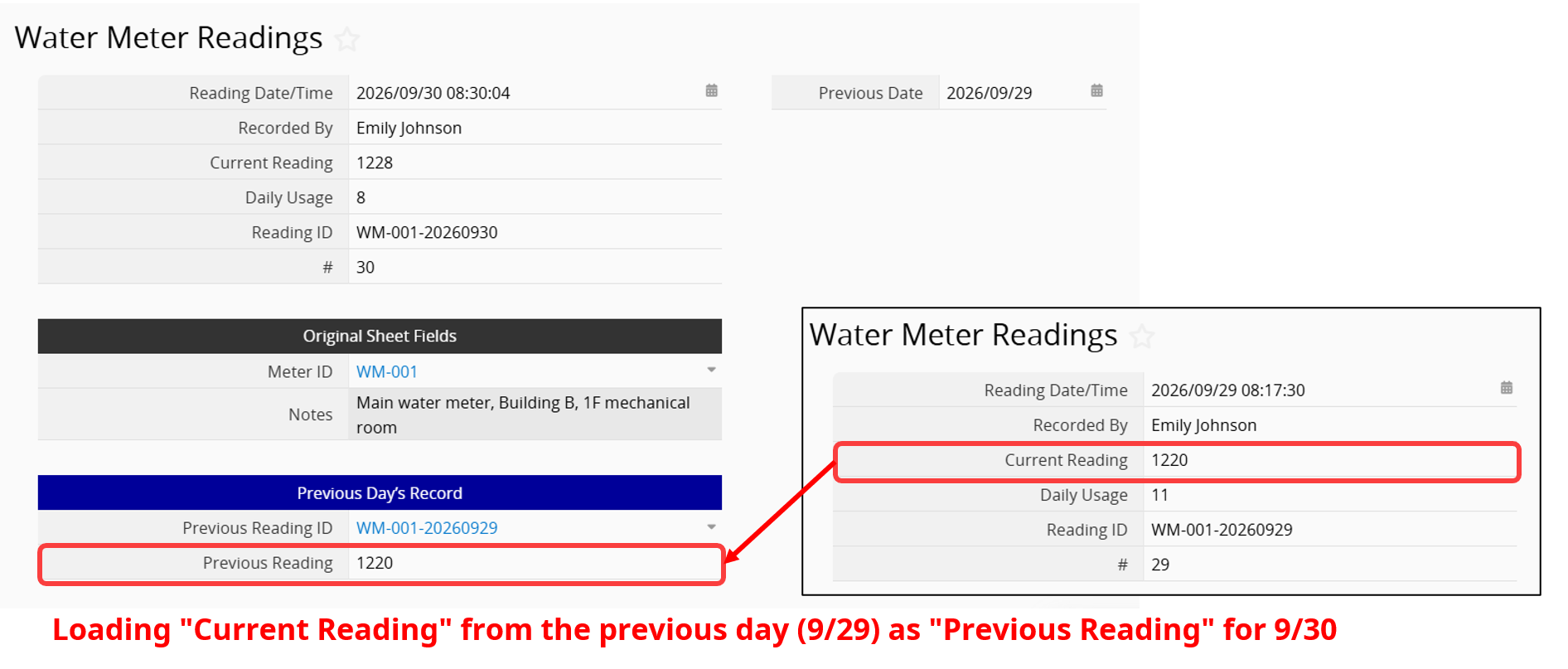
Use Link and Load to link "Water Meter Readings" back to itself. On the left, set "Previous Reading ID" as the Linked Field and match it to "Reading ID" on the right (blue line). Then set "Previous Reading" as the Loaded Field and match it to "Current Reading" (black line).
Next, add a formula to "Previous Reading ID" that builds the previous day's ID from "Meter ID" and "Previous Date". Combine date formulas such as YEAR(), MONTH(), and DAY() with a string formula, and match the "Reading ID" format from Step 1 exactly, including the zero-padded month and day. Otherwise, Ragic can't find the matching record. Here is an example formula (A9 is "Meter ID" and D1 is "Previous Date"; adjust the cell references to match your sheet):
A9+"-"+YEAR(D1)+RIGHT("0"+MONTH(D1),2)+RIGHT("0"+DAY(D1),2)
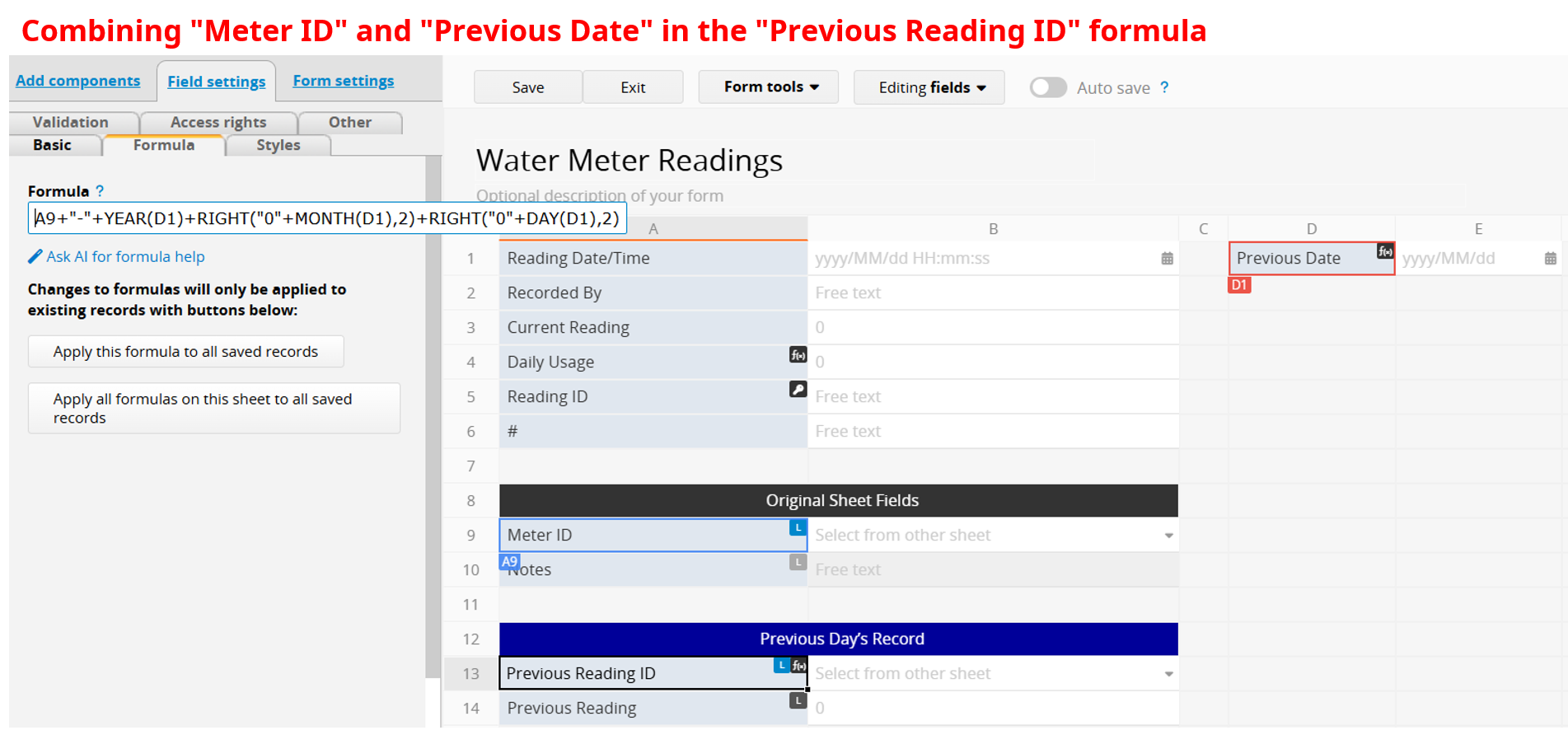
Now when you enter a "Reading Date/Time", Ragic calculates "Previous Date", finds the previous day's record, and loads its "Current Reading" into "Previous Reading".
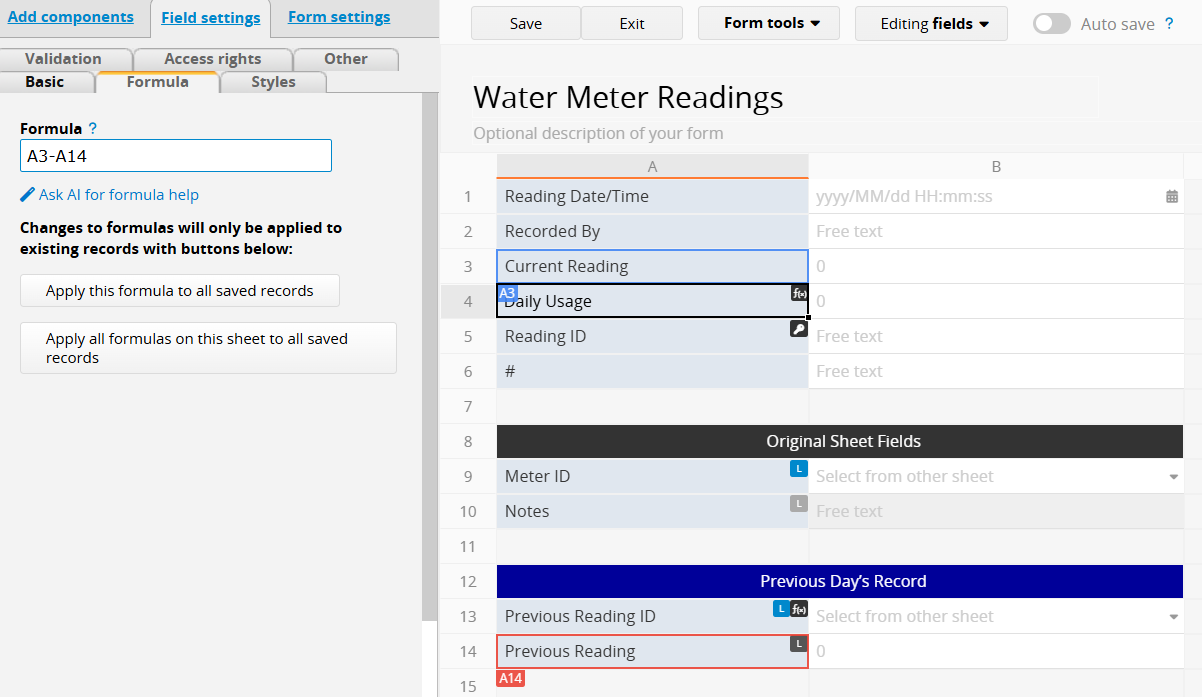
Create a formula field named "Daily Usage" that subtracts "Previous Reading" from "Current Reading". Here is an example formula (A3 is "Current Reading" and A14 is "Previous Reading"; adjust the cell references to match your sheet): A3-A14
Note:
1. This setup combines several features, so test it on a test sheet with two or three days of sample data before applying it to your production sheet. Confirm that "Previous Reading" and "Daily Usage" fill in correctly.
2. If you later change a formula or field, recalculate formulas so existing records pick up the change.
Once "Water Meter Readings" is ready, create a unique QR Code for each meter. Scanning it opens a new record with the meter's ID and related details already filled in, so field staff only need to enter the current reading. The formulas from Part 1 calculate daily usage.
A barcode that contains a URL works like a link: scanning it opens that URL in the browser, and URL parameters can prefill fields on the page.
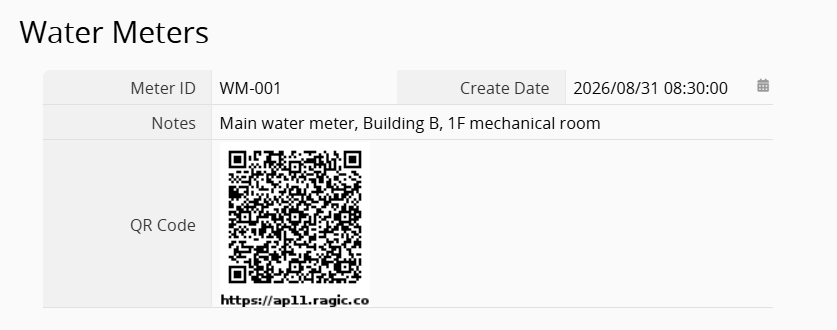
In "Water Meters", create a Free Text field named "QR Code" and use a string formula to create a URL that opens a new "Water Meter Readings" record, ending with the meter's ID. For the URL format, see this article. Here is an example formula (A1 is "Meter ID"):
"https://ap11.ragic.com/example/forms12/2/?webview&webaction=form&ver=new&pfv1006213="+A1
The first part of the URL opens a new "Water Meter Readings" record, and the pfv parameter at the end prefills "Meter ID" (field ID: 1006213) with the meter's ID. Because each meter has its own URL, each QR Code opens a new record for that meter.
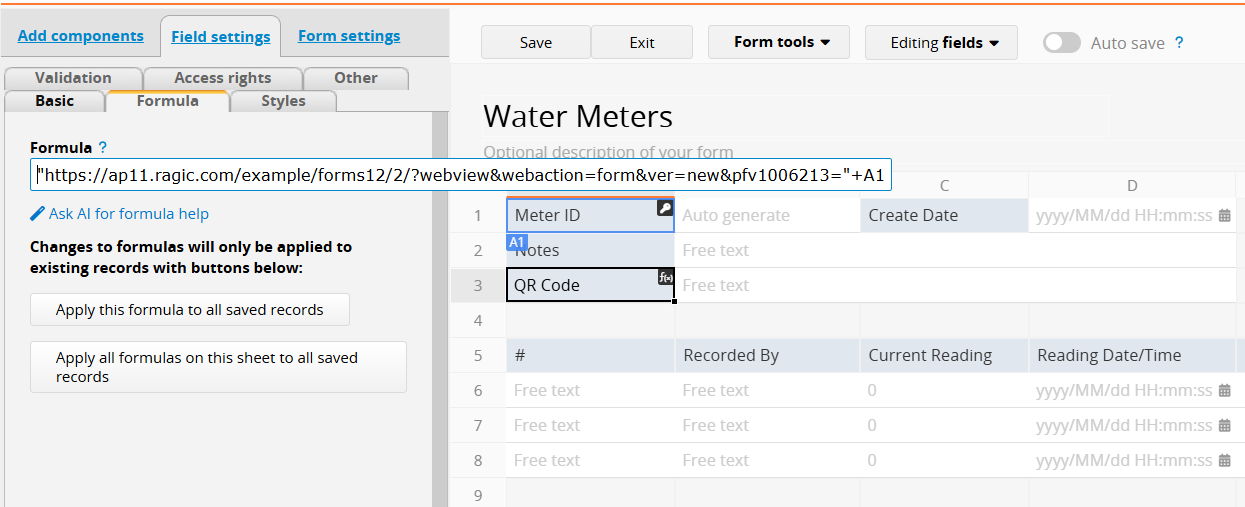
Then turn on Barcode in the field's Additional Field Settings to display the URL as a QR Code.
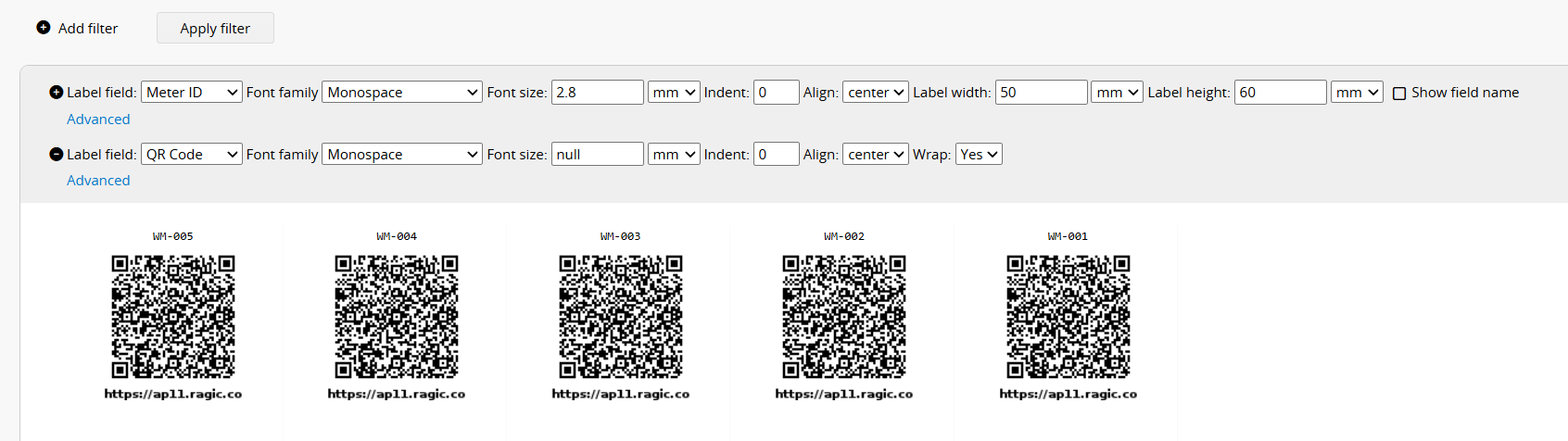
Use the Label Maker to lay out and print the QR Code as a label, and then attach it to the meter. Field staff can scan it with a phone camera or the Ragic app to open a new "Water Meter Readings" record with the meter ID already filled in.
Because "Meter ID" is a Linked Field added from the parent sheet, you can use Link and Load to load additional fields, such as "Meter Name", "Site ID", and "Location". Set them up the same way as in Part 1, and they will fill in automatically when a scan fills in "Meter ID".
For "Reading Date/Time", set the Default Value to "Create Date $DATE" so a new record opens with today's date. Users can still change it to enter a past date.
Open the Additional Field Settings for "Reading ID" and turn on Unique. If a record already exists for the same meter and date, Ragic blocks the save and shows a message.
Before printing labels for all your meters, test one meter end to end: scan the QR Code, enter a reading, and save. Confirm that "Previous Reading" and "Daily Usage" are correct. If you used the advanced settings, also check that the extra fields fill in automatically and that duplicate entries are blocked.
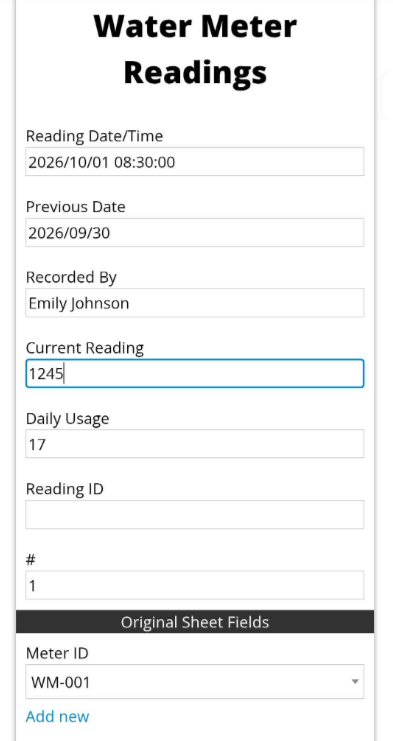
Field staff scan the QR Code on a meter with a phone camera or the Ragic app to open a new "Water Meter Readings" record. Saved readings also appear in that meter's Subtable in "Water Meters", where you can review its history.
The new record opens with "Meter ID", "Reading Date/Time" (today by default), "Previous Date", and "Previous Reading" already filled in. Field staff only need to enter "Recorded By" and "Current Reading", and then save.
If a weekend or holiday passes without readings, add a record for each missed day, starting with the first missed date in "Reading Date/Time", so "Previous Reading" links correctly. How to fill in those readings is up to your administrator. For example, you might reuse the last known reading so the usage shows up on the day readings resume. Paper logs have the same issue, and Ragic can't decide it for you.
You can use the same approach for electricity meters, gas meters, or any equipment you read regularly. Just replace "Meter ID" with "Equipment ID".
 Thank you for your valuable feedback!