 Learning center
Learning center
Learning center
If you need to print or export records from your database, such as orders, delivery notes, or payment slips, into custom-formatted documents, Mail Merge is a great choice. It works well when the file format you need differs significantly from your sheet's layout, and it's especially handy for documents like directories, labels, or business cards that pack a lot of information onto a single page.
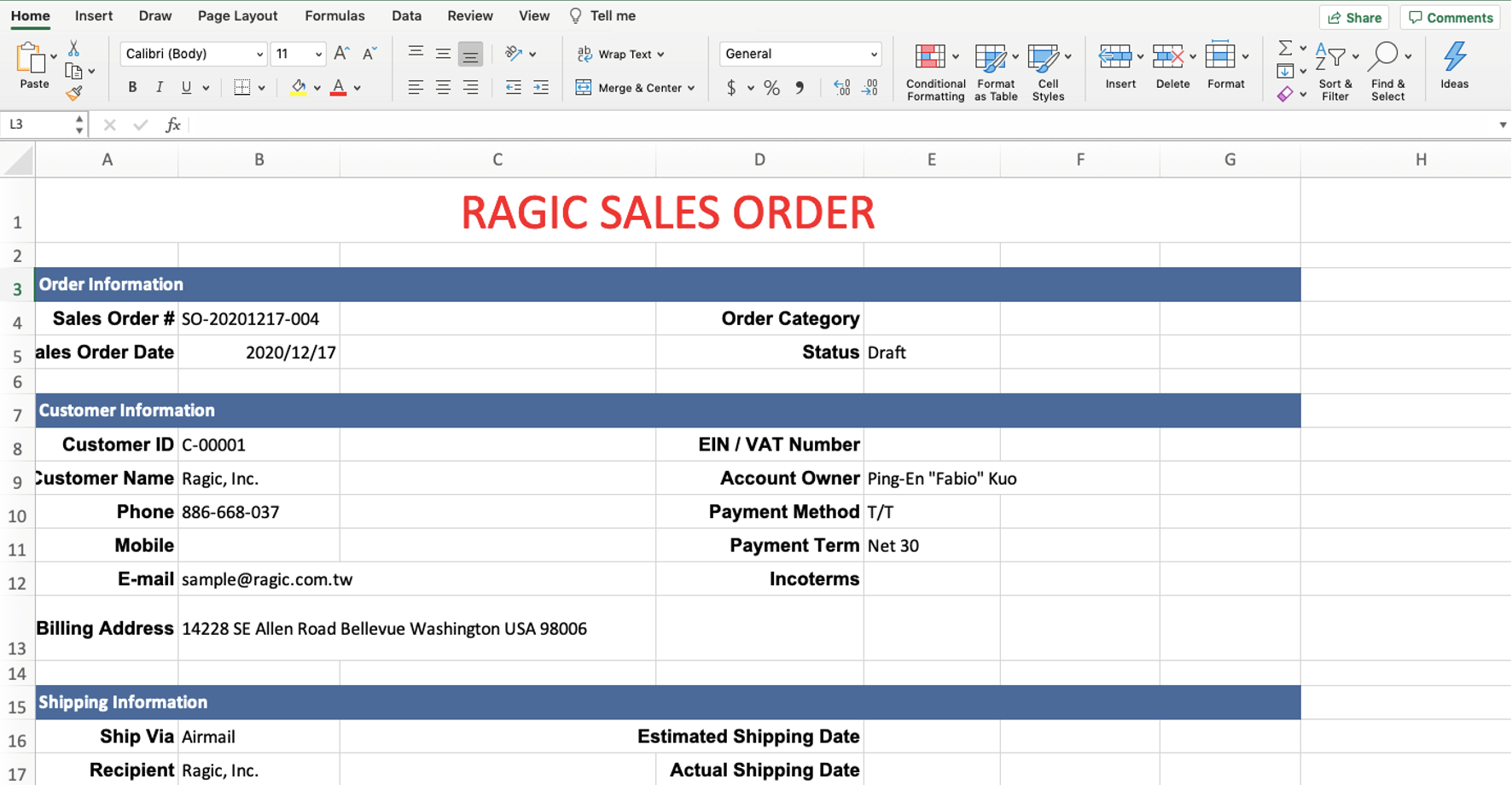
Mail Merge supports exporting records in three different formats, using either Excel or Word depending on the format.
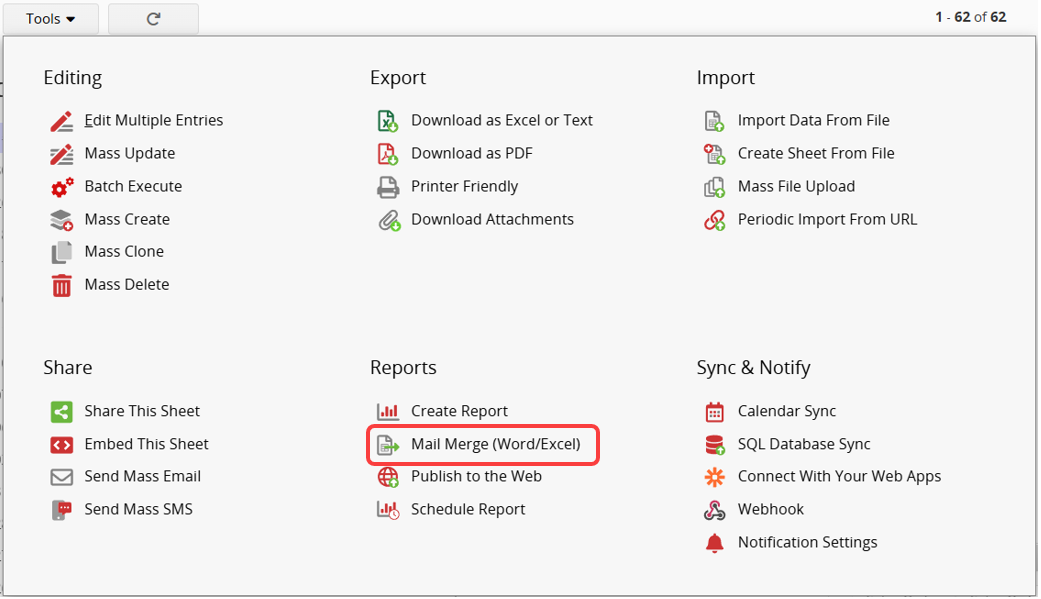
Before using Mail Merge, you'll need to create a template (an Excel or Word file). Click Mail Merge under Tools on the Listing Page or Form Page.
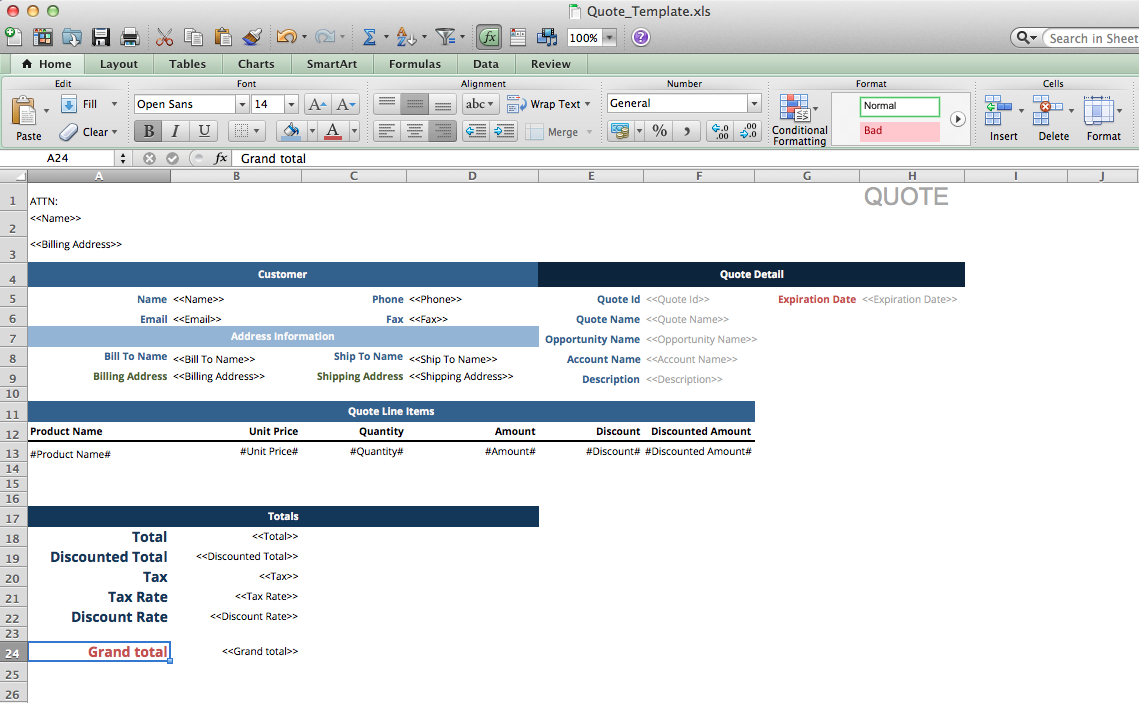
You can download a Sample Template to get started. Click the Download button next to "Sample Template" to get the Excel template for the Form Page. Word doesn't offer a downloadable template, so you'll need to create one manually by copying the parameters over.

After downloading, you can modify the template as needed, such as adjusting or deleting fields, or adding your company name and logo.
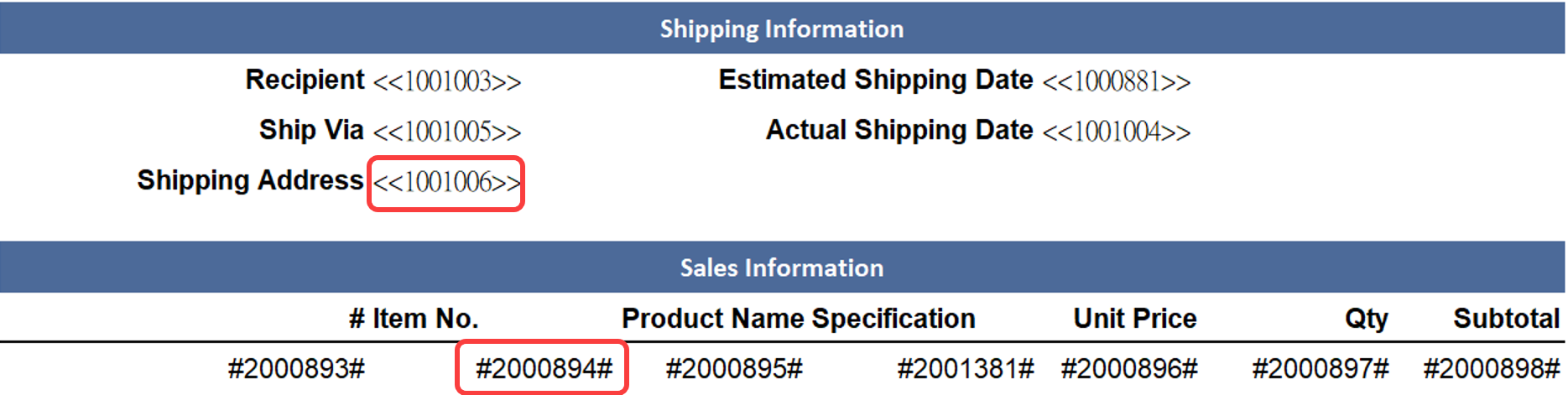
In the template, field values are represented using parameters. Use <<Field Name>> for regular fields, and #Field Name# for Subtable fields.
Form Page Format (Normal Format): Each record is exported as an individual page. This format supports both Excel and Word, and you can export a single record directly from the Form Page, or export multiple records at once from the Listing Page. When batch exporting to Excel, you can choose from three saving options: a single file (separated by tabs), separated files (compressed into a zip file), or a single file (containing multiple entries within one tab), depending on how you plan to use the file afterward.
Form Page Format (Multiple Records per Page): Ideal for documents like directories, labels, or business cards that need to display multiple records on the same page. This format only supports Word, and templates can only be uploaded and exported from the Listing Page.
Listing Page Format: Exports multiple records in a list format. This format only supports Excel and can only be exported from the Listing Page.
 Thank you for your valuable feedback!