 Learning center
Learning center
Learning center
Finally got your business going after all the hard work, but don't really know what managing a business is about? Give the Ragic "Accounting (Lite)" template a try! The "Accounting (Lite)" template has the whole package, from client information management, product listing, to the purchasing and sales process. One single template can take care of every aspect of your business, even if you're new to owning a business.
Is your business operation turning a profit? With just a simple understanding of accounting concepts, you only have to select the account title, type in the debit/credit, and the system will automatically generate the financial statements! Do you have enough cash to sustain operations? The template has sheets to keep track of accounts payable and receivable, so your future cash flow is readily available for review. What are you waiting for? Follow the steps below to take control of your company's most critical financial information.
If you don’t have a Ragic account, click here to sign up and install the "Accounting (Lite)" template. This entire process is free, and we will not charge you without your consent.
If you are already a Ragic user, you can find the "Accounting (Lite)" template under the "Accounting" category in Install Templates and click "Install" to download it.
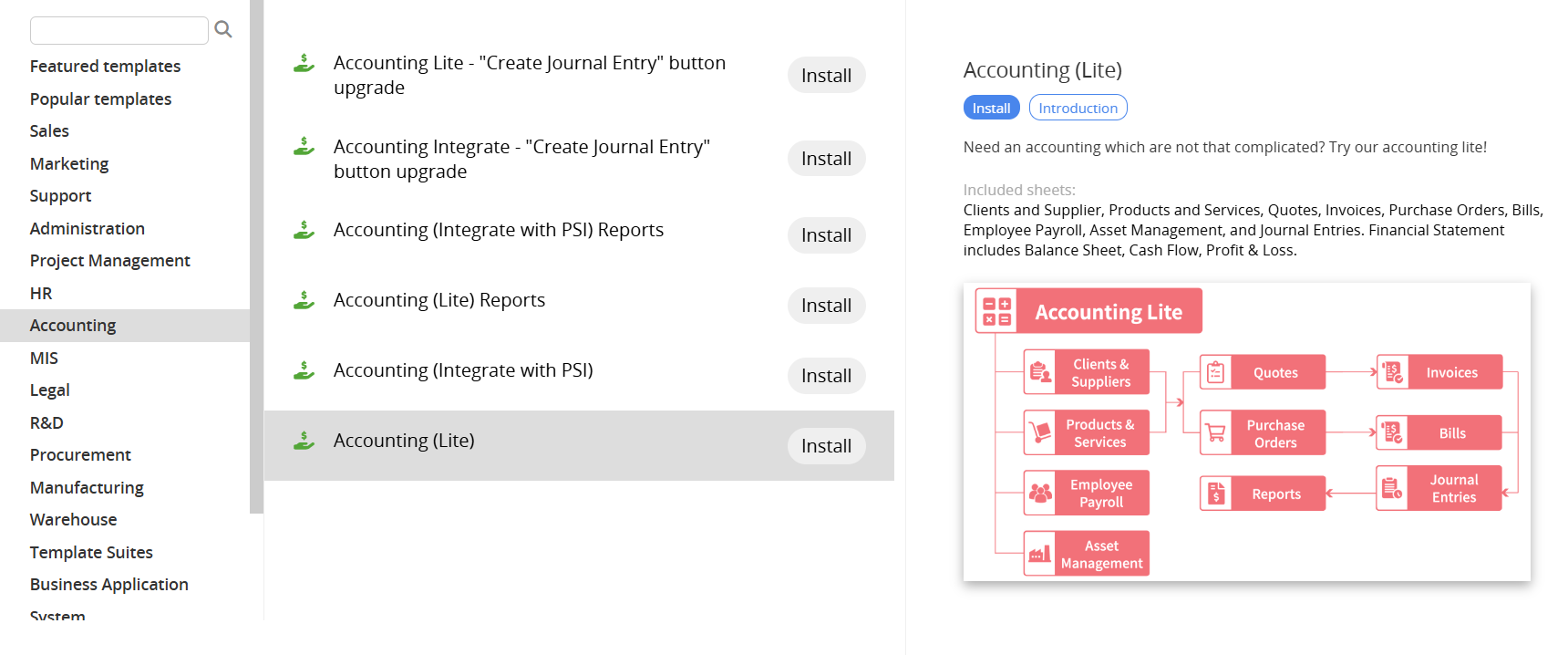
Once the installation is complete, you're ready to transform your accounting system!
First, a simple description of what's in the accounting template. The accounting template can be divided into four major sections: "Basic Information", "Sales Process", "Purchasing Process", and "Accounting".
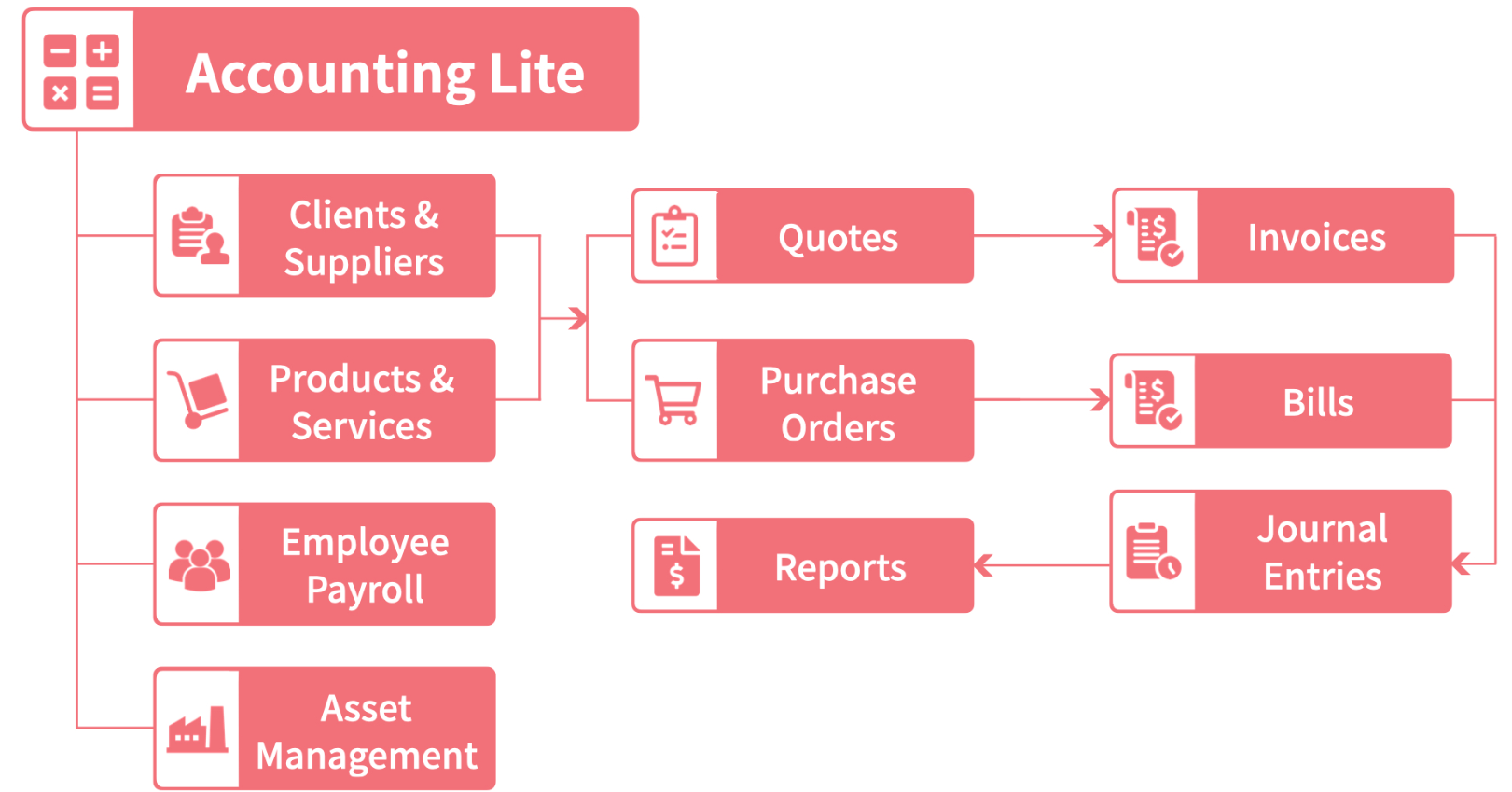
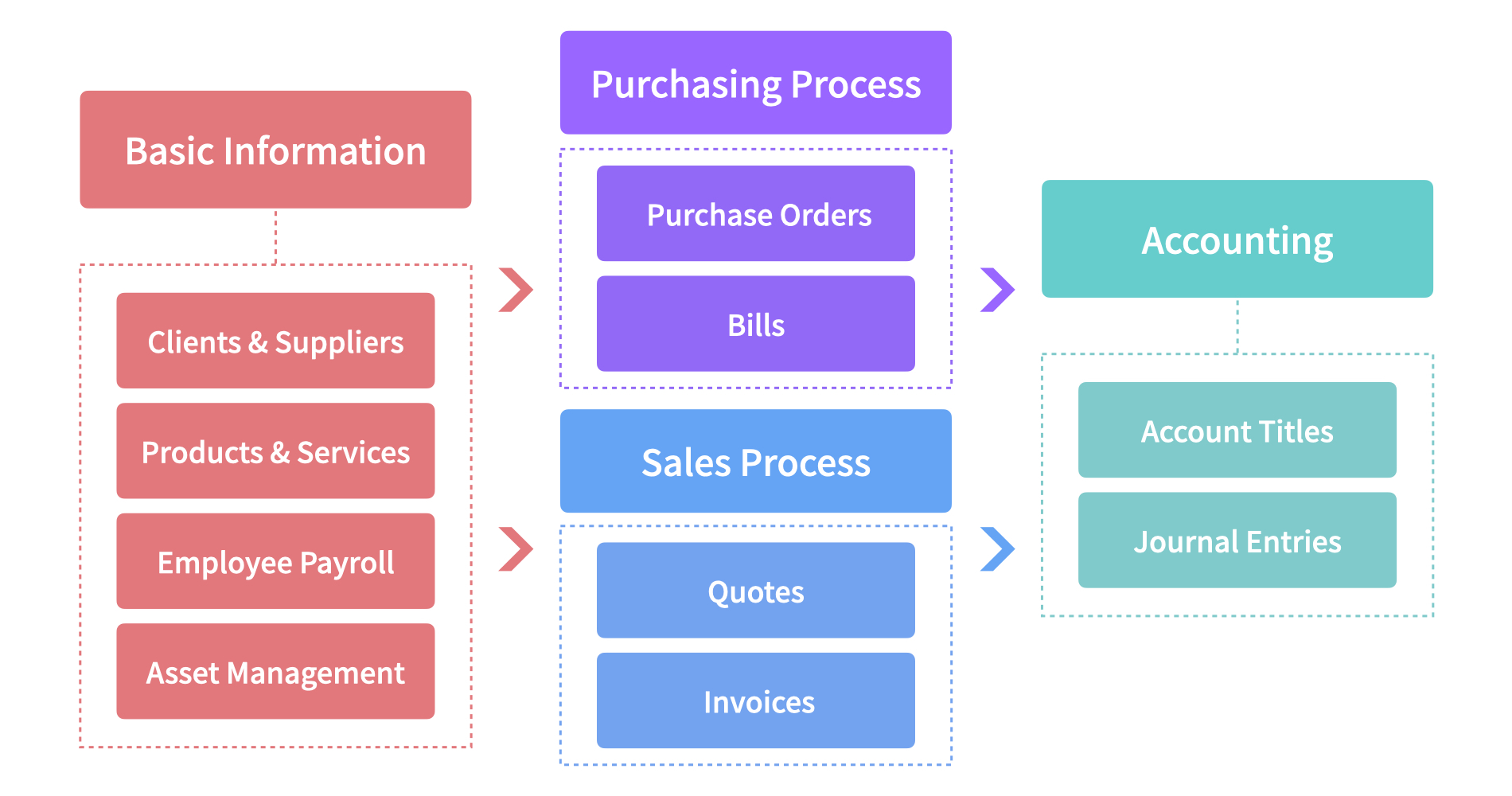
"Basic Information" mainly consists of storing current information. It includes the "Clients and Suppliers" or "Products and Services" information that will be used in subsequent processes. Since the more complete your information is, the faster you can utilize it for sales and purchasing processes, it is recommended that you organize your current information and import it into the database. The accounting section includes sheets such as "Journal Entries" and "Account Titles", with 3 major built-in financial statements that aid the organization in managing income, expenses, and cash flow.
The "Lite" template is designed for companies with straightforward operations and minimal inventory management requirements. If the organization has more complex needs, such as a pricing system or production and inventory management, we recommend using the "Accounting (Integrated)" template, which integrates the "Sales Order Management", "Inventory Management", and "Purchasing Management" templates.
To better manage information, produce meaningful reports, and save on future time spent entering data, the first thing you need to do is to input the company's current information into the system, which we'll walk you through in a minute. If your organization already has a complete list, you can also consider directly importing data from your files.
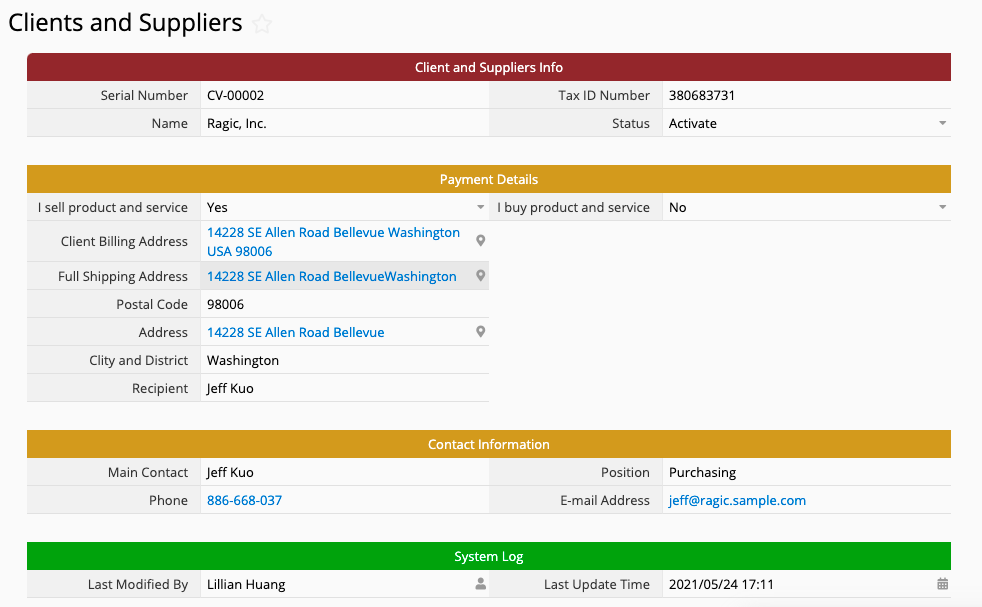
This sheet is used to manage client and supplier information in one place. Some of the fields displayed will differ depending on your selections.
Add new client information:
When you select "Yes" for "I sell product and service" (i.e., they are your clients), the system prompts you to enter information such as billing and delivery addresses.
Add new supplier information:
When you select "Yes" for "I buy product and service" (i.e., they are your suppliers), the system prompts you to enter information such as supplier billing address and payment information.
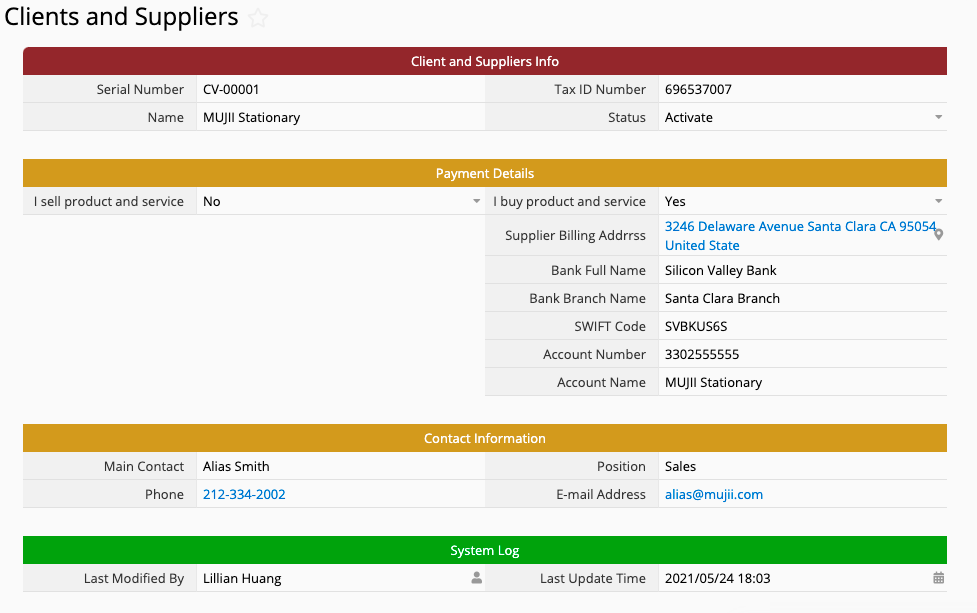
In the section below is the contact information, where information for the primary contact window of the client can be filled in. The information will be used in the quotation/purchasing and invoicing workflow later on.
Reminder: On the Listing Page, we have already saved some of the most commonly used Views. If you need to add or remove any of them, you can take a look at this section.
After entering information about the people you do business with, comes building a list of products and services.
Similar to the “Clients and Suppliers”, the fields displayed, such as the “Buying price” and “Selling price”, also depend on your selected option.
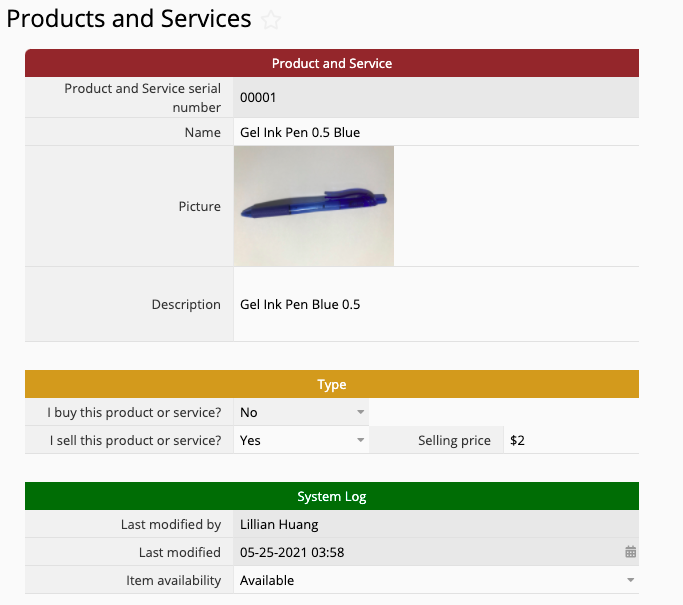
Currently, the name field is set to be Unique, so if the same product is sold to two different clients at different prices, then it needs to be entered as two separate entries. For example, if the pen in the picture is sold to clients A and B at different prices, you'll need to create an "A Gel Ink Pen 0.5 Blue" entry and a "B Gel Ink Pen 0.5 Blue" entry to distinguish between the two.
Much like the "Clients and Suppliers" sheet, the "Products and Services" sheet also has a few basic saved views. If you need more advanced searches, you can check this section to learn how to add your own.
Since different companies have different ways of calculating payroll items such as salary bonuses and overtime pay, there's no universal formula available that works in every situation. Therefore, the "Employee Payroll" only serves as a record of the final amount you paid.
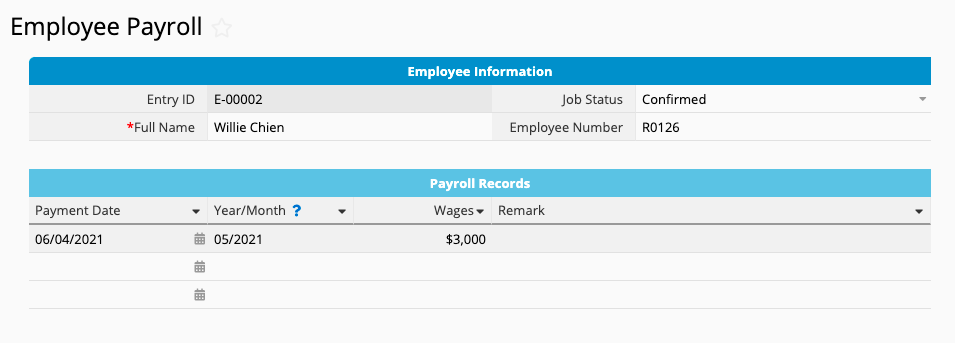
To facilitate management in the future, we recommend filling in the "Payment Date" field in the YYYY/MM format, e.g., 2018/07 for July 2018.
Aside from regular product/service transactions, does your company purchase fixed assets and need to calculate depreciation?
If so, you can record such information in the "Asset Management" sheet and enter the depreciation data at regular intervals:
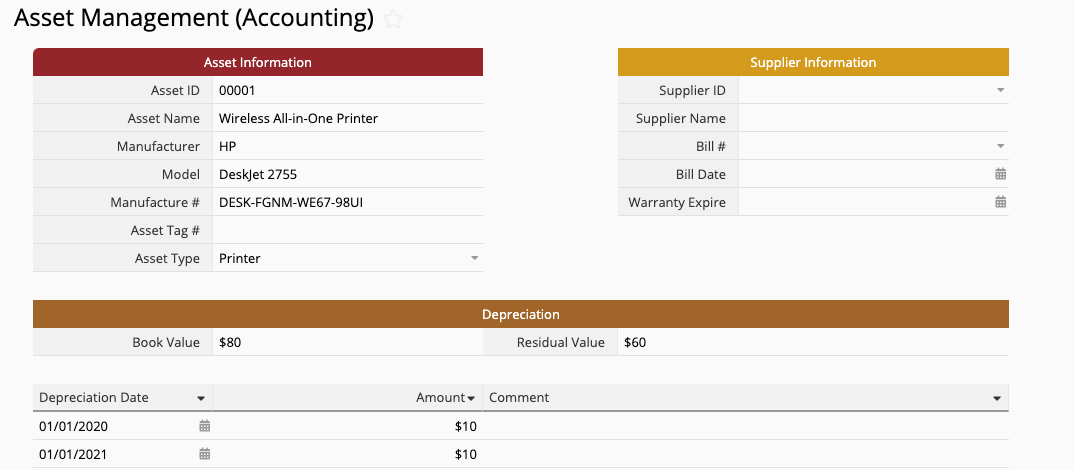
In the future, when you need to look up the value of a specific asset, you'll have it all in one place!
The first step of the sales process is simply putting together a quote according to your client's needs.
Since we have all the prerequisite information entered into the database, creating a quote requires simply selecting the client ID, expiration date, product, and quantity. Everything else will be loaded or calculated for you automatically by the system!
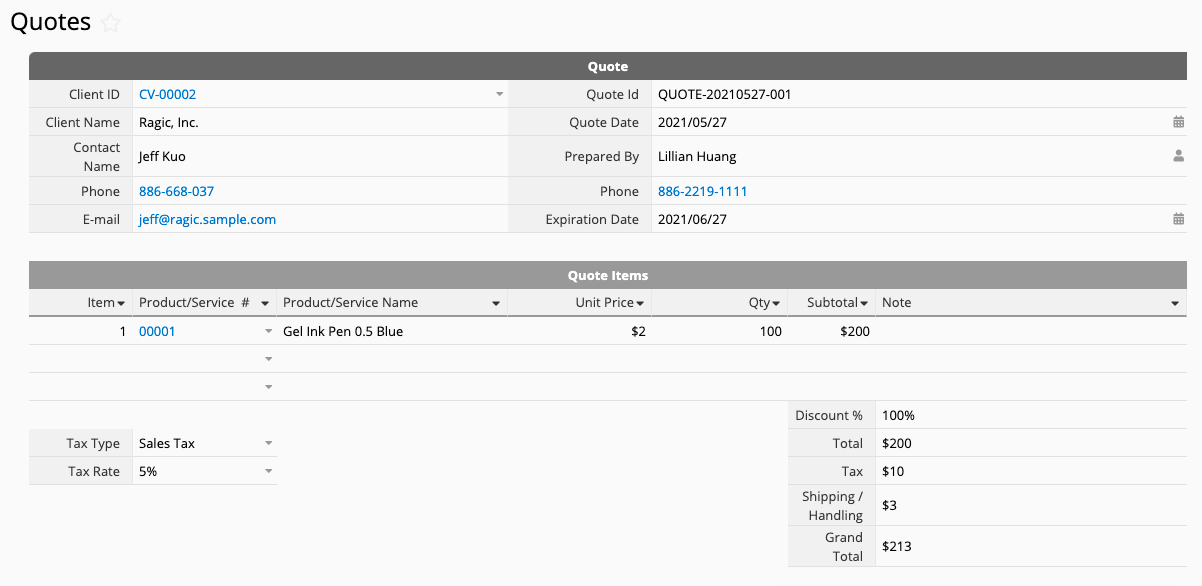
Once you're done entering information, you can select the Printer Friendly function from the Tools menu, or click Email This Entry to directly send the quote to your client.
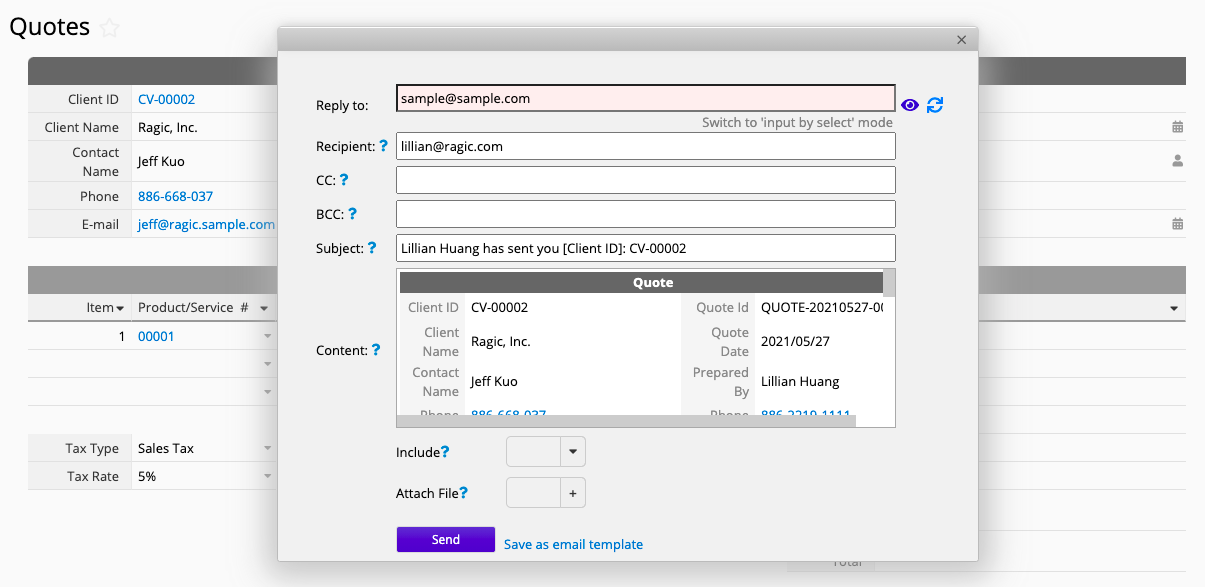
If you need to make changes to the contents of the email, you can refer to this section.
If you want to embellish your quote with some elaborate formatting to export, refer to the Mail Merge and Custom Print Report.
When a client signs off on a quote and a transaction is complete, the next step is to send an invoice to the client according to the details of the deal. The invoice may have been derived from a specific quote, or a deal that was agreed upon without a quote.
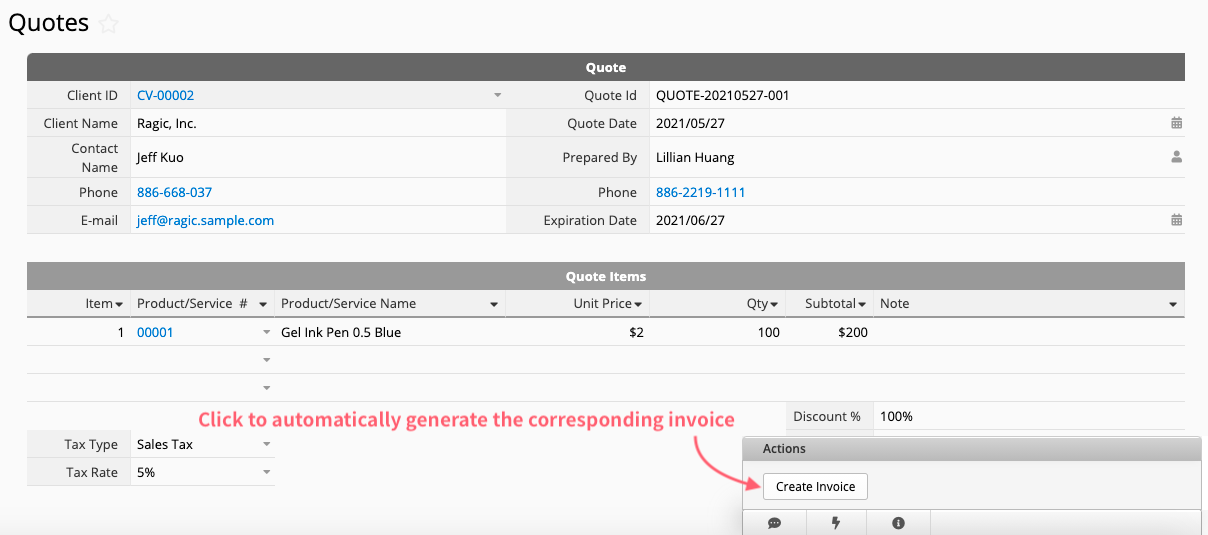
For the former, you can navigate to the quote sheet and use the "Create Invoice" Action Button in the bottom right corner to generate the corresponding invoice:
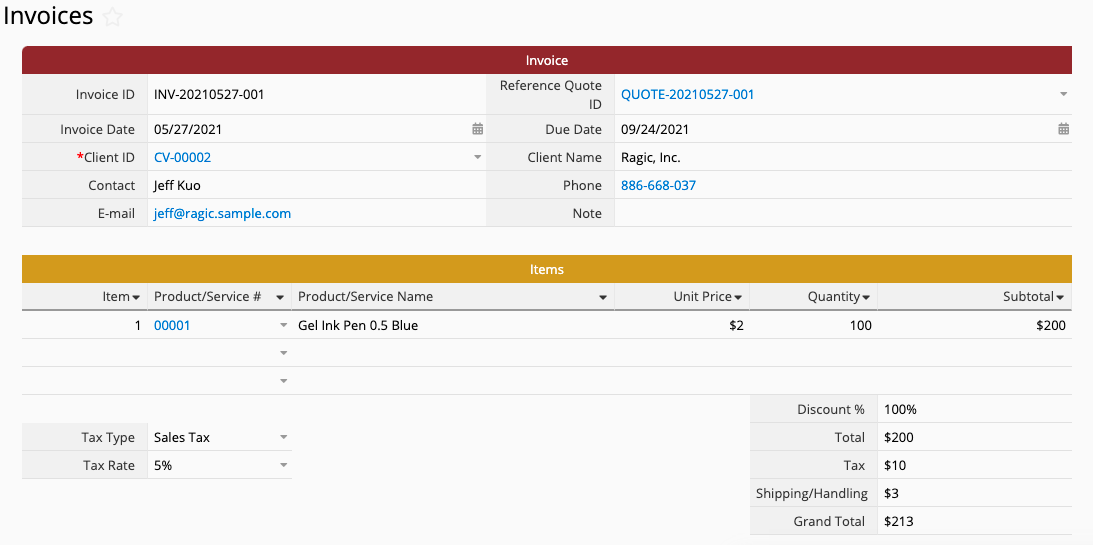
Click the Convert Records button to automatically fill in the corresponding fields and generate a new invoice:
If it's a transaction that was made without a quote, then just fill in the fields directly, save, and you're done!
Scroll down to the bottom of the "Invoices" to see a green section for payment information fields:

When payment has been received from the client, you can directly record information such as the payment date and who received it. Cash, check, or wire transfer are available as options for payment type. The system will display different fields depending on the type of payment method you have selected.
If you want to find invoices with outstanding payments, you can apply the "Overdue Invoices" view from the left sidebar.
The "Purchase orders" sheet is designed very similarly to the "Quotes". You only have to provide the Supplier ID, Request Date, and select the type and quantity of the product purchased.
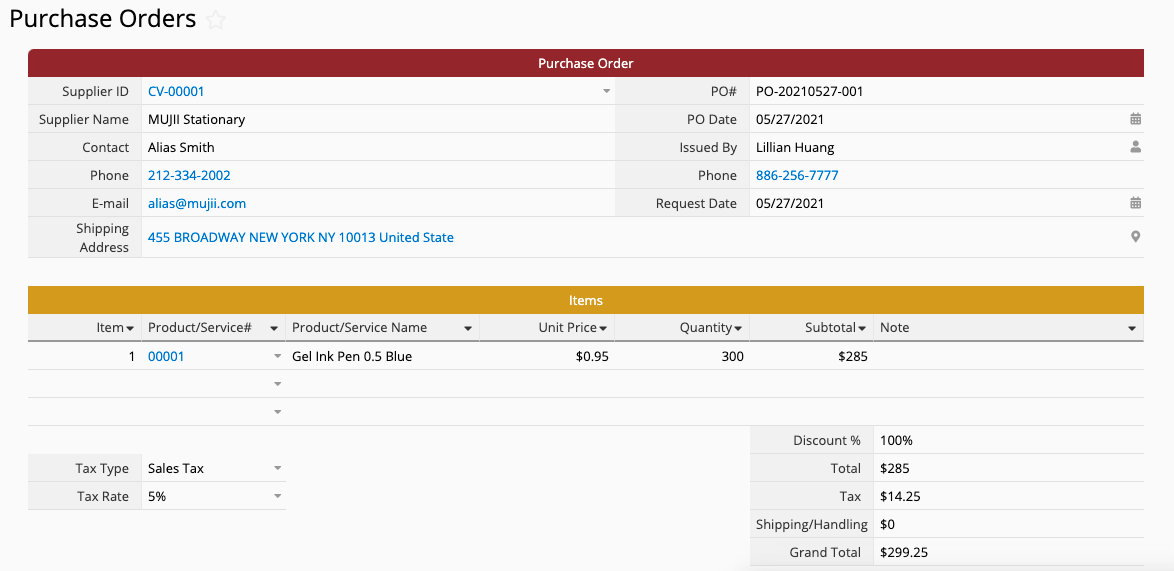
Much like invoices, bills can also be derived from a purchase order or directly created without one.
For the former, you can navigate to the "Purchase Orders" sheet and use the "Create Bill" Action Button in the bottom right corner to generate the corresponding bill.
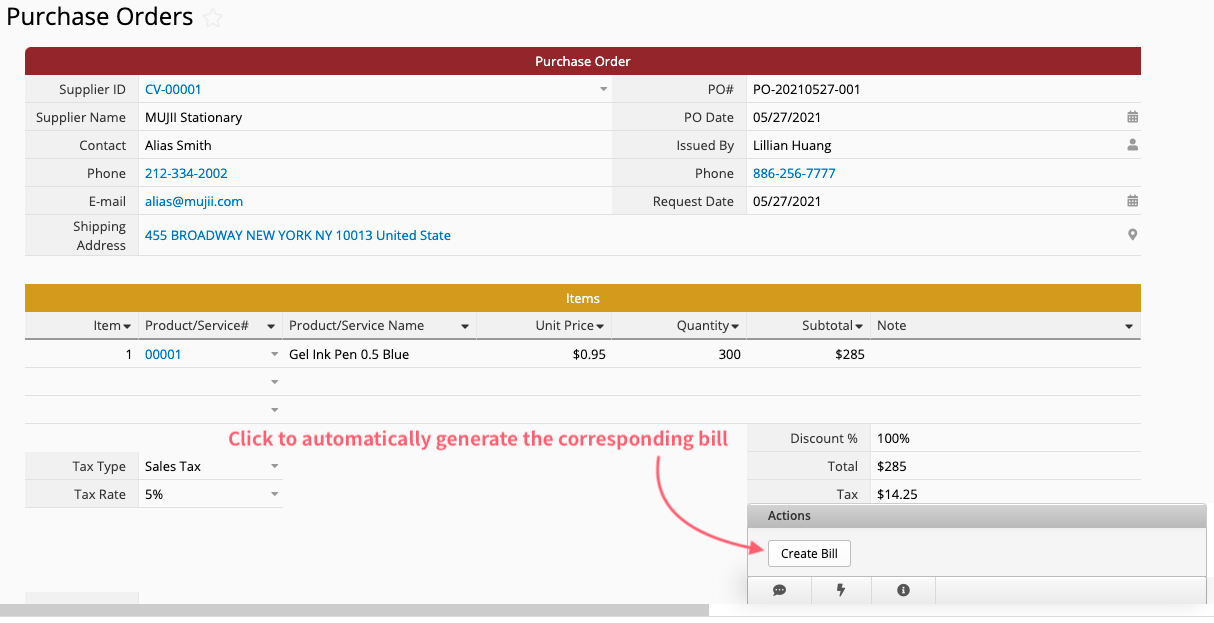
Press the Convert Records button to automatically fill in the corresponding fields and generate a new bill:
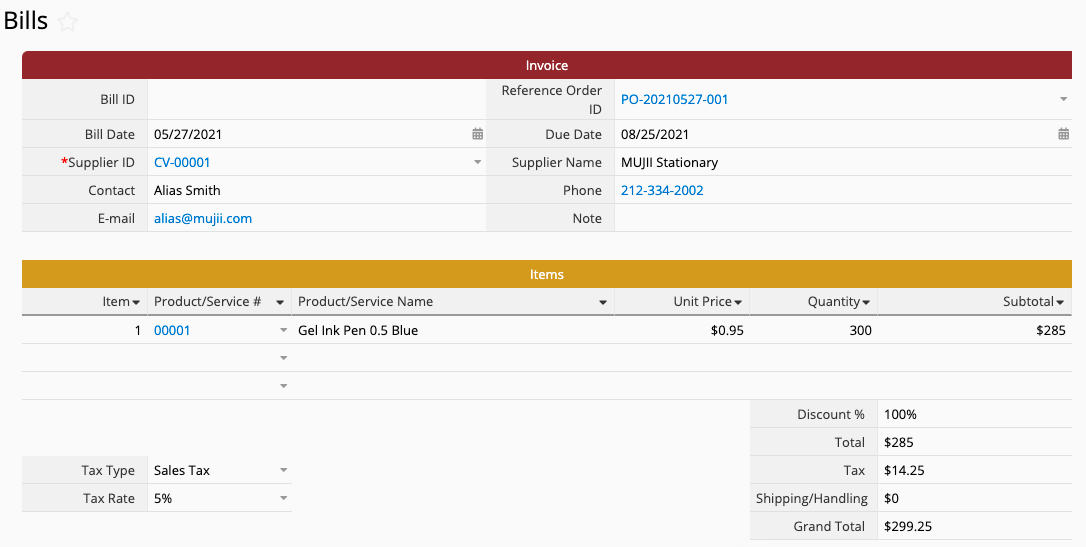
For a transaction that was finalized without a PO, you just have to manually enter it into the system once you've received the supplier's invoice.
The payment management process for bills is very similar to that for invoices. In the lower part of the "Bills" sheet, there's also a table for managing payment information.

When you have confirmed payment for the bill, you can directly record information such as the payment date and who processed it. Cash, check, or wire transfer are available as options for the payment type. The system will display different fields depending on the type of payment method you have selected.
If you want to find bills with outstanding payments, you can apply the "Overdue Bills" view from the left sidebar.
Currently, the most commonly used accounting titles are provided by default.
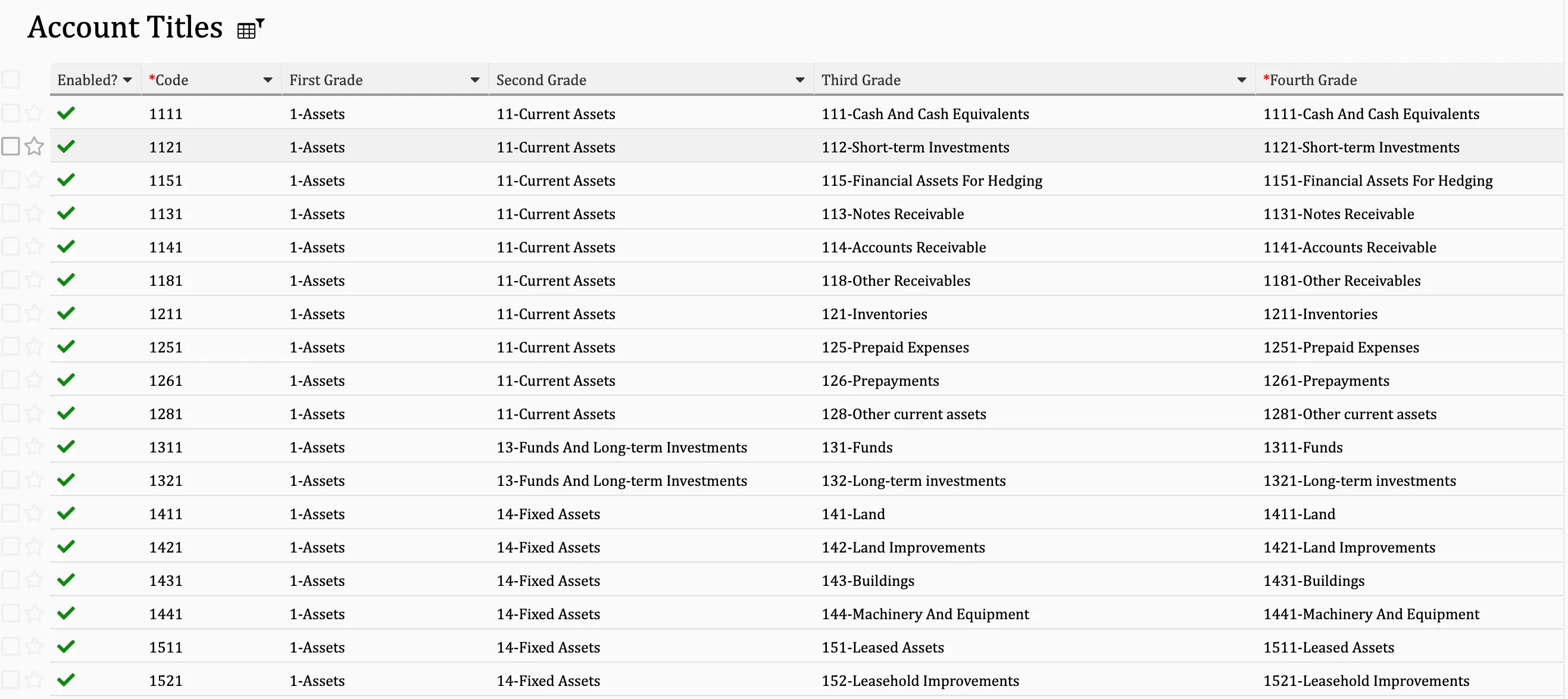
If you don't need all of these titles when writing your accounting statements, you can uncheck the "Enabled?" field, and it will no longer show up when you are creating journal entries. That's time saved from sifting through titles! Conversely, if there are titles you commonly use that are not listed, you can add them manually. Please refer to this article.
When adding new account titles, please follow the format:
xxxx-account title
For example,
1111-Cash And Cash Equivalents
Please note that when you manually add a new account title, you must select the first, second, and third-grade code according to the system default, as this affects the generation of accounting reports later on. You should only set the fourth-grade titles yourself.
You can create entries for common journal entries here, with appropriate credit or debit titles. Then, you'll be able to select from these entries when creating invoices or bills. For example:

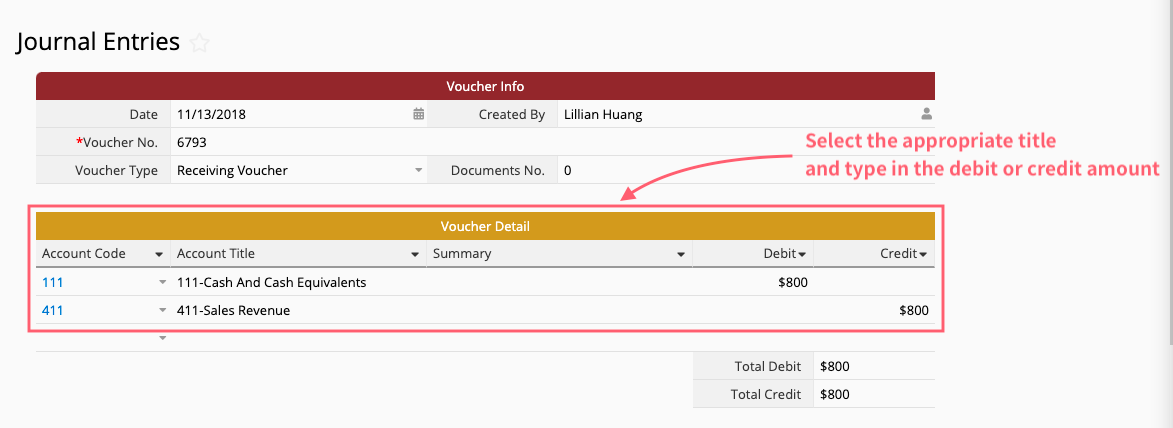
If the company needs to create financial statements, it can be done by completing the records in the "Journal Entry" sheet of the template. The template provides two ways of creating journal entries:
Method 1: Manually log in the journal entry
First, select the appropriate accounting title and type in the debit or credit amount.
Then, select "Product Invoice", "Other Invoice", "Material Bill", "Other Bill", or upload associated documents. You only need to fill in one field for each row in the Subtable. Note that the pop-up window only lists the bills or invoices without a voucher number. If the bill or invoice you are looking for has already been referenced in other vouchers, you have to click the Clear Filter button on the top to find the documents that have already been referenced.
Method 2: Create via "Create Journal Entry" Action Button
In any entries of the invoices or bills, you can fill in the "Journal Name" field and click on the "Create Journal Entry" button to create a journal entry ":

If you don’t have the button mentioned above on your sheet, please refer to this article.
These two sheets were generated for data linking purposes. To avoid overwriting by accident, everything here is set to Read Only by default! If you need to add or remove data, go to the "Journal Entries" sheet. If you don't want users other than SYSAdmin to see these two sheets, you can turn off the Access Rights for all user groups for the two sheets, just don't delete them!
If you need to modify the template to create a system tailored to your needs, please refer to this article first. The following are some suggestions:
If any sheets need to be reviewed by a manager before the process can continue, you can consider adding an Approval Flow.
If your organization has a rather complex way of calculating compensation, we recommend trying New Sheet from Subtable to create a new sheet from"Employee Payroll". You can perform the detailed calculations for the compensation in the new sheet, then display the final result in "Employee Payroll" to keep it clean, concise, and free of clutter.
If you're worried about missing bill deadlines, you can consider setting a Reminder for the due date. Once you have the reminder set up, the system will automatically email you a notification according to your settings.
Any suggestions for the "Accounting (Lite)" template? Shoot us an email at support@ragic.com! We'd love to hear from you.
 Thank you for your valuable feedback!
